Installation and setup
Learn how to install and setup the necessary software from Native Access to start making music with Jam Bass. Follow these instructions to get started.
Before making music with Jam Bass, you must install and set up the necessary software. Follow these instructions to get started.
Installing Jam Bass using Native Access
Native Access is your go-to app for downloading, activating, and updating all your NI music creation tools including Jam Bass. If you are new to Native Instruments, you will first have to create your Native ID user account. To learn more about Native Access, visit our support page.
Download and install Native Access here.
Open the Native Access application.
Create a Native ID, if you do not have one already.
Login to Native Access using your Native ID.
Click Library on the left side of Native Access.
Click Available at the top of Native Access.
Click the Kontakt category to only show products related to Kontakt.
Click Install for the following products:
Jam Bass
Kontakt or Kontakt Player
The software is installed automatically.
Note
If the software is already installed, click the Updates tab and install the available updates before proceeding.
Loading Jam Bass in Kontakt
Once installed, you can start using Jam Bass in Kontakt. Jam Bass is not an independent plug-in, so you first need to open an instance of Kontakt or Kontakt Player:
Open Kontakt as a plug-in in your host software (DAW) or as a stand-alone application.
Locate Jam Bass in the Browser, on the left side of the user interface.
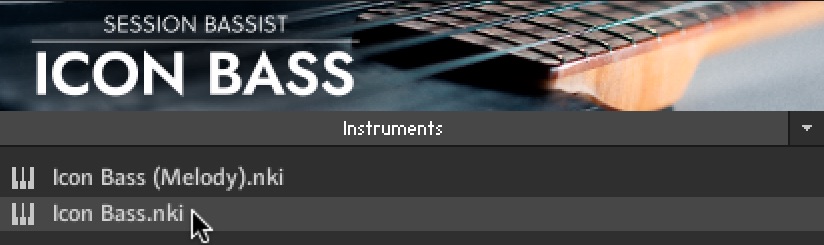
Click Instruments to open the product's content.
Double-click the Jam Bass.nki file to load the instrument.
Tip
If you are new to Kontakt and want more information, visit Kontakt Player and Kontakt.