Spotlight Collection: Ireland Overview
The Spotlight Collection: Ireland Perform page consists of key controls that allow you to tweak your sound, and provides access to a number of specialized editing pages.
Spotlight Collection: Ireland offers a comprehensive yet intuitive interface suitable for both intricate performances as well as quick-starting ideas. The instrument’s interface and features are divided into five views: Perform, Scale, Mixer, Mapping, and Options, accessed via the Navigation bar visible in the Main view.
The following elements and controls are available in Spotlight Collection: Ireland's main view:
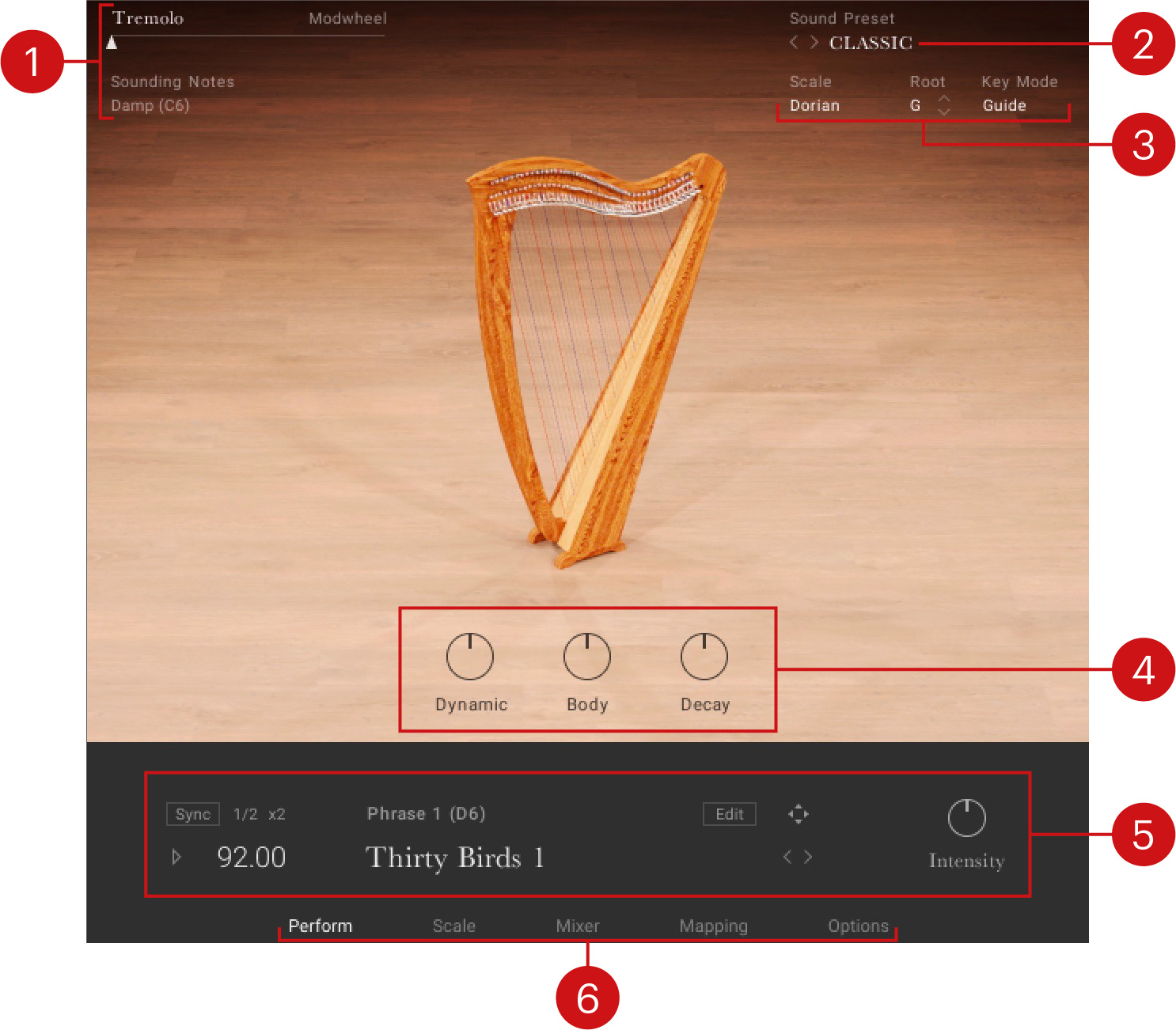 |
Performance Slider: Changes the amount of musical effect applied to the instrument to create more expressive and authentic performances. Moving the slider to the right increases the intensity of the performance effect. For more information, refer to Performance Slider.
Sound Preset: Enables you to browse the preset sounds. For more information, refer to Sound Presets.
Scale Controls: Enable you to browse between and make settings relates to the scales. For more information, refer to Scale Controls.
Instrument Controls: Adjust the sound and dynamics of the instrument. For more information, refer to Instrument Controls.
Phrases and Patterns: Enables you to browse and edit the musical phrases and rhythmical patterns included with each instrument and adjust the performance controls of the played phrase. For more information, refer to Phrases.
Navigation: Enables you to navigate between pages of the instrument. For more information, refer to Navigation.
Navigation
Spotlight Collection: Ireland contains five pages accessible from the tabs at the bottom of the instrument's interface.
To open a page, click on the respective tab.
The Navigation section contains the following pages:
 |
Perform: Displays the main view, which contains the instrument controls and the pattern controls. For more information, refer to Perform Page.
Scale: Contains settings relating to the scale, notes, ornaments, and other parameters. This page is only available when using melodic instruments. For more information, refer to Scale Page.
Mix: Contains the mixer controls and effects. For more information, refer to Mixer Page.
Mapping: Displays the keyboard mapping for the instrument. For more information, refer to .
Options: Contains a number of performance and MIDI customization options. For more information, refer to .
Performance Slider
The Performance slider controls a key aspect of the instrument's sound, for example tremolo or the dynamics. It is mapped to the modulation wheel by default. It displays the current value of the modulation wheel, and can be used to adjust the sound when using the software without a keyboard controller.
Tip
You can deactivate the mapping of the Performance slider in the Controller section of the Options page. For more information, refer to Options PageOptions Page.
The Performance slider provides the following options and controls:
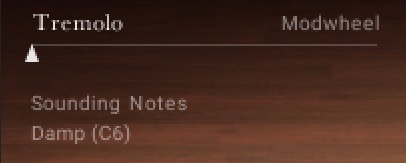
Performance Slider: Adjusts the intensity of the assigned articulation. This can be used to add expression for a more authentic performance. The intensity of the assigned articulation can also be adjusted with your MIDI keyboard's Modwheel (default control: CC1). Depending on the loaded instrument, the Performance slider controls the following articulations.
Tremolo: Controls the intensity of the tremolo. Tremolo is assigned to most plucked instruments.
Dynamic: Controls the dynamics of the instrument. Dynamic is assigned to the wind and bowed instruments.
Fill Speed: Controls the speed of the selected drum fill. A drum fill is a short, improvisational transition between parts of a song, like a brief drum solo that fills a gap between musical phrases. With the Performance Slider in the far left position, fills are played at 1/16th notes. In the far right position, they increase to 1/32nd notes. Fills can also be set using keys in the range C2 - B2. This feature is only available for solo percussion instruments.
Sounding Notes: Triggers an assigned Performance or Key Switch directly from the software. Typically this is a function that will affect sounding notes. Each melodic instrument has its own set of assignments that can be viewed on the Mapping page. For more information on assignments, refer to the Mapping PageMapping Page. Here is a list of the assignments available directly from the software:
Damp: Dampens all notes that are currently playing. Damping can also be performed by using the keyswitch B1.
Fade: Fades the currently her note, also possible by playing note C#1.
Beater: Selects the type of beater used in the Bodhran instrument, Hotrod, Stick, or Hand.
Sound Presets
To the top right of the interface, is the Sound Preset menu. From here, you can browse through presets that affect the mix of the instrument. The presets are useful for different mix applications, such as making the instrument play only in mono or using an ambient setting to push the instrument further back in the mix.
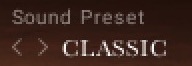
You can select presets using the Sound Preset menu:
Click on the menu to view all available Sound Presets.
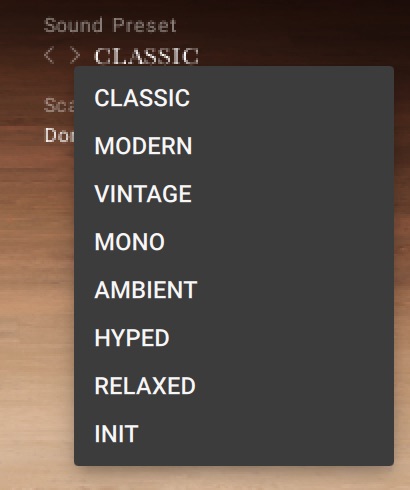
Click on a Sound Preset.
The selected Preset is loaded and the sound of the Instrument will change.
Alternatively, you can select presets using the buttons:
Click on the buttons to the left of the menu to cycle through the Sound Presets one at a time.
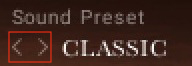
The previous or next preset is loaded immediately each time the arrow is clicked.
Scale Controls
Spotlight Collection: Ireland includes a selection of scales.
This section contains the following controls:
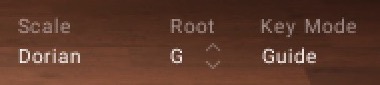
Scale: Changes Scale preset slots and displays the name of the selected preset. Each Scale preset slot contained in the drop-down menu can be assigned with different scales using the Scale Browser in the Scale Editor. For more information, refer to Scale Editor.
Root: Selects the root note of the scale. Use the up and down arrows to change the scale's root note up or down in one semitone increments.
Key Mode: Switches the MIDI note response of the instrument between Scale, Guide, Extended, and White Keys.
Scale restricts the notes on the keyboard according to the chosen scale.
Chromatic can be played chromatically, however notes not included in the chosen scale are highlighted on the Komplete Kontrol Light Guide.
Extended provides additional articulations on notes not included in the chosen scale.
White Keys works with seven-note scales and maps them only to the white keys (root note mapped to C).
Note
For more information on editing scales and ornaments, refer to Scale Page.