Layers tab
The Layers tab in LCO Producer Strings contains four instrument layers.
The Layers tab in LCO Producer Strings contains four instrument layers. Each layer can load a different instrument, and you can control whether it is active, swap it for another instrument, adjust its parameters, or add modulation.
The Layers tab consists of the following elements and controls:
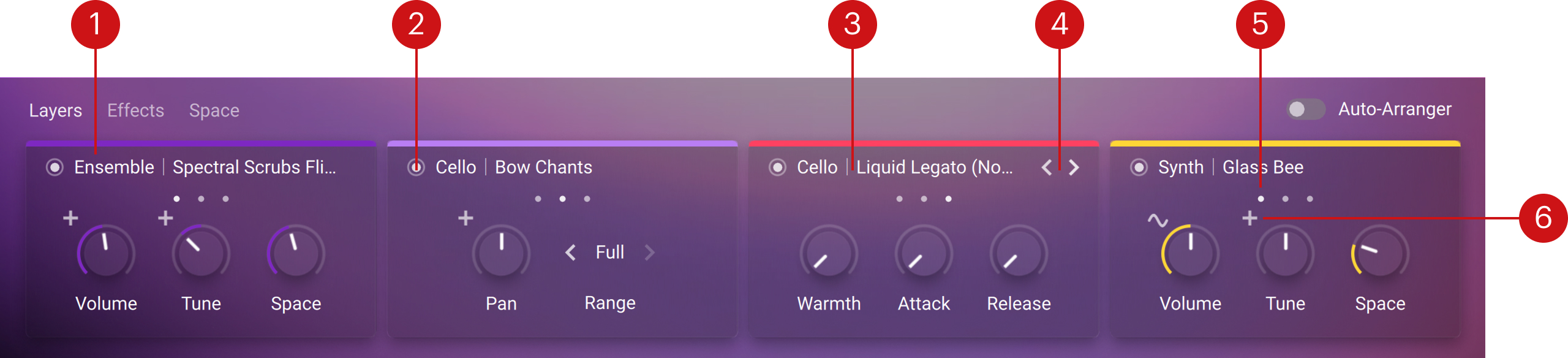
Layer: Displays the currently loaded instrument and its available controls. Each layer can be managed independently.
On/Off switch: Toggles the layer on or off.
Instrument name: Shows the instrument currently loaded in the layer. Clicking the name opens the Layer Preset browser, where you can choose another instrument. Refer to Layer Preset for more details.
Arrows (< >): Cycle through the available instruments.
Control groups (white dots): Each layer has three groups of controls:
Group 1: Volume, Tune, Space
Group 2: Pan, Range
Group 3: Warmth, Attack, Release
These groups are always the same, regardless of the instrument selected. You access each group by clicking on the white dot.
Modulation menu (+): Opens modulation options for certain controls (e.g., Volume, Tune, Pan). From here, you can assign modulation using Shape, Rate, and Amount. When a modulation is assigned to a control, the icon turns into a waveform.
Volume, Tune, Space
Each layer includes three controls that affect its overall level, pitch, and send to reverb:
Volume: Adjusts the loudness of the layer in the overall mix. The control can be modulated for dynamic changes over time.
Tune: Shifts the pitch of the layer up or down in semitones. The control can be modulated to create vibrato or pitch movement.
Space: Controls how much of the layer's signal is sent to the reverb in the Space tab.
Notice
The Space control in each layer is the same as the corresponding Layer control in the Send Levels section of the Space tab.
These controls are always available for every layer, regardless of the instrument selected.
Pan, Range
Each layer includes two controls that determine stereo placement and playable span:
Pan: Positions the layer within the stereo field. The control can be modulated to create movement across and right channels.
Range: Sets the playable of the instrument, allow you to switch between Real (natural range) and Full (extended range).
These controls are always available for every layer, regardless of the instrument selected.
Warmth, Attack, Release
Each layer includes three controls that shape its tonal character and response:
Warmth: Controls the low frequency boost/cut of the sound.
Attack: Controls how quickly the sound begins after a note is played.
Release: Controls how long the sound continues after a note is released.
These controls are always available for every layer, regardless of the instrument selected.
Modulation
You can add modulation to certain layer controls (Volume, Tune, and Pan). Modulation introduces movement and variation over time, making the sound more dynamic.
To add modulation, click the + symbol above the supported control.
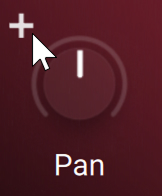
This opens the modulation menu, where you can adjust the following parameters:
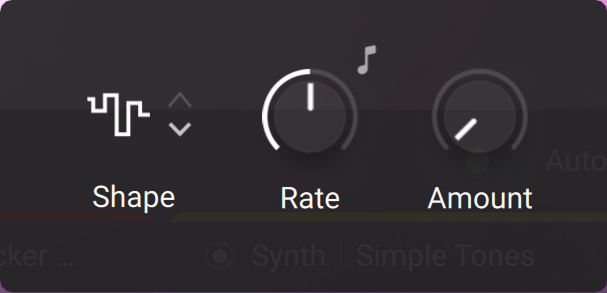 |
Shape: Selects the modulation waveform (for example, sine, square, triangle, or random). The shape determines the contour of the modulation.
Rate: Sets the speed of the modulation. Higher values increase how quickly the control changes. To synchronize the time to your host or master editor tempo, click the 8th note symbol above the control and use Rate control to choose a note length value.
Amount: Defines the modulation depth. Higher values produce stronger changes to the control.
Each layer can have multiple modulated controls, and each modulation is independent. Closing the menu keeps the modulation active until it is manually removed or adjusted.
To remove modulation from a control, open its modulation menu and set Amount to zero.