Morpher
The Morpher lets you adjust every control in SuperStarSaw at once.
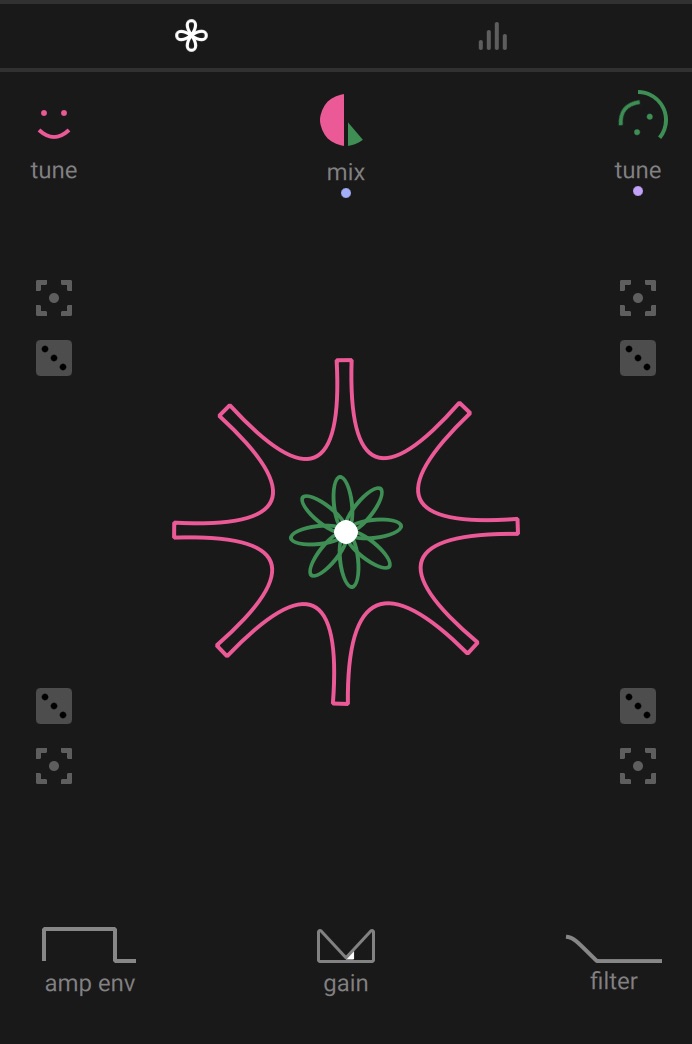
The Morpher lets you adjust every control in SuperStarSaw at once. Make subtle variations at each corner of the morph area for expressive performance of your sounds, or create completely different states at each corner for wild and dynamic results.
 |
Using the Morpher
By clicking one of the Capture buttons (target icon) found in each corner of the morph area, a snapshot is taken of all controls in the instrument. You can save a different captured state to each corner of the morph area. Clicking and dragging within the morph area will then smoothly morph between the captured snapshots. A capture doesn’t just include the main instrument controls, but effects, modulation, and even modulation assignments are all included in a captured state.
Surrounding the Morpher, you will also find further essential sound controls. The Tune controls for each Swarm adjust the main pitch of Swarm 1 and 2 respectively, and the Mix control adjusts the balance between the two Swarms.
The Amp env panel contains controls for the main amplitude envelope, which determines the volume contour of your sound. It is an analog-style envelope generator, with controls for the attack (Att), decay (Dec), sustain (Sus), and release (Rel) stages. Turning Sync on lets you set envelope times to divisions of your song tempo. When Vel is enabled, the envelope responds to how soft or hard a key is pressed.
The Filter panel contains controls relating to the resonant filter, which shapes the tone and color of the sound. The Morph control adjusts the filter mode, with smooth morphing between low-pass, band-pass, and high-pass filter modes. The Freq control adjusts the point from which the filter will remove frequency content, while Slope determines how aggressively the filter will roll off frequencies. The Res control adjusts how strongly the filter will emphasize frequency content around the filter frequency. Finally, use key tracking (Keytrk) to adjust how much the filter frequency will follow the pitch of the notes you play.
Note
To learn more about a control, hover your mouse over it to show a description in the info pane at the bottom of the instrument.