Overview
SuperStarSaw gives you both playful and deep control over its sound engine in three tabbed panels. To get you started, the header at the top lets you match the key of your song using the Scale function, and gives you access to all of the instrument's more than 200 carefully crafted presets.
Tip
Each preset has been designed to give you exciting sound variations depending on how you play it – try different patterns, play with the Morpher, and use the modulation wheel to explore the full range of the sound.
In the central panel, you can play with the Morpher, randomize controls, and find key controls like the amp envelope and the filter. Alternatively, you an switch the central panel to the voice controls including settings relating to pitch bend, glide, and polyphony.
In the left area, you can dial in exactly how the Swarms generate their stacks of sawtooth waves. Each of the two Swarms has its own dedicated tab. In the right area, you can either view the effects or the modulation sources.
The footer at the bottom shows valuable information about the control you are currently using so you can learn as you go. By clicking on the Help button in the bottom right corner you can access this guide as well as the walkthrough video at any time.
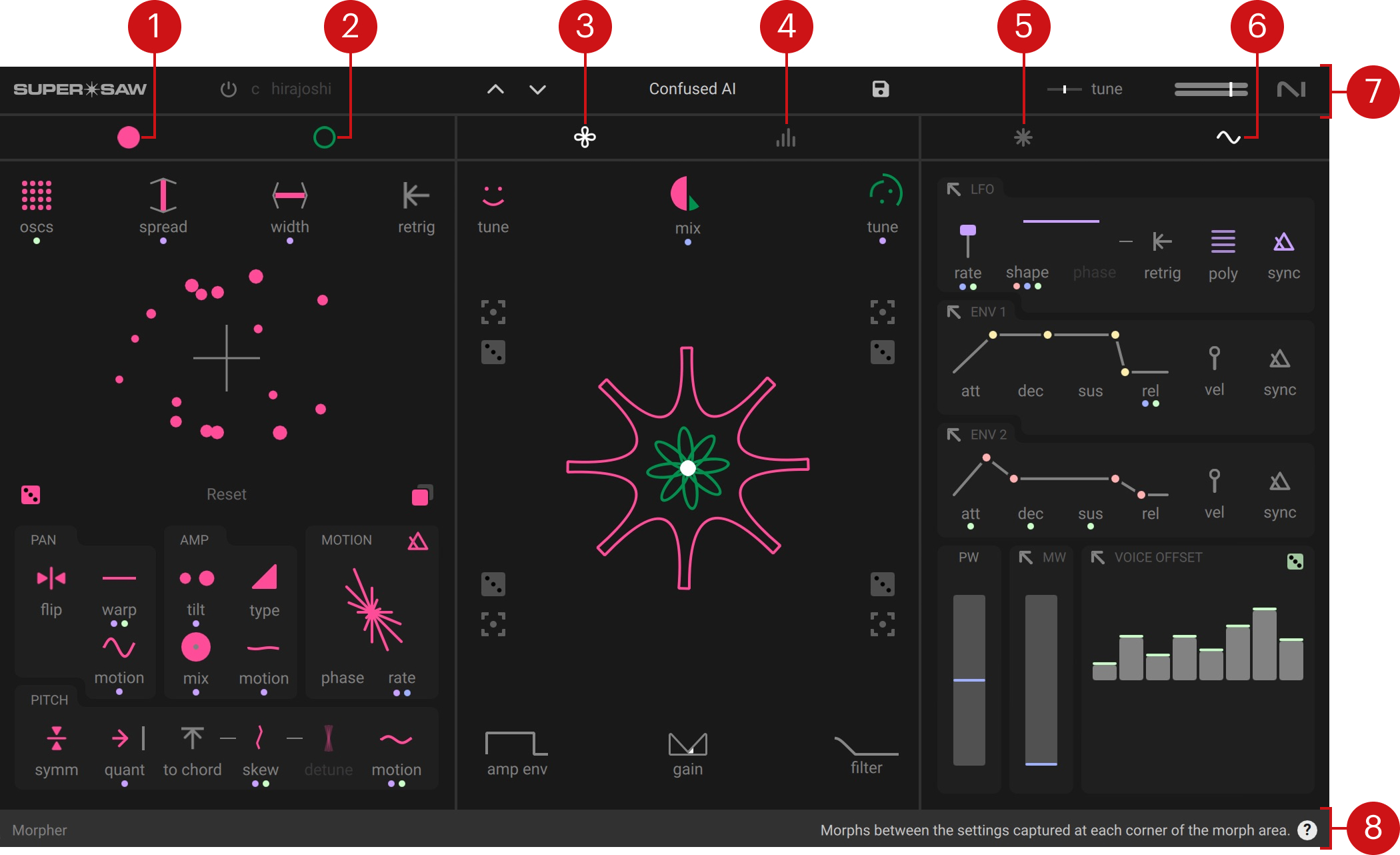
Swarm 1: Switches the view of the left panel to Swarm 1, a stack of up to 16 sawtooth oscillators that can be transformed creatively in many different ways. You can find more information in Swarms.
Swarm 2: Switches the view of the left panel to Swarm 2, a stack of up to 16 sawtooth oscillators that can be transformed creatively in many different ways. You can find more information in Swarms.
Morpher: Switches the view of the central panel to the Morpher, an XY pad that lets you explore sounds interactively, as well as essential sound controls. You can find more information in Morpher.
Voice controls: Switches the view of the central panel to the global voice controls, including pitch bend, glide, unison, and more. You can find more information in Voice controls.
Effects: Switches the right panel to the effects, including chorus, delay, and reverb. You can find more information in Effects.
Modulation: Switches the right panel to the modulation controls, including the LFO, envelopes, pitch and mod wheel, and the unique voice offset. You can find more information in Modulation.
Header: Gives you access to the Scale function that lets you match the key of your song, the preset browser, and global pitch and volume controls.
Footer: Shows you information about each control upon mouse hover, including the current value, the assigned modulation amounts, and a description of what the controls does.
Note
You can reset a control to its default value using Command (macOS) / Ctrl (Windows) + click, and you can adjust a control at finer resolution by using Shift + drag.