Auto divisi settings
The Auto divisi settings let you adjust the behavior of Cremona Quartet Ensemble’s advanced auto divisi system.
The Auto divisi settings let you adjust the behavior of Cremona Quartet Ensemble’s advanced auto divisi system. The auto divisi system dynamically distributes single notes and chords of up to four notes to the four instruments in the ensemble. It notably provides the following features:
Dynamic instrument assignment: Play one note and get one instrument. The natural range of the instruments will define which instrument is playing. Adding more notes to the chord adds more instruments. You can pause instruments by releasing the corresponding key.
Polyphonic legato: Moving notes within a chord will produce natural legato transitions for all long articulations. Cremona Quartet Ensemble provides polyphonic legato for all four instruments to ensure realistic transitions for the entire quartet.
Solo melodies: You can play legato melodies on any of the four instruments by playing the next note shortly before you release the previous note.
Note
This section describes the settings for the auto divisi system. The other settings of Cremona Quartet Ensemble are available in the Settings page. Refer to Settings page for more information on these.
To display the Auto divisi settings, do the following:
Click the Auto Divisi Settings button (the icon showing little sliders) at the bottom of the instrument to show or hide the Auto divisi settings.
The various elements in the Auto divisi settings are active only if the auto divisi is on (Auto divisi switch turned on at the bottom of the window). If the auto divisi is off, the elements described here are grayed out and inactive.
 |
The Auto divisi settings illustrate the path of the played notes vertically from top to bottom, starting from the incoming MIDI note at the top, through the auto divisi parameters in the middle, down to the resulting distribution across the four instruments at the bottom. The Auto divisi settings contain the following controls:
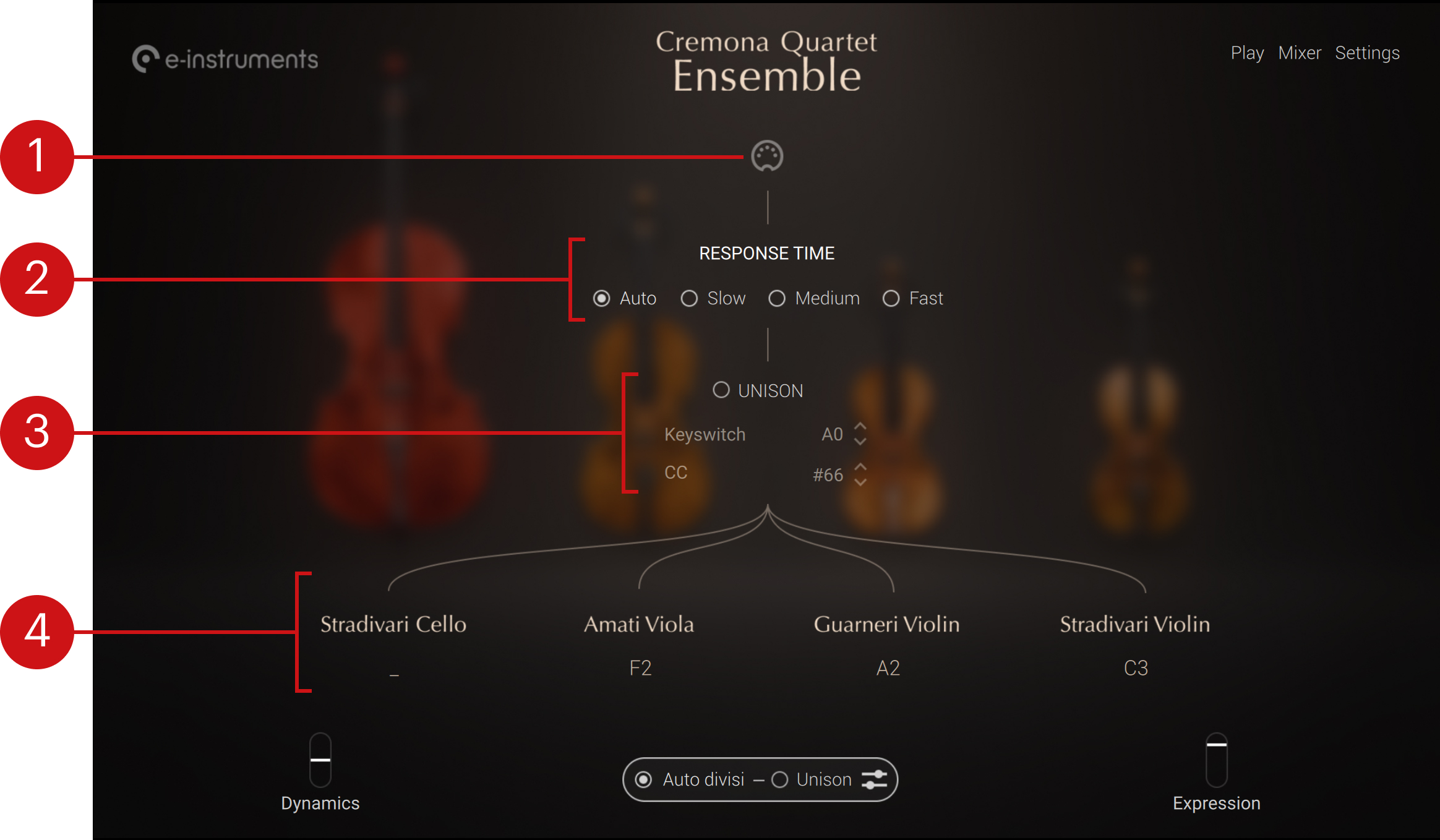
Note input (MIDI socket icon): Turns on when a MIDI note comes in, for example as you press a key on your MIDI keyboard.
RESPONSE TIME: Adjusts how long the auto divisi system will wait to decide whether:
a group of played notes is considered a chord or not. If the notes are played tightly enough, they are considered a chord and will be assigned to distinct instruments.
two following notes are considered part of a solo melody or not. If the first note is released shortly enough after the new note has been played, they are considered a solo melody and will be assigned to the same instrument.
The default Auto setting is the best choice in most situations, especially when playing live on a keyboard. You can select Slow if the chords or notes are played less precisely. For quantized chords, you can use the Fast setting as this provides the quickest response.
UNISON: Forces all four instruments to play together. For example, if you press a single key all four instruments will play that note. If the note is outside the natural range of either instrument, it will play the note at the closest octave within its range. The UNISON on/off switch turns unison on or off. This switch is the equivalent of the Unison on/off switch available at the bottom of the window. The Keyswitch field lets you choose a key that will temporarily activate unison (by default A0). This keyswitch is indicated by the pink key on Kontakt’s on-screen keyboard and on your Kontrol S-Series keyboard. The CC field lets you select a MIDI CC number that will permanently turn unison on or off. In either Keyswitch or CC field, you can click the up/down arrows to select the next/previous value, or click the value and drag your mouse vertically to adjust it in greater jumps.
Instrument distribution: Shows which note is played by which instrument in the quartet.