Play page
The Play page is the default page of Cremona Quartet Ensemble. It shows the four instruments of the ensemble and lets you combine their articulations.
The Play page is the default page of Cremona Quartet Ensemble. It shows the four instruments of the ensemble along with their current articulations, and lets you configure the articulation for each instrument.
To display the Play page, do the following:
Click Play at the top right of the instrument to display the Play page.
By default the Play page contains the following controls:
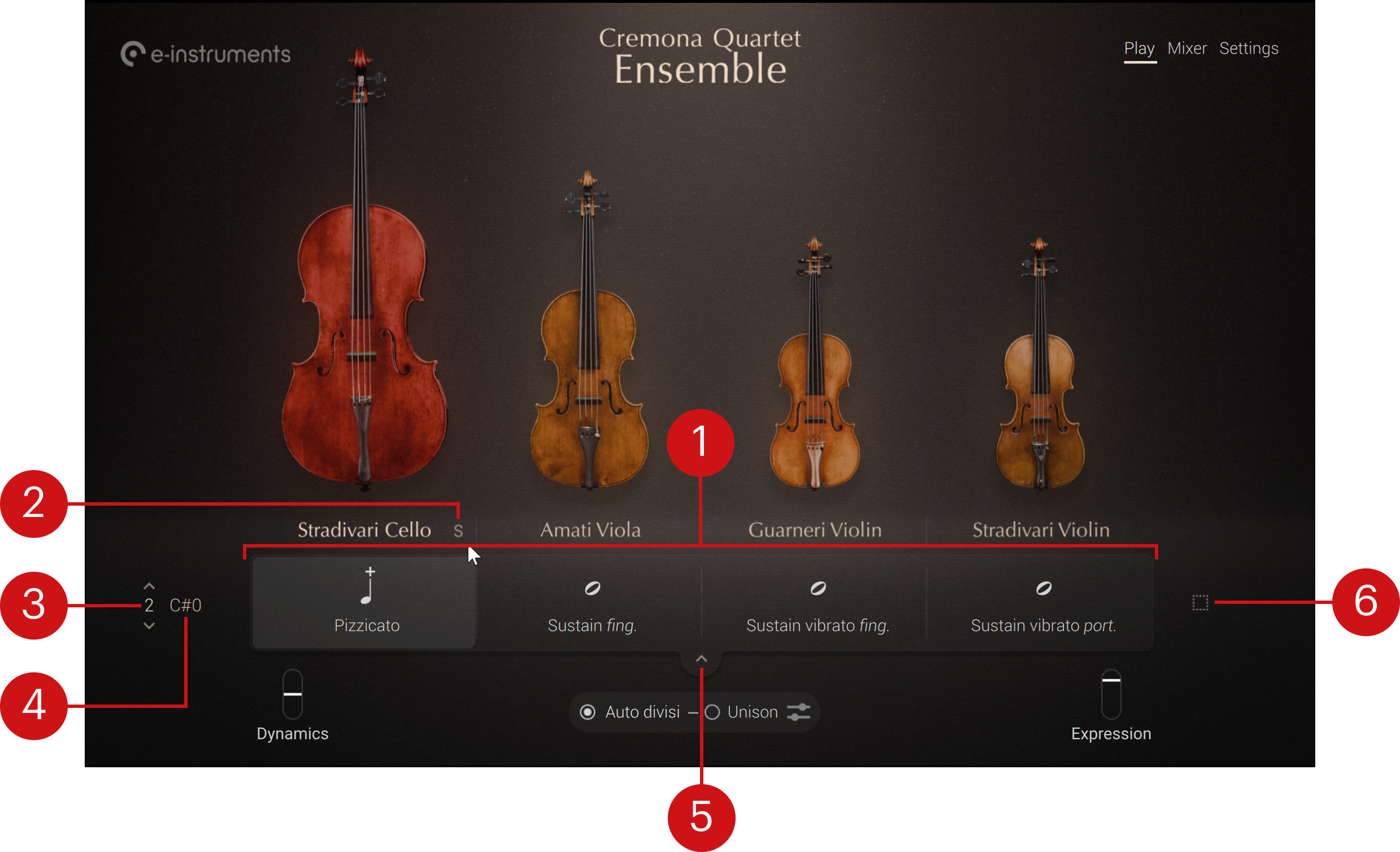
Articulation row: Contains four cells showing the current articulations for the four instruments. You can switch to another set of four articulations by pressing its keyswitch on your keyboard or by selecting another row number on the left. Clicking a cell or the instrument name above it selects this cell and opens the Articulation Browser in the upper part of the Play page, where you can choose another articulation for that instrument. For more information on the Articulation Browser, refer to Articulation Browser.
Solo button (“S”): Mutes all other instruments in order to hear this instrument alone. The solo button appears when hovering your mouse over the instrument. Only one instrument can be switched to solo at a time. It is a pure audio solo: the auto divisi remains active. This solo button is the equivalent of the instrument’s solo button in the Mixer page. Refer to Mixer page for more information.
Articulation row number: Shows the number of the current articulation row. You can click the little up and down arrows above and below the number to select the previous or next articulation row, making its articulations directly available on the four instruments.
Articulation row keyswitch: Shows the keyswitch assigned to the current articulation row. This keyswitch is indicated by a red key on Kontakt’s on-screen keyboard and on your Kontrol S-Series keyboard. Pressing the corresponding key on your keyboard will select that articulation set. When hovering the keyswitch field with your mouse, little up/down arrows appear right of it: You can click these up/down arrows to set the keyswitch to the next/previous key, or click the key value and drag your mouse vertically to adjust the keyswitch in greater jumps. At the bottom of the value range, you can set the keyswitch to Off to deactivate it.
Articulation Matrix button: Opens the Articulation Matrix. The Articulation Matrix shows four articulation rows at once instead of a single row. This helps you quickly compare and configure multiple sets of articulations. Refer to Articulation Matrix for more information.
Select Row button: Selects all four cells and opens the Articulation Browser in the upper part of the Play page, where you can choose an articulation for all instruments at once. For more information on the Articulation Browser, refer to Articulation Browser. You can click the Select Row button again to deselect all four articulation cells and close the Articulation Browser.
Articulation Browser
The Articulation Browser lets you select another articulation for a particular instrument or for the whole quartet. You can open the Articulation Browser from the Play page by clicking the articulation cell that you want to modify or by clicking the Select Row button on the right. While the Articulation Browser is open, you can click another cell or an entire row: The articulation that you choose in the Articulation Browser will replace the current articulation in the selected cell(s).
Note
When the Articulation Matrix is displayed, the Articulation Browser has a slightly thinner shape than when a single articulation row is displayed. Apart from that, it has the exact same functionality in both cases. For more information on the Articulation Matrix, refer to Articulation Matrix.
The Articulation Browser contains the following controls:
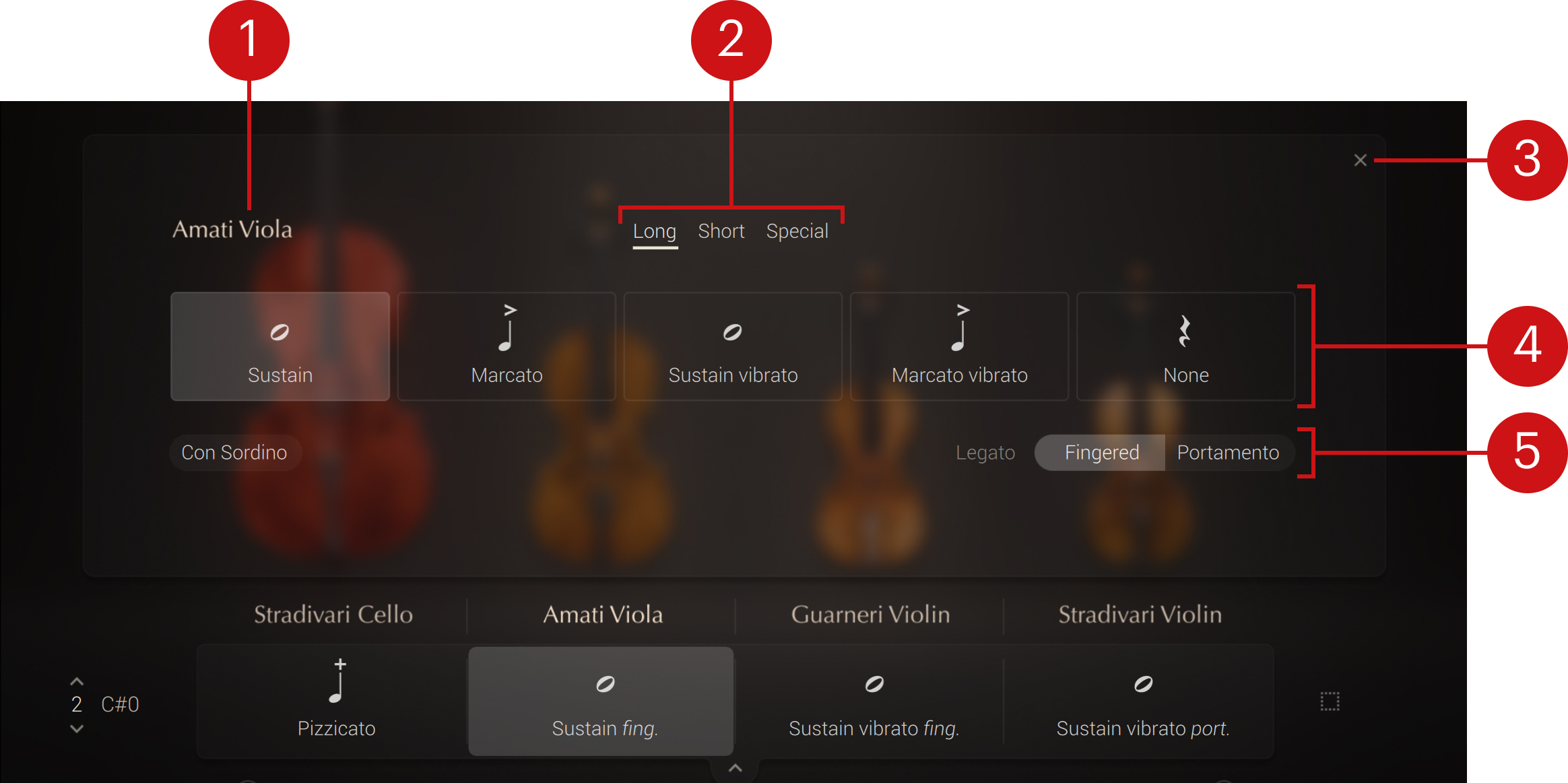
Instrument name: Shows the instrument for which you are choosing an articulation. If you have clicked the Select Row button, the name reads Ensemble and the chosen articulation will apply to all four instruments.
Category filter: Selects a category of articulations. The articulations in the selected category are displayed below.
Close button (“x”): Closes the Articulation Browser. If the Articulation Matrix was open, it is closed as well and the display switches back to the active articulation row.
Articulation list: Shows the articulations available in the selected category. You can click the desired articulation to load it for the selected instrument (indicated in the top left corner of the Articulation Browser). The new articulation will take place into the corresponding cell of the active row below. In every category, you can select the None articulation to deactivate that instrument.
Articulation options: Some articulations provide additional settings to adjust their sound. These settings are not real-time control parameters, but instead further define the articulation loaded in the selected cell(s).
Note
For a description of all the articulations available in the Articulation Browser, refer to Available articulations.
Articulation options
Depending on the selected articulation, the following options are available at the bottom of the Articulation Browser:
For all articulations, a Con Sordino switch lets you activate a damper that both attenuates the instrument’s volume level and modifies its timbre.
Special category: The Tremolo and the Sautille provide a Speed slider adjusting how fast the articulation should be played. The Sautille provides an additional Sync button to synchronize the articulation speed with the global tempo of Kontakt (which is the tempo of your DAW if Kontakt is running as a plug-in). When you activate Sync, the Speed slider turns to a selector that lets you choose between 1x (normal speed) and 2x (double speed), the latter being useful in projects with a slow or very slow tempo.
Long category: All the long articulations provide a Legato selector. Legato is a musical term used to describe notes that are played smoothly and connected without silence in between. The Legato selector lets you choose between two variants of legato: in Fingered mode the connected notes are played using different fingers, whereas in Portamento mode the same finger slides from one note to the next note.
Articulation Matrix
The Articulation Matrix shows four articulation rows at once instead of a single row. This lets you easily compare and edit multiple sets of articulations. You can open the Articulation Matrix from the Play page by clicking the little up-pointing arrow below the articulation row:
 |
Most controls in the Articulation Matrix behave like their equivalents in the default one-row display, with only a few differences. The Articulation Matrix contains the following controls:
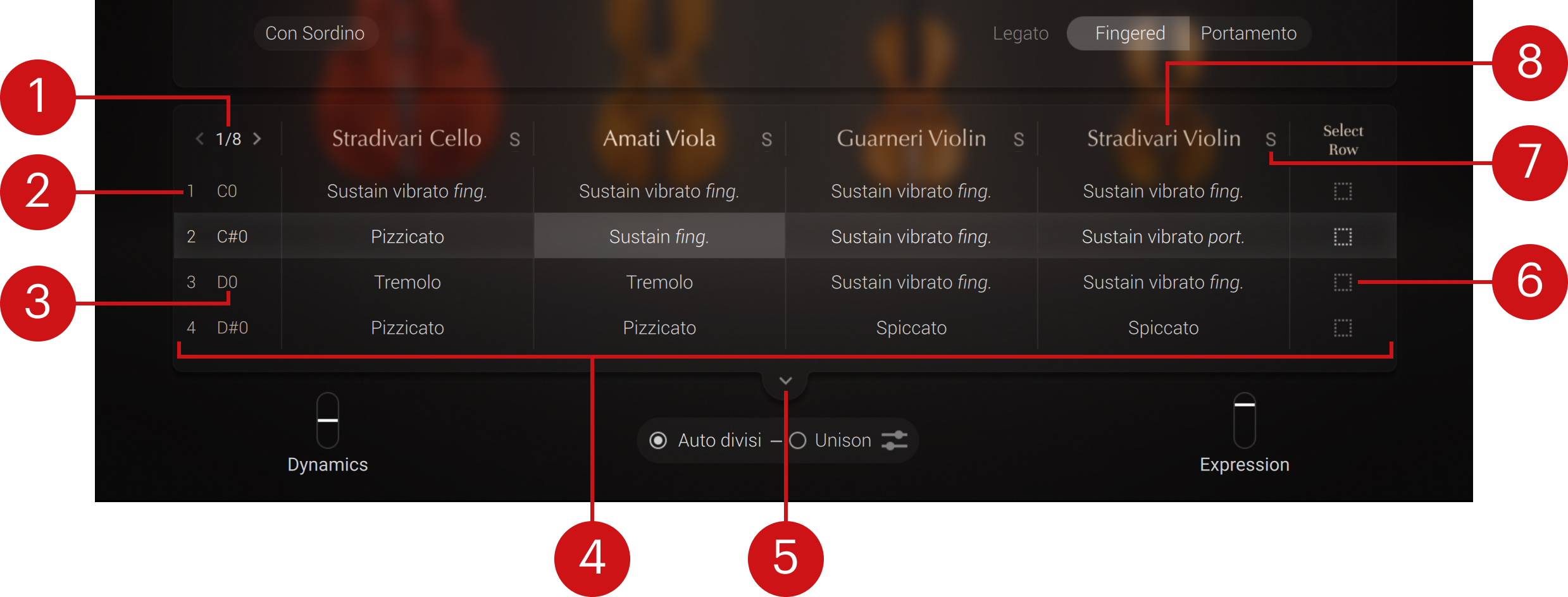
Page number: Indicates the current page. The articulation rows are organized into eight pages of four rows each. You can click the little left and right arrows around the page number to switch to the previous or next page.
Articulation row number: Shows the number of the articulation row.
Articulation row keyswitch: Shows the keyswitch assigned to the articulation row. This keyswitch is indicated by a red key on Kontakt’s on-screen keyboard and on your Kontrol S-Series keyboard. Pressing the corresponding key on your keyboard will select that articulation row. When hovering the keyswitch field with your mouse, little up/down arrows appear right of it: You can click these up/down arrows to set the keyswitch to the next/previous key, or click the key value and drag your mouse vertically to adjust the keyswitch in greater jumps. At the bottom of the value range, you can set the keyswitch to Off to deactivate it.
Articulation rows: Each row contains four cells corresponding to the articulations for the four instruments. The highlighted row represents the active set of articulations. You can switch to another set of articulations by pressing its keyswitch on your keyboard or by clicking anywhere in another row (possibly in another page). Clicking a cell activates its row and switches the focus of the Articulation Browser onto that cell, so that you can choose another articulation for that instrument. For more information on the Articulation Browser, refer to Articulation Browser.
Articulation Matrix button: Closes the Articulation Matrix and returns to the single-row display, which shows only the active set of articulations. For more information on the single-row display, refer to Play page.
Select Row button: Selects all four cells and opens the Articulation Browser, where you can choose an articulation for all instruments at once. For more information on the Articulation Browser, refer to Articulation Browser. You can click the Select Row button again to deselect all four articulation cells and return to the cell previously selected.
Solo button (“S”): Mutes all other instruments in order to hear this instrument alone. Only one instrument can be switched to solo at a time. It is a pure audio solo: the auto divisi remains active. This solo button is the equivalent of the instrument’s solo button in the Mixer page. Refer to Mixer page for more information.
Instrument name: Clicking the instrument name brings the focus of the Articulation Browser onto that particular instrument within the active articulation row.
Available articulations
This section describes all the articulations available in Cremona Quartet Ensemble, sorted by category.
Long articulations
The following long articulations are available:
Sustain: Plays long, sustained notes. This articulation is performed without vibrato.
Marcato: Play accented notes. Notes played in marcato are played with a stronger attack com pared to sustained notes. This articulation is performed without vibrato.
Sustain Vibrato: Play long, sustained notes. This articulation is performed with a progressive vibrato.
Marcato Vibrato: Play accented notes. Notes played in marcato are played with a stronger attack compared to sustained notes. This articulation is performed with vibrato.
For all these articulations, you can choose between two legato variants using the Legato selector. Refer to Articulation Browser for more information on these articulation options.
Short articulations
The following short articulations are available:
Spiccatissimo: A shorter and more accented version of the spiccato articulation.
Spiccato: Alternating bow strokes. The hair of the bow bounces off the string on each note change.
Pizzicato: The string is picked with the index finger of the bowing hand. The pizzicato creates a very different, almost percussive sound compared to bowing.
Special articulations
The following special articulations are available:
Tremolo: The note is played repeatedly with no specific accent with fast alternating bow strokes. You can use the Speed control in the articulation options to change the speed of the tremolo strokes.
Sautillé: Sautillé notes played repeatedly. You can click Sync in the articulation options to synchronize the notes with the global tempo of Kontakt (which is the tempo of your DAW if Kontakt is running as a plug-in), and use the Speed control to adjust the speed of the articulation. Refer to Articulation Browser for more information on these articulation options.
Sul Pont: The notes are bowed close to the bridge, resulting in a different timbre.
Harmonics: The notes are played by placing fingers gently on the strings, resulting in harmonic overtones.