Mixer page
The Mixer page lets you adjust the mix between the four instruments of Cremona Quartet Ensemble.
The Mixer page lets you adjust the mix between the four instruments of Cremona Quartet Ensemble. It provides level and pan controls as well as two send controls for the convolution reverb for each of the four instruments, along with a set of global mix controls.
To display the Mixer page, do the following:
Click Mixer at the top right of the instrument to display the Mixer page.
The Mixer page contains the following controls:
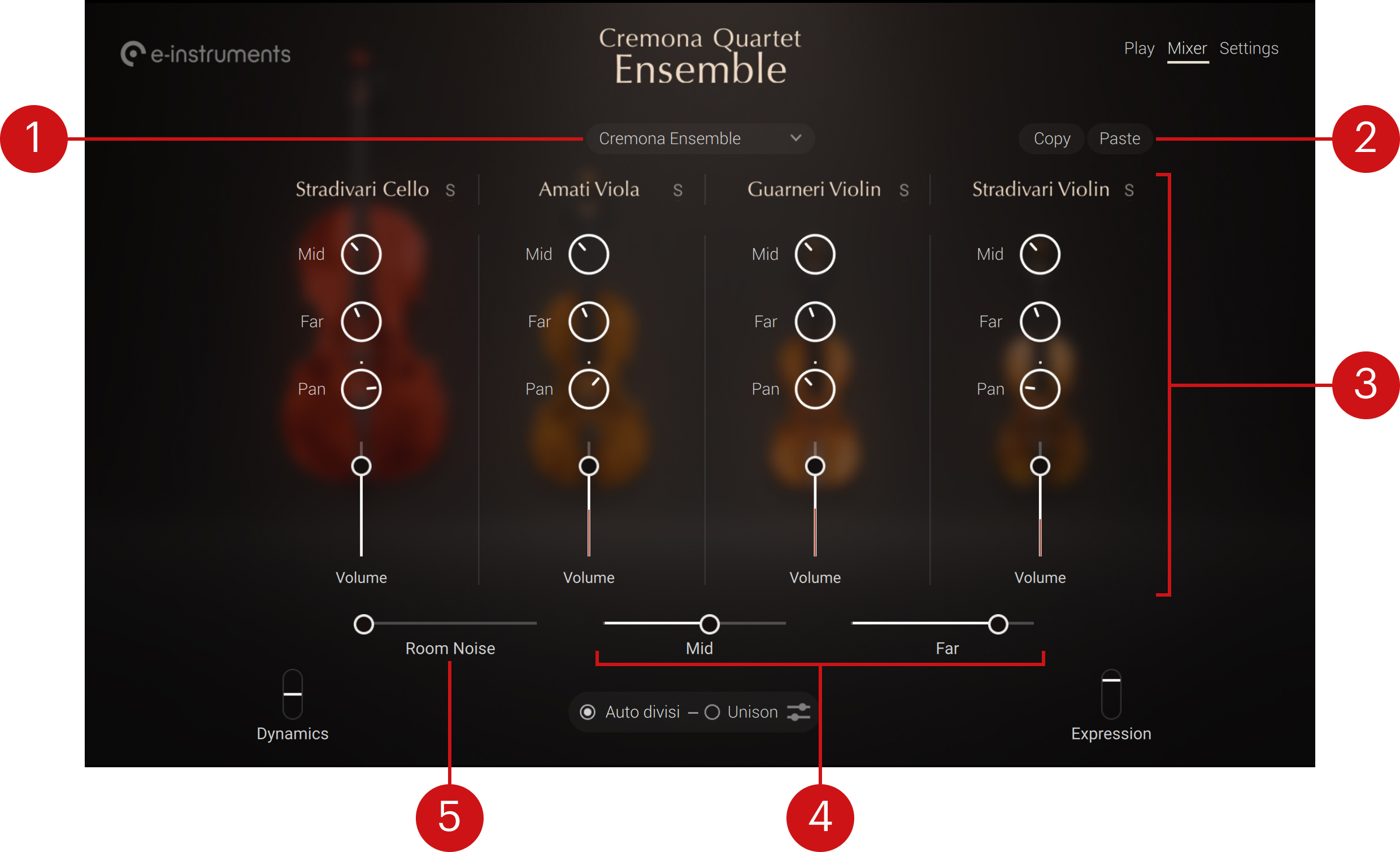
Mixer Preset menu: Shows the name of the loaded mixer preset. Each mixer preset contains predefined values for all the parameters in the Mixer page. You can load another preset by clicking the name and selecting the desired entry from the menu. At any time you can also adjust the parameters manually.
Copy/Paste buttons: Let you easily duplicate the mixer settings across several instances of Cremona Quartet Ensemble in your DAW. When you are satisfied with the mixer settings in one instance, you can click Copy in that instance and Paste in the mixer of another instance to duplicate all the mixer settings to that instance.
Channel strips: Each of the four instruments in the ensemble has a dedicated audio channel strip with the following controls, from top to bottom:
Solo button (“S”): Mutes all other channels in order to hear this instrument alone. Only one instrument can be switched to solo at a time. It is a pure audio solo: the auto divisi remains active. This solo button is the equivalent of the solo button for that instrument in the Play page. Refer to Play page for more information.
Mid/Far knobs: Adjust the levels of the signals sent to the convolution reverb from the middle and far microphones, respectively.
Pan knob: Adjusts the panoramic position of the instrument in the stereo field.
Volume slider: Adjusts the volume level of the instrument. As you play, the current level of the instrument appears on the slider.
Mid/Far sliders: Adjust the return levels of the convolution reverb for the middle and far microphone positions, respectively.
Room Noise slider: Adjusts the level of the background room noise of the empty concert hall. At full left, no room noise is added. Dragging the slider to the right progressively adds room noise and glues performances together.