Cremona Quartet Ensemble overview
Learn the main concepts and interface elements of Cremona Quartet Ensemble.
This chapter introduces the main controls and areas of Cremona Quartet Ensemble.
When you first load Cremona Quartet Ensemble, it opens with the Play page. Cremona Quartet Ensemble provides the following key elements and global controls:
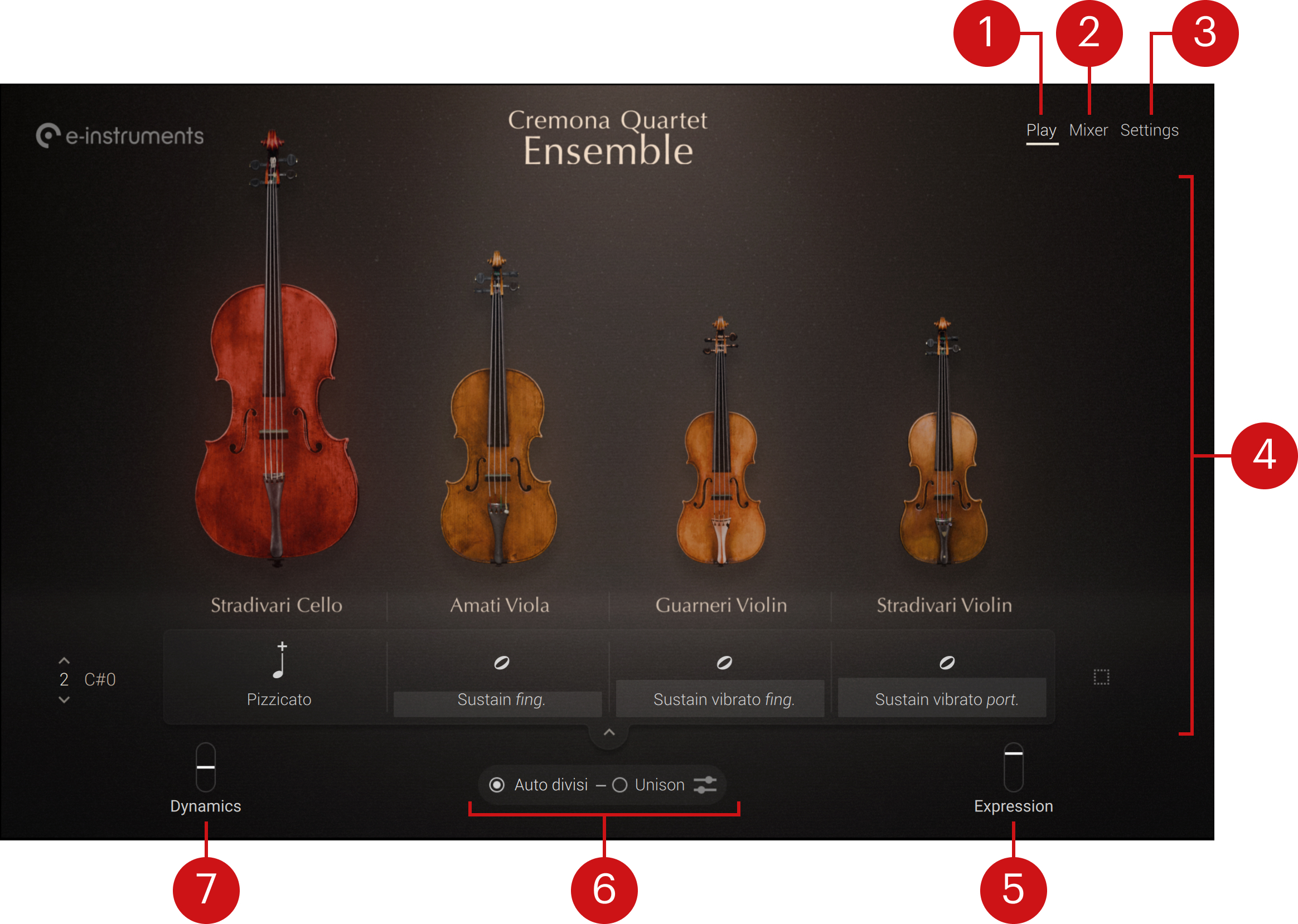
Play: Opens the Play page, which is the default page (depicted above). The Play page shows an artwork of the four instruments and lets you combine their articulations. Refer to Play page.
Mixer: Opens the Mixer page, where you can adjust the mix between the four instruments. Refer to Mixer page.
Settings: Opens the Settings page, which provides global settings including tuning, pitch bend, room noise, bow changes, articulation switch, and aftertouch. Refer to Settings page.
Central area: Shows the various pages of the instrument. By default it displays the Play page (depicted above). Refer to Play page.
Expression: Adjusts the overall volume of the ensemble. By default it is assigned to MIDI CC 11 (Expression). You can also control the expression of each instrument in real time using polyphonic aftertouch: Changing the pressure on a hold key will modify the expression of the instrument playing this note.
Auto Divisi controls: Provide global controls for Cremona Quartet Ensemble’s advanced automatic divisi system, which dynamically distributes single notes and chords of up to four notes to the four instruments in the ensemble. Refer to Auto divisi settings for more information.
Auto divisi on/off switch: Turns the auto divisi on or off. If you turn the auto divisi off, the ensemble will play in full polyphonic mode: Each instrument will play all the notes of the chord within its range, resulting in a much larger strings section sound.
Unison on/off switch: Turns unison on or off. This switch is available only when auto divisi is active. If you turn unison on, all the instruments will play together.
Auto Divisi Settings button: Opens the auto divisi settings where you can configure the auto divisi feature more in detail. Refer to Auto divisi settings.
Dynamics: Adjusts the dynamics of the four instruments globally. The dynamics describes how soft or strong the instruments are played, which affects both their volume and their timbre. By default the Dynamics slider is assigned to MIDI CC 1 (Modulation Wheel) and it is set to the middle position (control value: 64). You can also control the dynamics of each instrument in real time using the note velocity: The force with which you hit a key will affect the dynamics of the instrument playing this note.
Key mapping
You can trigger various actions in Cremona Quartet Ensemble from your keyboard. The current key mapping is indicated in Kontakt’s on-screen keyboard:

Red: The red keys are used for switching between different articulation sets. For more information, refer to Play page.
Pink: The pink key turns unison on or off. For more information, refer to Auto divisi settings.
Yellow: The yellow key triggers a bow change. For more information, refer to Settings page.
Blue: The blue keys indicate the range of notes playable with Cremona Quartet Ensemble.
Note
These colored keys are also indicated by the Light Guide on the Kontrol S-Series keyboard.