Browsers
Learn how to browse and load presets and samples from LCO Producer Strings’s factory library.
Browsers are available in many places in LCO Producer Strings. Each Browser is dedicated to a particular object type (Preset for all layers, single Layer Preset, Effects list, and Space list) and lets you search and load presets for that object type from a list. All browsers are opened by clicking the preset name of the object you want to change.
Preset
The Preset browser lets you load presets that affect all four layers at once. Each preset recalls instruments, values, and states (on/off) for every layer, but also Effects and Space settings. A compact version of the browser is always available at the top of the screen, where you can use the arrows to cycle through presets or click on the die to randomly select a preset.
Clicking the preset name opens the full browser view with the following elements:
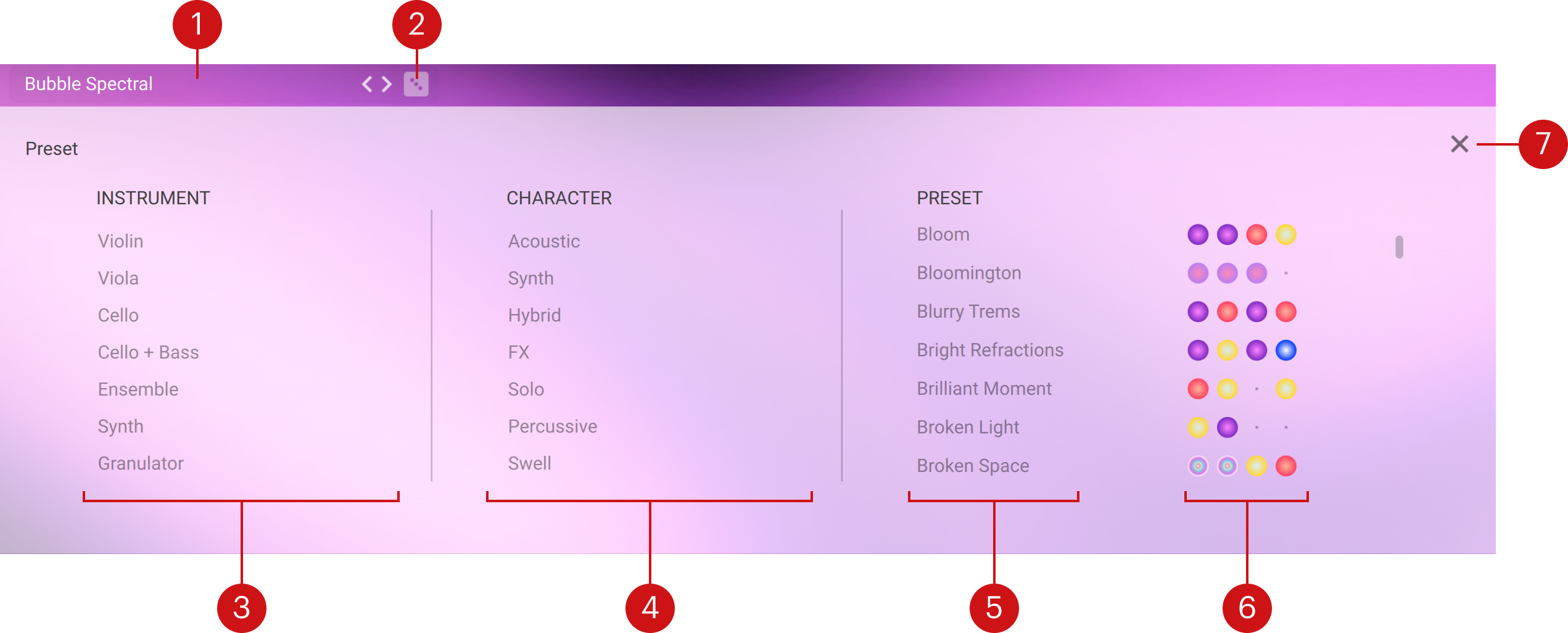
Preset browser: Allows you to cycle through the preset list.
Select Random (dice): Randomly loads a preset from the preset list.
Instrument filter: Select one or more instruments to narrow the available PRESET list.
Character filter: Select one or more sound characters (e.g., Acoustic, Hybrid, Synth) to refine the PRESET list further.
Preset list: Shows the presets that match your current filter selections. The active preset is highlighted. Click another to load the instruments for every layer.
Color coding: Colored dots next to each preset match the instrument layer colors and background colors on the main screen, making it easy to see which instruments are included in the preset. Refer to Articulations in the Layer presets for additional information on each instrument.
Close (x): Closes the browser.
Layer Preset
The Layer Preset browser lets you choose presets for individual layers. Each preset loads an instrument and a playing technique for that layer, while the layer's controls, state (on/off), and modulation settings remain unchanged. The browser appears when you click a layer's instrument title in the Layers tab. The layer must be on to open the browser.
The Layer Preset browser contains the following elements:
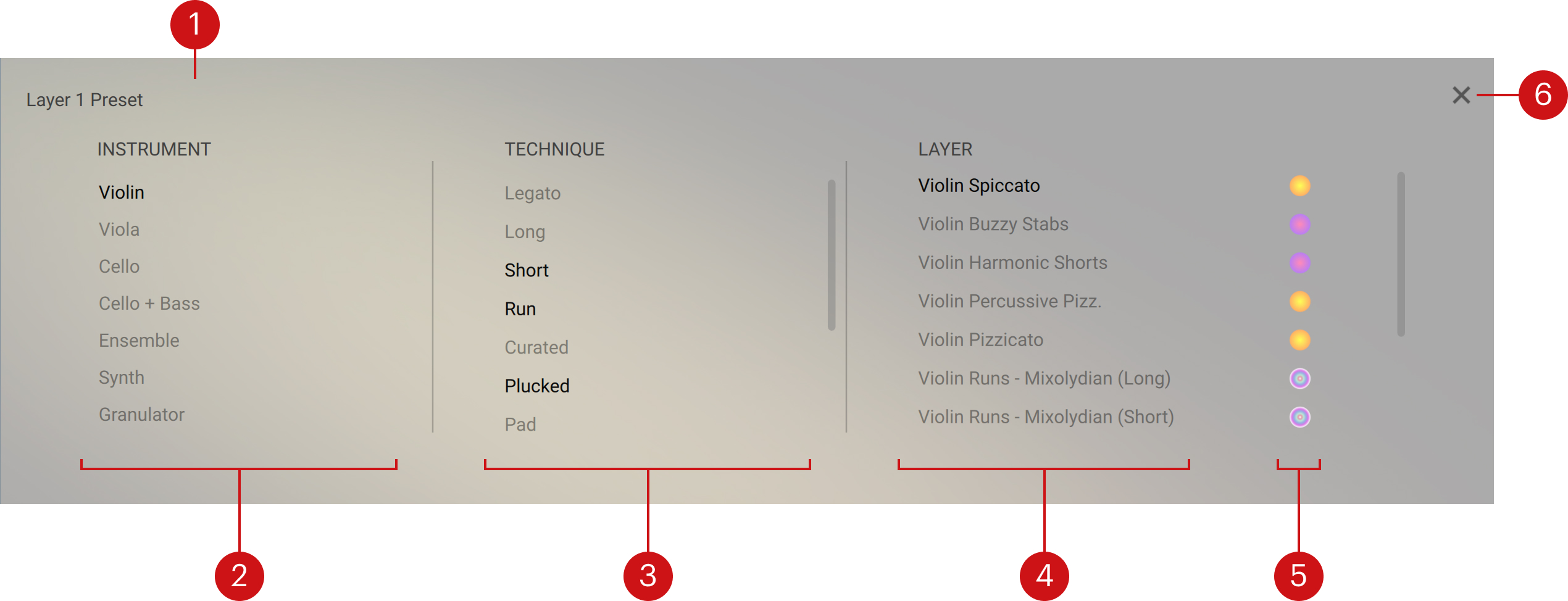
Layer Preset browser, allows you to browse through the layer list.
Instrument filter: Select an instrument to narrow the list of available LAYER presets.
Technique filter: Select one or more playing techniques (e.g., Long, Short, Legato) to narrow the list of available LAYER presets further.
Layer list: Shows the presets that match your current filter selections. The active preset is highlighted. Click another to load it to the layer.
Color coding: Colored dots next to each preset match the instrument layer colors and background colors on the main screen, making it easy to see which instruments are active in each layer. Refer to Articulations in the Layer presets for additional information on each instrument.
Close (x): Closes the browser.
Articulations in the Layer presets
Below are some definitions of the specifically-named articulations used in the Layer presets:
Bow Chants: Soft but audible, irregular bow changes - like slow, hushed ‘chatter’.
Buzzy Stabs: A combination of snap pizzicato (also known as Bartók pizzicato) and bowed sul ponticello.
Exponential Blooms: A late, exaggerated swell in dynamic while moving the bow towards the bridge (sul ponticello).
Harmonic Flickers: Switching intermittently between the fundamental note and harmonic an octave above.
Percussive Pizz.: Plucking the string with a small, thin piece of plastic (e.g. a plectrum or credit card).
Spectral Scrubs: Moving the bow in a circular motion between the bridge and fingerboard.
Stings: An accented note followed by a quick fall in pitch, like a disco ‘slide’.
Woozy Vib.: Slowly ‘rocking’ the stopped finger of the left hand to create subtle microtonal bends.
Here are some definitions of more general string/musical terms incorporated into the articulation names:
Legato: Connecting the notes in a smooth, flowing manner.
Mixolydian: A mode comprising the same series of notes as the major scale but with a flattened 7th. Evokes a 'bluesy' or 'rock-and-roll' feel.
Pizzicato: Plucking the string with the finger.
Spiccato: Lightly bouncing the bow on the string to produce short, crisp detached notes.
Staccato: Similar to the above in creating detached notes, but keeping the bow on the string using a pressure-and-release motion.
Sul Pont./Ponticello: Playing on, or close to, the bridge of the instrument. Creates an 'icy', 'electric' sound.
Tremolo: Quickly moving the bow back and forth on the string to produce an agitated, trembling effect.
User presets
Learn how to save and manage custom instrument presets for LCO Producer Strings.
You can save and manage your own user presets for LCO Producer Strings. When you save a user preset, all the parameter adjustments and instrument settings are stored within the preset. User presets let you save your own sounds, use them in other projects and across computers, share them with other users, or create backups.
User presets are saved on your computer as Snapshots (.nksn file extension), which are Kontakt’s underlying file format for instrument presets.
Saving a user preset
You can save user presets to recall your favorite sounds and settings at any time, share them with others, or create backups.
When using Kontakt’s Default view, you can save user presets using the Navigator in the side pane:
In the Navigator, right-click the LCO Producer Strings slot.
Click Save Preset… in the context menu to open the Save dialog.
Enter a name for your new user preset and click Save. If you enter the same of an existing user preset, you will be given the option to replace it by clicking Overwrite.
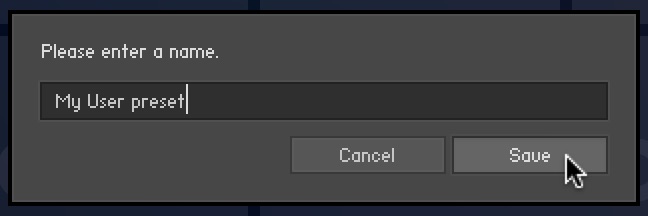
The user preset is saved and added to your user content in the library.
Note
You can also save user presets using the Instrument Header. For more information, refer to the Kontakt user guide or the Kontakt Player user guide.
All the user presets are automatically stored in the default User Content folder. You can transfer any of your presets to another computer by copying the respective Snapshot files.
The default User Content folders are:
Mac OS X: | Macintosh HD/Users/<User Name>/Documents/Native Instruments/User Content/ |
Windows: | C:\Users\<User Name>\My Documents\Native Instruments\User Content\ |
Notice
Please make sure that you include your Documents / My Documents folder in your regular data backups.
Loading a user preset
When using Kontakt’s Default view, you can load user presets using the Navigator and the browser in the side pane:
In the Navigator, click the LCO Producer Strings slot.
In the side pane browser below, activate the User Content button to show your user presets.

The Results list below displays the user presets available for LCO Producer Strings.
Double-click the desired user preset from the list to load it.
Note
You can also load user presets and factory presets using the Kontakt Browser or the Instrument Header. For more information, refer to the Kontakt user guide or the Kontakt Player user guide.
Deleting a user preset
When using Kontakt’s Default view, you can delete user presets using the Navigator and the browser in the side pane:
In the Navigator, click the LCO Producer Strings slot.
In the side pane browser below, activate the User Content button to show your user presets.
The Results list below displays the user presets available for LCO Producer Strings.
Right-click the desired user preset from the list and select show in Finder/Explorer.
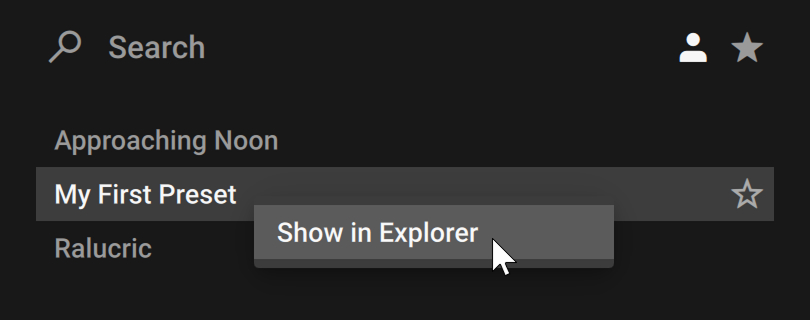
The folder containing this user preset opens up on your desktop.
Delete the file from the disk.
The user preset is removed from your library on the next launch of Kontakt / Kontakt Player.
Note
You can also delete user presets using the Kontakt Browser or the Instrument Header. For more information, refer to the Kontakt user guide or the Kontakt Player user guide.