Erosia overview
Learn the main concepts and interface elements of Erosia.
This chapter introduces the main concepts and areas of Erosia.
To generate sound, Erosia uses four layers playing simultaneously but using up to three different sound engines: Layer 1 always uses a grain engine, while layers 2–4 can be individually set to use a sample engine or a wavetable engine. All three engines use source samples to produce their sound, but in different ways. Each engine has its own synthesis technique, engine parameters, and dedicated source samples.
The Erosia window can display various pages along with a set of global controls, which are always visible at the top of the instrument:
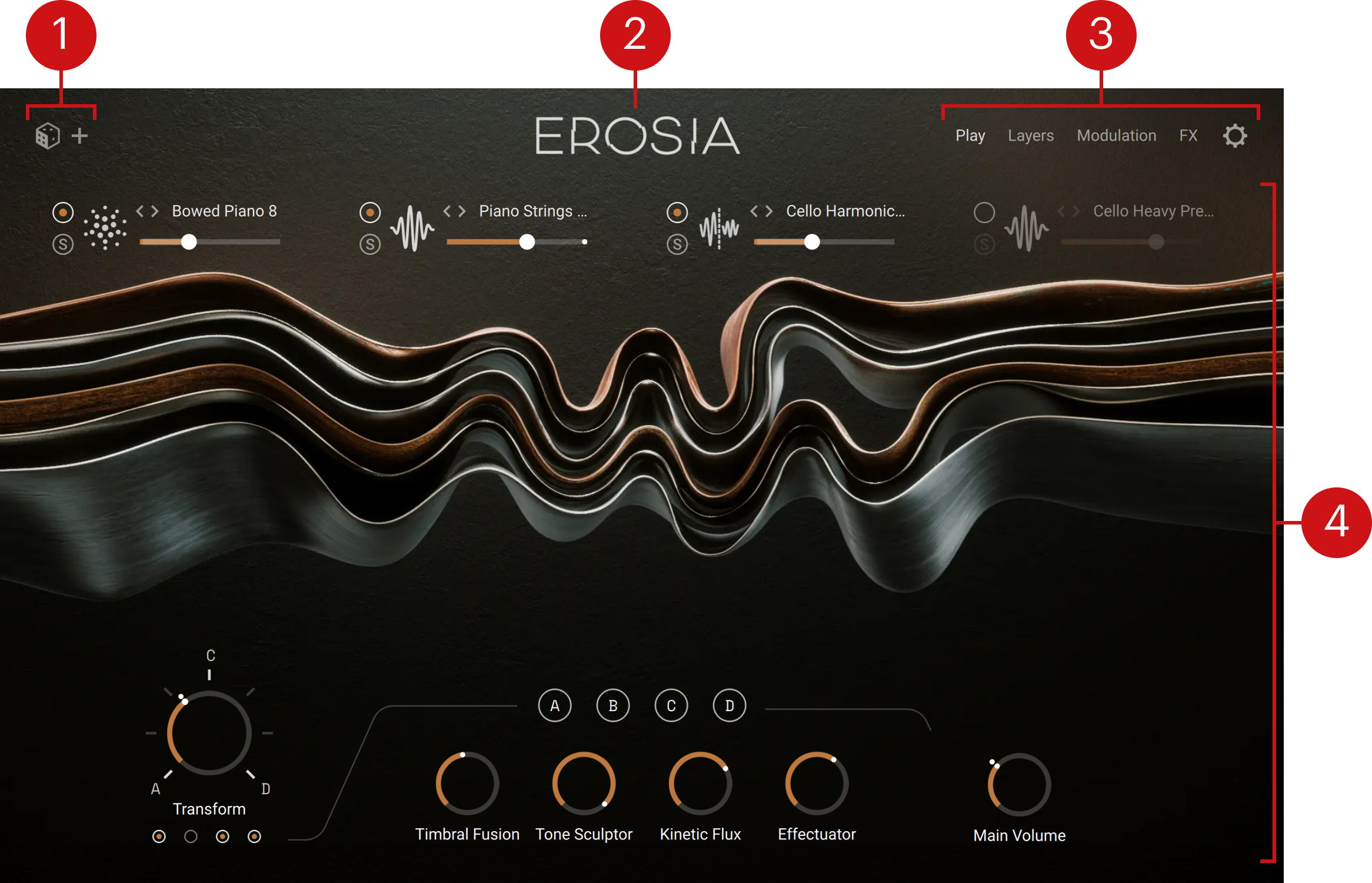
Randomize controls: These controls let you quickly set new random values for specific parameters in the instrument. Refer to Randomize controls.
About: Clicking the instrument name opens the About screen, which displays the credits for this instrument. You can click the About screen to close it again.
Page buttons: Clicking either button opens the corresponding page below.
Play: Opens the Play page, which is the instrument’s default page and is depicted above. The Play page contains a set of basic controls for each of the four layers, an animated artwork, and the Transform and Macro controls. Refer to Play page.
Layers: Opens the Layers page, which lets you adjust the sound of the four layers in detail. Refer to Layers page.
Modulation: Opens the Modulation page, which lets you configure the internal modulation sources of the instrument. Refer to Modulation page.
FX: Opens the FX page, where you can set up two insert effect chains and a send effect to process the sound of the four layers. Refer to FX page.
Options: Opens the Options page, which contains pitch, voicing, engine, and response settings for the instrument. Refer to Options page.
Page area: This is the main part of the window and can display the various pages of the instrument.
Randomize controls
In the top left corner of the instrument, the Randomize controls let you quickly set new random values for specific parameters.
 |
Randomize button (dice): Sets new random values for the selected target parameters.
Targets button (“+”): Opens a panel where you can choose which parameters will be randomized when clicking the dice. The selected parameters are highlighted in the panel. You can activate or deactivate parameters by clicking their labels. By default, the Layer 1–4 Source and Macro Variations entries are selected.
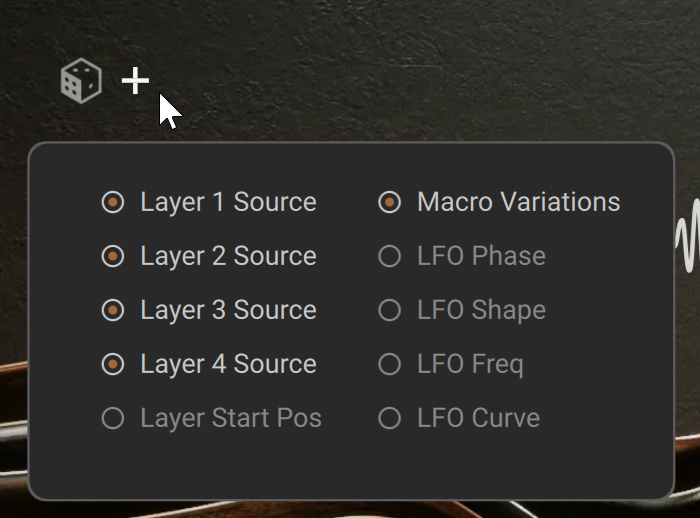
The following target parameters are available:
Layer 1–4 Source: Random source sample in the layer 1–4.
Layer Start Pos: Random start position in all four layers. This affects the Scan control in the grain layer, the Start control in sample layers, and the Position control in wavetable layers.
Macro Variations: Random sets of values for the four Macro Variations, each variation including random values for the four Macros.
LFO Phase, Shape, Freq, and Curve: Random values for the corresponding parameters in both LFOs.
Note
The targets selected in the panel are not saved with the instrument presets, so that the same targets will stay selected when you switch between instrument presets.