Play page
The Play page of Erosia provides intuitive tools to create evolving sounds.
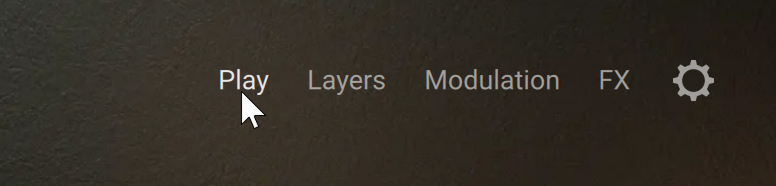
When you first open Erosia, the Play page shows up by default. You can also display the Play page at any time:
To open the Play page, click the Play button in the top right corner of the instrument.
The Play page contains the following elements:

Layer Inspector: Provides basic controls for the four layers of Erosia. For each layer, you can switch it on and off, see the source sample currently in use, switch to another source by clicking the next and previous buttons, browse all available sources by clicking the source name, adjust the layer volume, and solo this layer to hear it without the other layers. Refer to Layer Inspector.
Erosia artwork: The artwork varies with the position of the Transform knob at the bottom left.
Main Volume knob: Adjusts the overall volume level of the instrument.
Transform and Macro controls: The four Macros are remote controls that you can assign to the desired parameters in the instrument. The Macros belong to the various modulation sources available in Erosia. In addition you can define different sets of values for the Macros, called Macro variations, and morph between the variations using the Transform knob. Refer to Transform and Macro controls.
Layer Inspector
The Layer Inspector contains a basic set of controls for each of the four layers 1–4.

For each layer, the Layer Inspector contains the following elements:
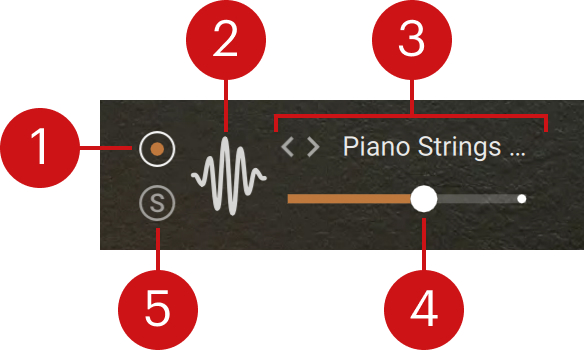 |
Layer on/off switch: Activates or deactivates the layer. Inactive layers don’t generate any sound.
Layer icon: Indicates the type of layer: grain, sample, or wavetable. You can click the icon to quickly open the layer details in the Layers page.
Source selector: Displays the name of the sound used as source in the layer. You can click the sound name to open the Source browser and select another source for that layer. Alternatively, you can click the left and right arrows to quickly load the previous or next sound from the browser’s result list without opening the browser.
Layer Level slider: Adjusts the volume level of the layer.
Solo (S): Mutes all the other layers. Soloing a layer can be useful to focus on that layer when designing your sound.
Tip
The four Layer Level sliders can be modulated. For more information, refer to Modulating your sound.
Transform and Macro controls
At the bottom of the Play page, the Transform and Macro controls let you use a custom set of controls for the instrument, define variations of their values, and morph the sound between the different variations.
The Transform and Macro controls contain the following elements:
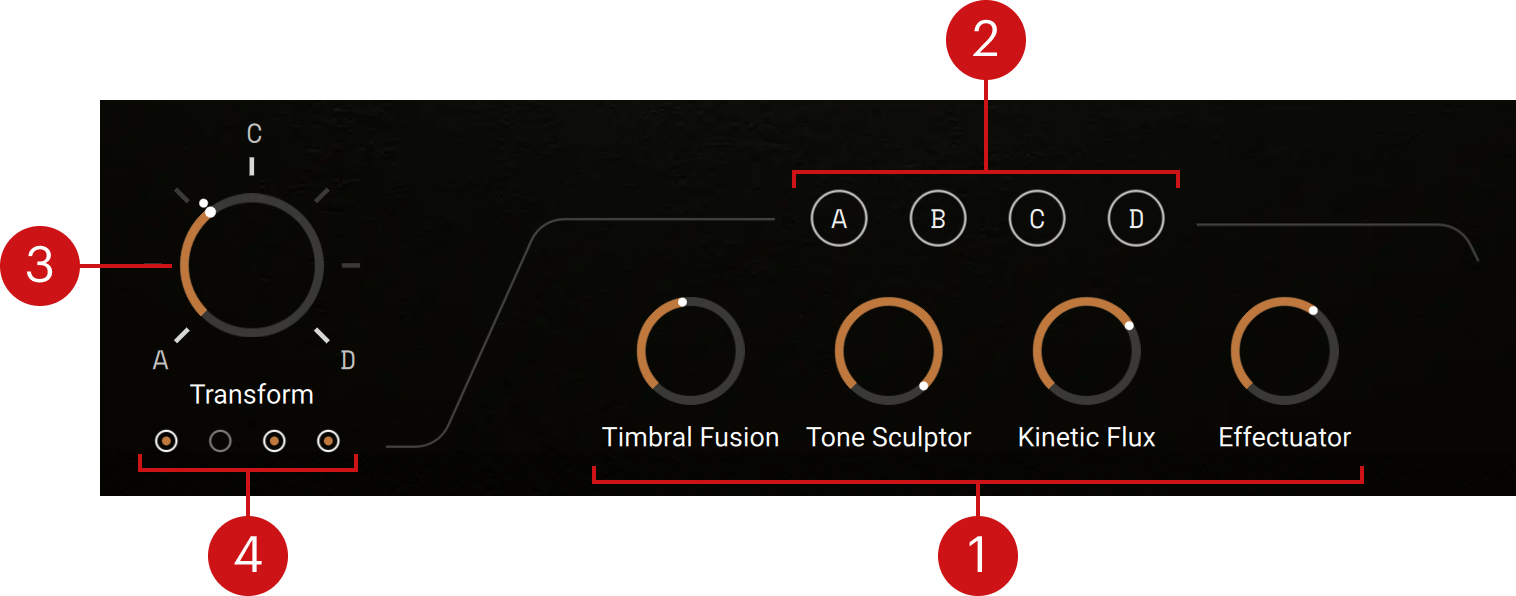 |
Macros: The four Macro knobs (Timbral Fusion, Tone Sculptor, Kinetic Flux, and Effectuator) can control one or more parameters in Erosia. They are already assigned to parameters in the factory presets, but you can freely modify their assignments, these will be saved with your user presets. The Macros belong to the various modulation sources available in the instrument. They follow the common workflow for assigning modulation. Refer to Modulating your sound for more information.
Variation Edit buttons (A–D): Each button lets you define values for the four Macros and store them into one Macro Variation. When you activate a Variation Edit button, the button lights up and you can adjust the four Macro knobs below to create a sound to your liking. When you are done, you can deactivate the lit button to quit edit mode and store your new Macro values into that Macro Variation. Your new Macro Variation will be used at the chosen position(s) of the Transform knob.
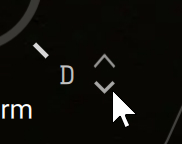
Transform knob: Morphs the sound between the two Macro Variations on either side of the knob’s current position. For example, if the Transform knob is on a B graduation, when you turn it towards a C graduation the sound will progressively morph from the Macro Variation B into the Macro Variation C. You can click any letter on the knob’s scale to enter edit mode for that Variation. As you hover over the Transform knob with the mouse, little up/down arrows appear next to each letter. Clicking the arrows lets you assign another Macro Variation to that position on the scale.
Position on/off switches: These switches are active by default. Deactivating a switch will remove the Macro Variation from the corresponding position on the Transform knob’s scale: The leftmost switch removes the Variation located at full left on the knob scale, the second switch removes the second Variation from the left on the scale, and so on. Each time, the remaining Macro Variations are moved on the scale to spread equally over the full range of the knob. Activating a switch will re-insert the Variation at the corresponding position in the sequence.