User presets
Learn how to save and manage custom instrument presets for Erosia.
You can save and manage your own user presets for Erosia. When you save a user preset, all the parameter adjustments and instrument settings are stored within the preset. User presets let you save your own sounds, use them in other projects and across computers, share them with other users, or create backups.
User presets are saved on your computer as Snapshots (.nksn file extension), which are Kontakt’s underlying file format for instrument presets.
Saving a user preset
You can save user presets to recall your favorite sounds and settings at any time, share them with others, or create backups.
When using Kontakt’s Default view, you can save user presets using the Navigator in the side pane:
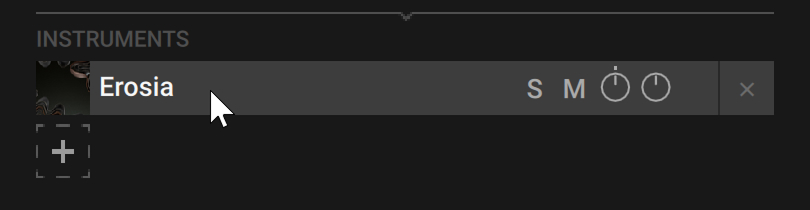
In the Navigator, right-click the Erosia slot.
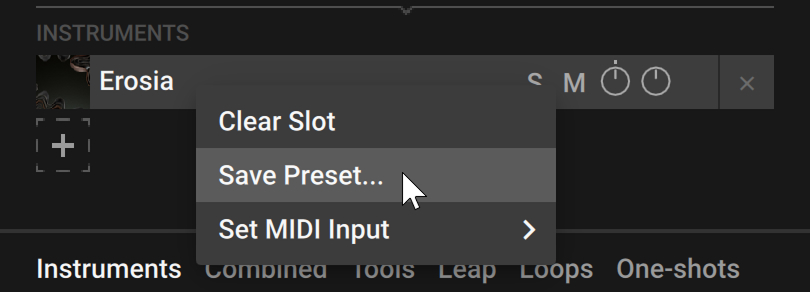
Click Save Preset… in the context menu to open the Save dialog.
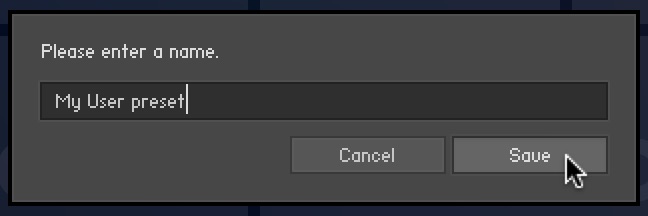
Enter a name for your new user preset and click Save. If you enter the same of an existing user preset, you will be given the option to replace it by clicking Overwrite.
The user preset is saved and added to your user content in the library.
Note
You can also save user presets using the Instrument Header. For more information, refer to the Kontakt user guide or the Kontakt Player user guide.
All the user presets are automatically stored in the default User Content folder. You can transfer any of your presets to another computer by copying the respective Snapshot files.
The default User Content folders are:
Mac OS X: | Macintosh HD/Users/<User Name>/Documents/Native Instruments/User Content/ |
Windows: | C:\Users\<User Name>\My Documents\Native Instruments\User Content\ |
Notice
Please make sure that you include your Documents / My Documents folder in your regular data backups.
Loading a user preset
When using Kontakt’s Default view, you can load user presets using the Navigator and the browser in the side pane:
In the Navigator, click the Erosia slot.
In the side pane browser below, activate the User Content button to show your user presets.

The Results list below displays the user presets available for Erosia.
Double-click the desired user preset from the list to load it.
Note
You can also load user presets and factory presets using the Kontakt Browser or the Instrument Header. For more information, refer to the Kontakt user guide or the Kontakt Player user guide.
Deleting a user preset
When using Kontakt’s Default view, you can delete user presets using the Navigator and the browser in the side pane:
In the Navigator, click the Erosia slot.
In the side pane browser below, activate the User Content button to show your user presets.
The Results list below displays the user presets available for Erosia.
Right-click the desired user preset from the list and select show in Finder/Explorer.
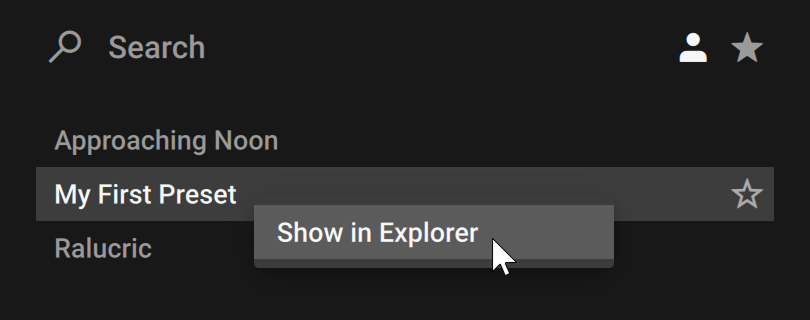
The folder containing this user preset opens up on your desktop.
Delete the file from the disk.
The user preset is removed from your library on the next launch of Kontakt / Kontakt Player.
Note
You can also delete user presets using the Kontakt Browser or the Instrument Header. For more information, refer to the Kontakt user guide or the Kontakt Player user guide.