Modulating your sound
Learn how to modulate parameters in Erosia to generate continuously evolving sounds that you can play dynamically.
Erosia makes an extensive use of parameter modulation. The instrument lets you build advanced modulating schemes in an intuitive way and generate continuously evolving sounds that you can play dynamically.
Modulation is the modification of a parameter value relative to its original value. For example:
An envelope modulates the amplitude of the sound when a note is played, with different stages (like attack, decay, sustain, and release) that modify the sound level relative to the original velocity of the played note.
An LFO (low-frequency oscillator) modulates the pitch of a sound around the original pitch of the played note.
A modulation is specified by its target (which parameter is affected), its source (where does the modification come from), and its amount (how much the target value is affected by the source).
The following sections describe how to create and edit a modulation and provide a list of the available modulation sources in Erosia.
Creating and editing a modulation
In Erosia you can use the same simple workflow to modulate most continuous parameters in the form of a rotary knob or a slider.
To create or edit a modulation:
Navigate to the page and tab containing the control that you want to modulate.
Hover with your mouse over the rotary knob or slider.
A Modulation icon appears next to the control:
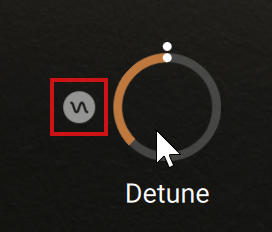
Click that Modulation icon to open the Modulation panel:
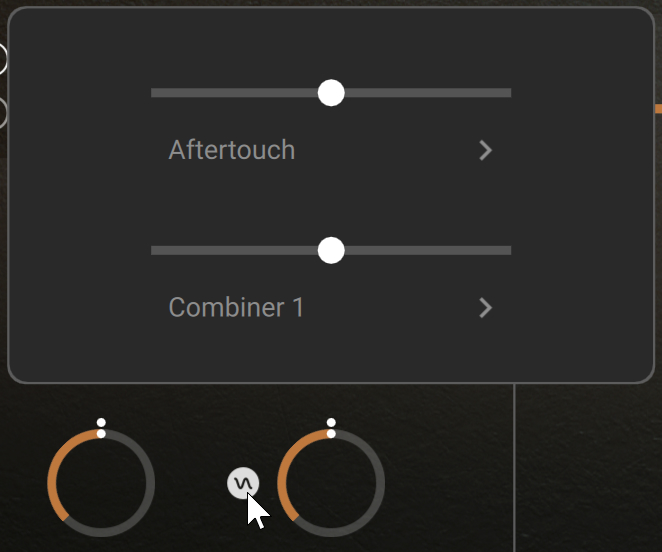
The Modulation panel shows the two modulations currently assigned to this control. Each modulation includes a modulation source and an Amount slider. When a slider is at the center, that modulation is inactive.
If you want to replace a modulation source, click its name.
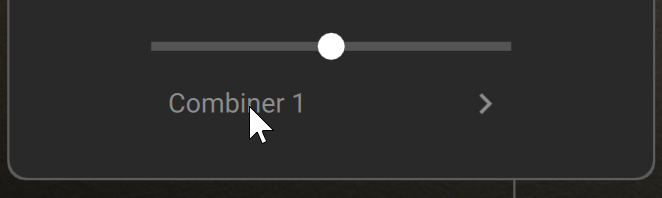
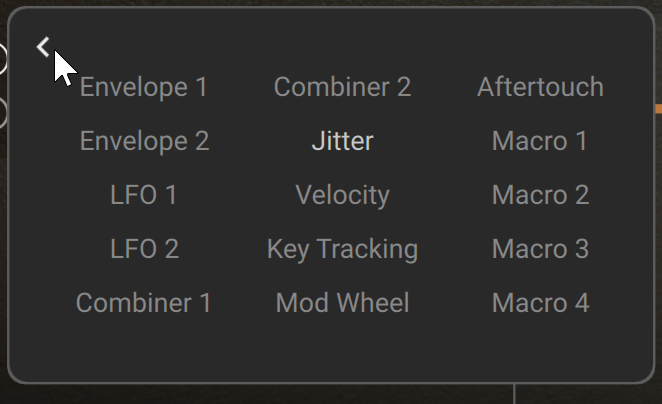
The Modulation Source panel opens up and lists the available modulation sources, with the current source highlighted.
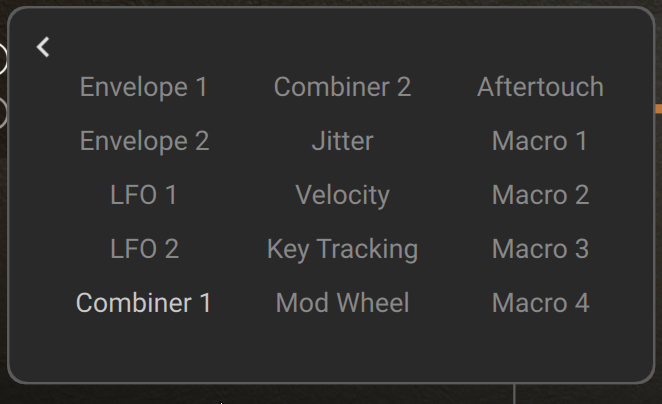
Select another source, and click the arrow in the top left corner to close the Modulation Source panel.
The Modulation panel now shows your new source.
Adjust the Amount slider of the modulation to fit your needs. Any value other than zero (center position) will activate the modulation.
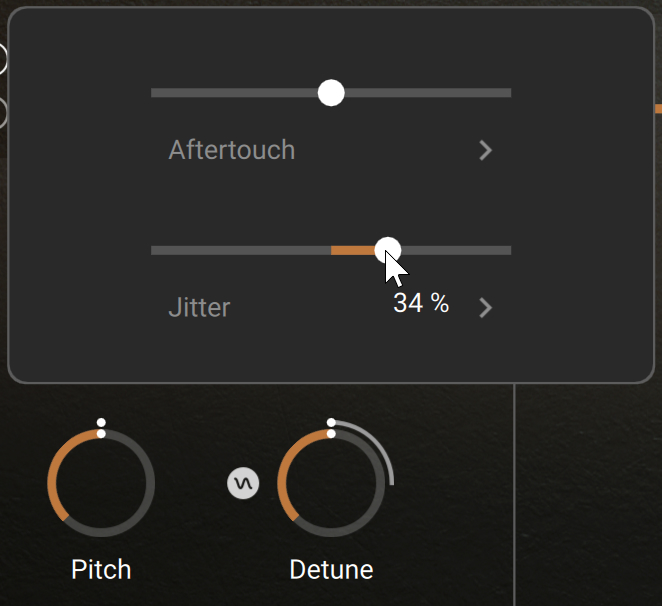
On the rotary knob, a gray outer ring (or a segment for sliders) indicates the global amount of modulation for that control.
Click the Modulation icon again to close the Modulation panel.
You new modulation is now active. When you play a note, the second dot outside the knob shows the modulated value in real time:

Note
All the rotary knobs that are available for modulation will show the second dot outside the knob. With no active modulation, this dot simply follows the knob’s main cursor. With an active modulation, the dot shows the modulated value, which is set relative to the value of the main cursor.
For each modulation source, the Modulation panel provides the following controls:
 |
Modulation Amount slider: Adjusts the intensity of the modulation, that is, how much this modulation source will affect the parameter. This defines the range of the modulation values. With the slider in the center, the modulation source has no influence over the parameter. The current value appears as you drag the slider. The further you drag the slider to the left or to the right, the stronger the modulation will be. With the slider on the right side, increasing the modulation value will increase the parameter value (direct ratio). With the slider on the left side, increasing the modulation value will decrease the parameter value (inverse ratio). You can reset the slider and remove the modulation by [command]+clicking (Mac) or [Ctrl]+clicking (Windows) the slider.
Modulation Source name: Indicates the selected modulation source. Clicking the name or the right arrow opens the Modulation Source panel, where you can select another source.
Available modulation sources
The following modulation sources are available:
Envelope 1 and Envelope 2: Internal modulators whose configuration is described in Envelopes.
LFO 1 and LFO 2: Internal modulators whose configuration is described in LFOs.
Combiner 1 and Combiner 2: Internal modulators whose configuration is described in Combiners.
Jitter: Random values.
Velocity: How hard you hit the keys.
Key Tracking: The pitch of the played keys.
Mod Wheel: Modulation wheel.
Aftertouch: The pressure that you apply on held keys. This can be polyphonic (a distinct value for each individual note) if it is available on your MIDI keyboard.
Macros (Timbral Fusion, Tone Sculptor, Kinetic Flux, and Effectuator controls): Located at the bottom of the Play page, these four knobs respectively appear as Macro 1–4 in the Modulation Source panels.
Note
Some of the modulation sources listed above might not be available for specific control elements for conflicting reasons: For example, the Transform control cannot be modulated by any of the Macros, since it does control these very Macros through the Macro Variations.