Modulation page
The Modulation page of Erosia lets you configure its internal modulation sources.
The Modulation page of Erosia lets you configure its internal modulation sources, or modulators.
Note
These modulators are listed among other modulation sources in the Modulation menus appearing next to many parameters of Erosia. For a list of the available modulation sources, and to learn how to assign modulation, refer to Modulating your sound.
To open the Modulation page, click the Modulation button in the top right corner of the instrument.
Erosia provides six modulators: two LFOs, two envelopes, and two combiners.
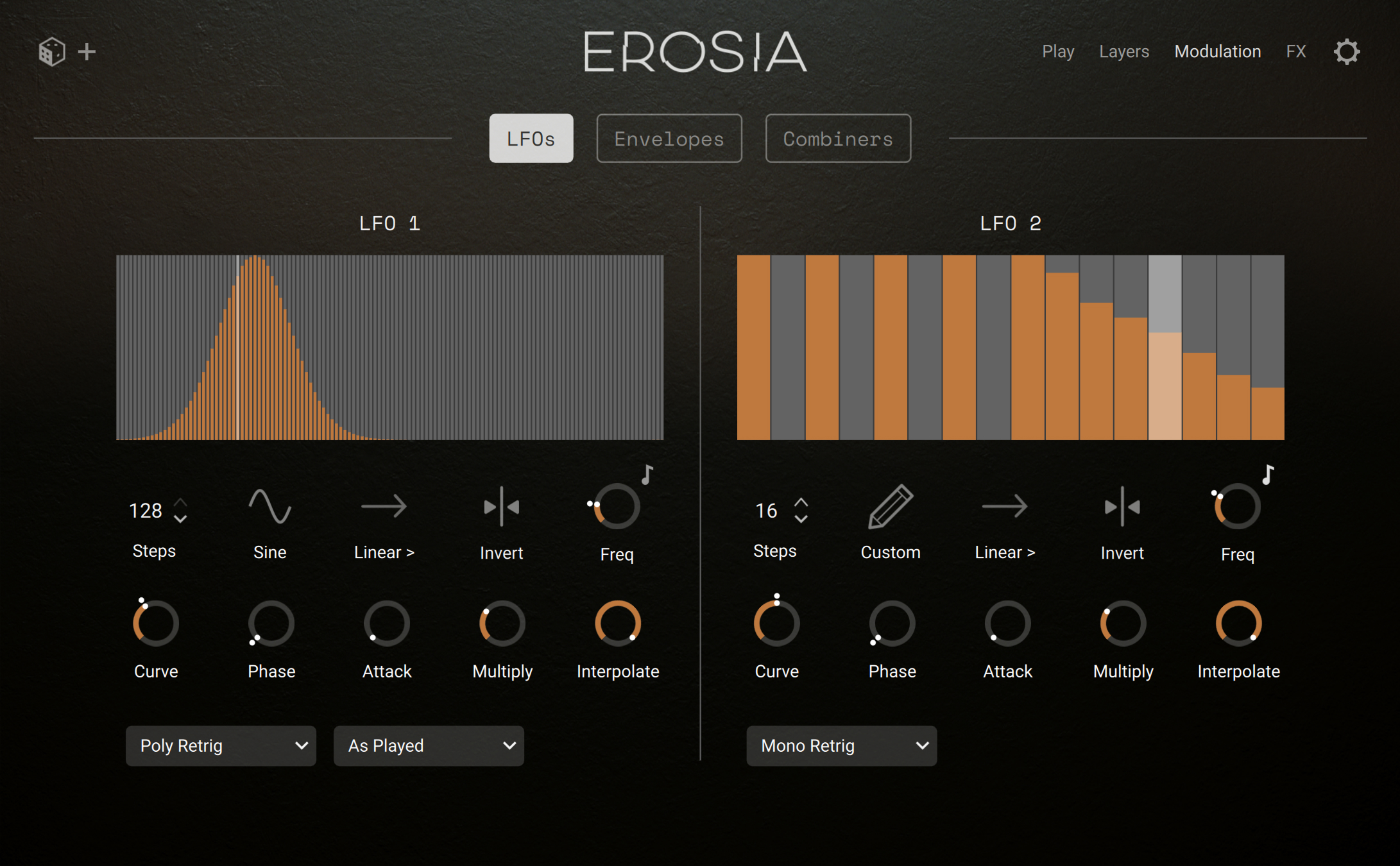
At the top of the Modulation page, the Modulator Type selector lets you display the parameters for the two modulators of either type:
 |
LFOs
When the Modulator Type selector is set to LFOs at the top of the Modulation page, the page shows the parameters for the two available LFOs: LFO 1 on the left, LFO 2 on the right.
Each LFO provides the following elements:
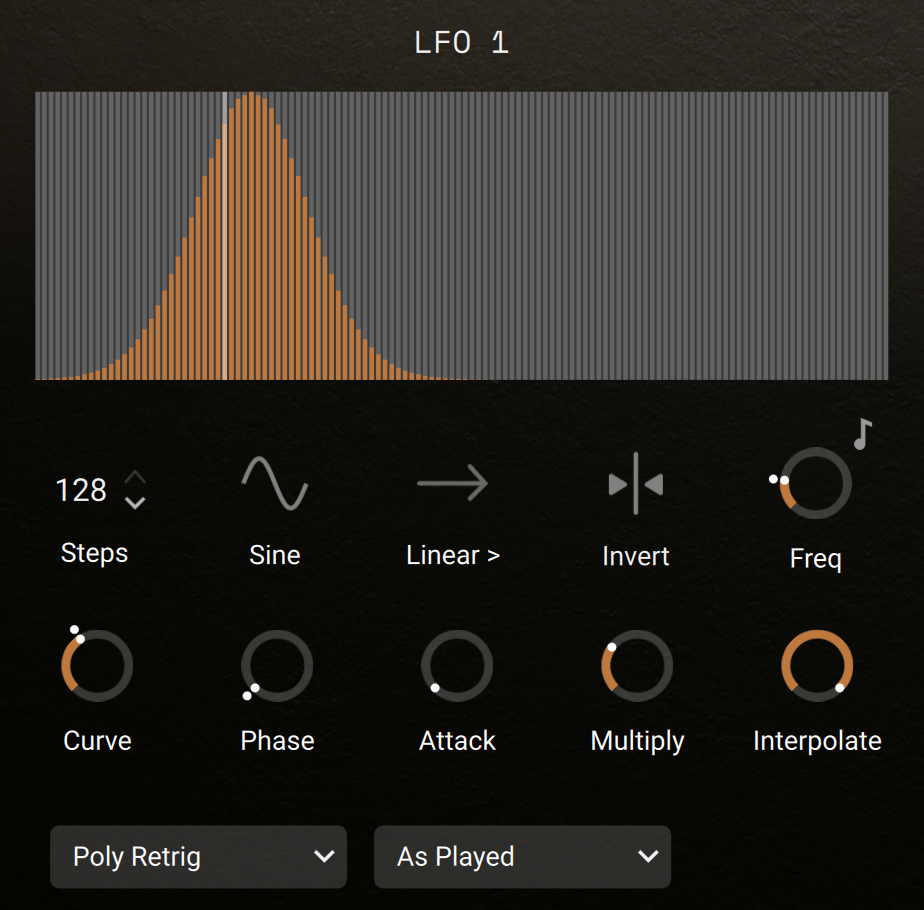 |
Oscillator Display: Shows the shape of one LFO cycle with the current settings. The horizontal axis represents the time, and the vertical axis represents the modulation value. The white vertical line indicates the current playback position of the LFO for the last played note. You can click or click-and-drag anywhere in the display to manually edit the shape. When you do this, the Waveform selector below automatically switches to Custom.
Steps: Adjusts the number of steps in one cycle, from 1 to 128.
Waveform selector: Selects the waveform shape from the following available waveforms: Sine, Tri (triangle), Saw, Pulse (or “square”), Random, and Custom. Each time you select Random, new random values are generated for every step. Selecting Custom recalls the last waveform that you have manually edited.
Playback Mode selector: Selects how the shape should be played back. In Linear > mode, the shape is read from left to right at a steady rate. In Linear >< mode, the shape is read back and forth at a steady rate. In Circular mode, the shape is read back and forth and the playback slows down near the left and right boundaries.
Invert: Reverses the waveform along the time axis, so that the end of the cycle becomes its beginning.
Freq: Adjusts the oscillator frequency, which specifies how many LFO cycles will be read within one second.
Freq Sync (note icon): When Freq Sync is on, the Freq values are set in note values relative to the main tempo of Kontakt, which is the tempo of your DAW if Kontakt / Kontakt Player is used as a plug-in. When Freq Sync is off, the Freq values are set in Hertz.
Curve: Adjusts the curvature of the shape. At the default center position, the original shape is left untouched. Negative values of Curve will pull the shape downwards, positive values will pull it upwards.
Phase: Adjusts the oscillator phase. Changing the phase will shift the shape along the time axis.
Attack: Adjusts how long it takes for the LFO to reach its specified shape from the moment it is triggered. With Attack at full left (minimum value), the LFO directly starts with the shape shown on the display. At higher values, the LFO will need longer before getting fully active.
Multiply: Specifies how many times the shape should be read during one LFO cycle. The default value is 1, and the available values range from 0.125 (1/8, that is, 8 LFO cycles are needed for the full shape to be read) to 8 (8 shapes are read within one LFO cycle).
Interpolate: Smooths the LFO by blending between adjacent step values. At low settings the LFO is stair-stepped; as you increase it, the LFO becomes progressively smoother.
Retrigger Mode menu: Specifies when the LFO should be retriggered from the beginning of the cycle. The following modes are available:
Mono Retrig: The LFO plays the shape in loop, and it is retriggered for a new note only if all previous notes have been released.
Poly Retrig: The LFO plays the shape in loop, and it is retriggered for every new note.
Rnd Retrig: The LFO plays the shape in loop, and it is randomly retriggered or not for every new note.
One Shot: The LFO plays the shape once, and it is retriggered for every new note.
Mono One Shot: The LFO plays the shape once, and it is retriggered for a new note only if no previous note is still being held.
Env Mode (Envelope mode): The LFO plays the shape in one direction as long as the note is held, and in the other direction when the note is released. The LFO is retriggered for every new note.
Sample Trigger menu (LFO 1 only): The Sample Trigger menu lets you trigger the held notes at every step of the LFO. The following options are available:
Smpl Trig Off (Sample Trigger Off): This deactivates the feature. The notes are triggered only as you play them.
As Played: The notes are triggered on each step in the order that you have played them.
Up: The notes are triggered on each step from the lowest pitch to the highest.
Down: The notes are triggered on each step from the highest pitch to the lowest.
Random: The notes are triggered on each step in a random order.
Chord: All the held notes are played together on each step.
Envelopes
When the Modulator Type selector is set to Envelopes at the top of the Modulation page, the page shows the parameters for the two available envelopes: Envelope 1 on the left, Envelope 2 on the right.
Each envelope provides the following elements:
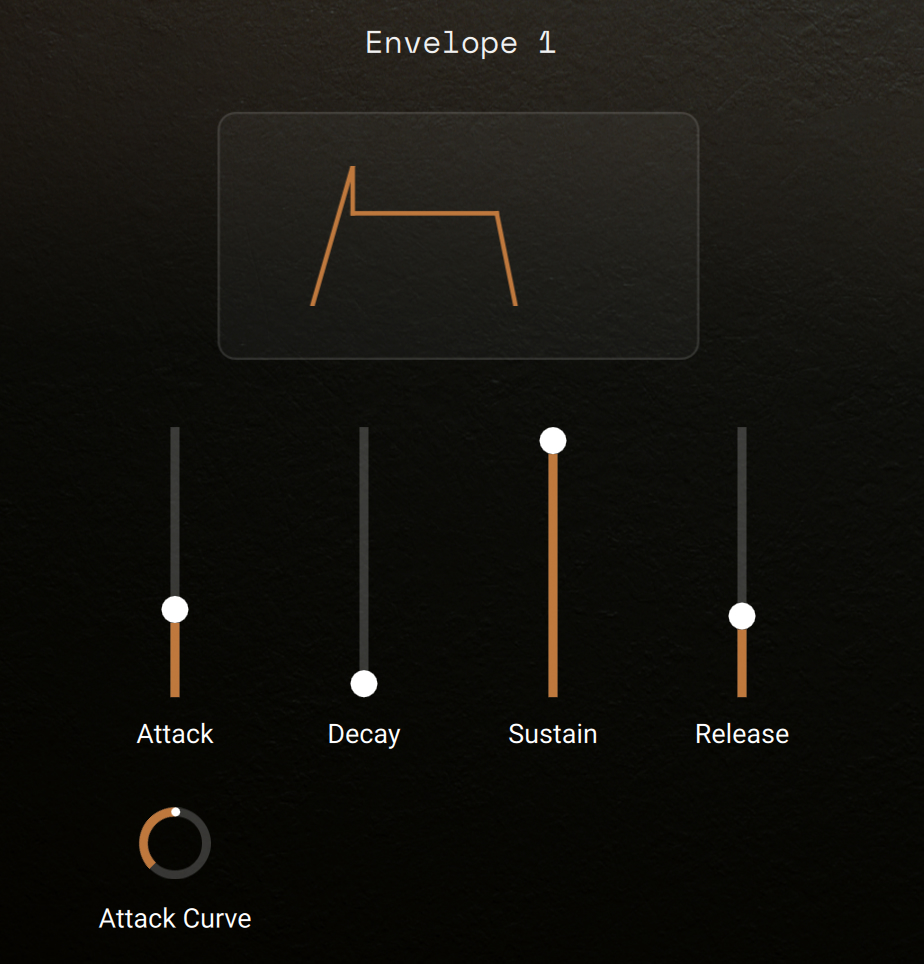 |
Envelope Display: Shows the shape of the envelope with the current settings.
Attack: Adjusts the time it takes for the envelope to reach its maximum once triggered.
Attack Curve: Adjusts the curvature of the envelope shape during the attack phase. At the default center position, the envelope grows at a steady rate. At negative values the attack phase starts slowly and ends at a faster rate, and inversely at positive values.
Decay: Adjusts the time it takes for the envelope to go from its maximum value to its sustain value.
Sustain: Adjusts the value that the envelope keeps once it has decayed and as long as the note is held. This value is measured as a percentage of the envelope’s maximum value: At 100 % the sustain value is the maximum value, and at 0 % the sustain value is zero.
Release: Adjusts the time it takes for the envelope to return to zero once the note has been released.
Combiners
When the Modulator Type selector is set to Combiners at the top of the Modulation page, the page shows the parameters for the two available combiners: Combiner 1 on the left, Combiner 2 on the right.
A combiner lets you generate a new modulation source by merging two existing modulation sources through an operator.
Each combiner provides the following elements:
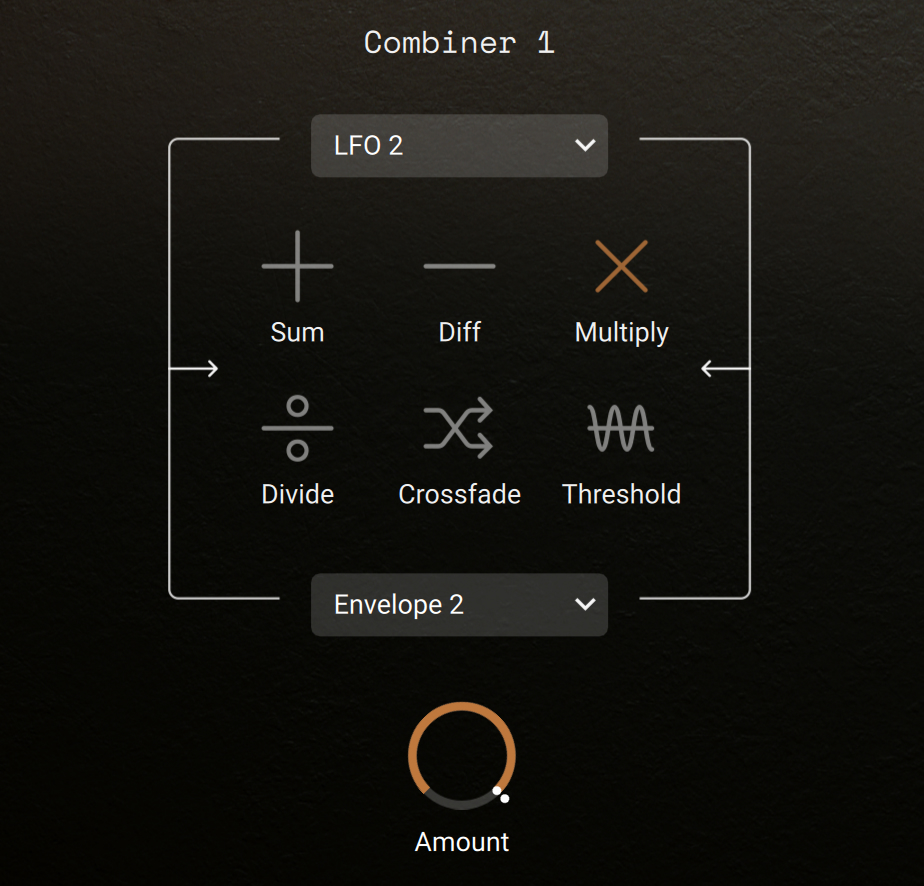 |
Source 1 menu (top menu): Selects the first modulation source to combine. The menu contains the usual modulation sources, except for the combiner itself, and an additional 0 value entry, which lets you use the zero value with the selected operator.
Operator selector: Selects the operation applied. The following operators are available:
Sum: Adds the source 2 to the source 1.
Diff: Subtracts the source 2 from the source 1.
Multiply: Multiplies the source 1 by the source 2.
Divide: Divides the source 1 by the source 2.
Crossfade: Linearly blends between the sources 1 and 2 using the Amount knob as mix control. With Amount at 0 % only the source 1 passes through, at 100 % only the source 2.
Threshold: Applies a minimum floor to the source 1 using the Amount value as the threshold. The values of source 1 below the threshold are raised up to it, the values above pass through unchanged.
Note
The Threshold operator uses a single modulation source.
Source 2 menu (bottom menu): Selects the second modulation source to combine. The menu contains the usual modulation sources, except for the combiner itself, and an additional 0 value entry, which lets you use the zero value with the selected operator. The Source 2 menu is not available with the Threshold operator.
Amount: The action of the Amount control varies with the selected operator:
With the Sum, Diff, Multiply, and Divide operators, Amount adjusts the overall level of the resulting signal. For example, you can use it to compensate for the very high levels that might be generated by the operator.
With the Crossfade operator, Amount adjusts the blend between both source signals.
With the Threshold operator, Amount sets the threshold level under which the values of the first source are raised.