Options page
The Options page of Erosia lets you adjust various settings affecting the pitch, voicing, engine, and response of the instrument.
The Options page of Erosia lets you adjust various settings affecting the pitch, voicing, engine, and response of the instrument.
To open the Options page, click the cogwheel icon in the top right corner of the instrument.
The Options page contains the following elements:
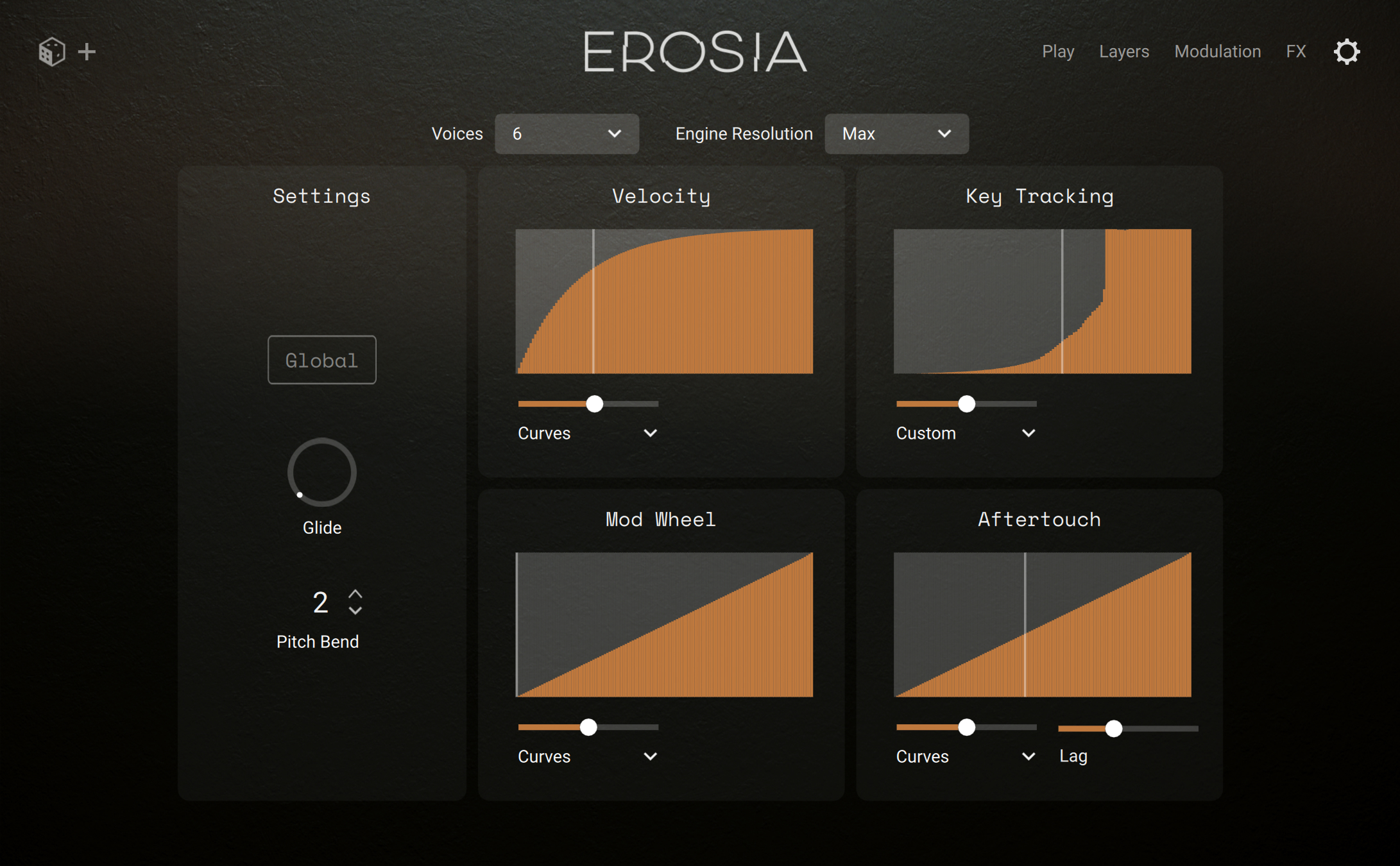
Voices: Adjusts the number of voices that the instrument can play simultaneously. If you play more notes at once than the Voices value, the oldest notes are cut. The maximum Voices value is 64 and its minimum is Mono (one single voice). If you select Legato, the instrument uses a single voice as with Mono, but it will retrigger the previous note if it is still being held as the current note is released.
Engine Resolution: Selects an engine resolution. Max provides the best audio results but uses more CPU resources, Eco uses the CPU more sparingly, and Enhanced provides a compromise between audio quality and CPU consumption.
Settings section: Contains global and pitch-related options. Refer to Settings section.
Velocity, Key Tracking, Mod Wheel, and Aftertouch sections: These sections let you adjust how the instrument responds to the velocity, key pitch, modulation wheel, and aftertouch data, respectively. Refer to Response curves.
Settings section
In the left part of the Options page, the Settings section contains global and pitch-related settings.
The section contains the following elements:
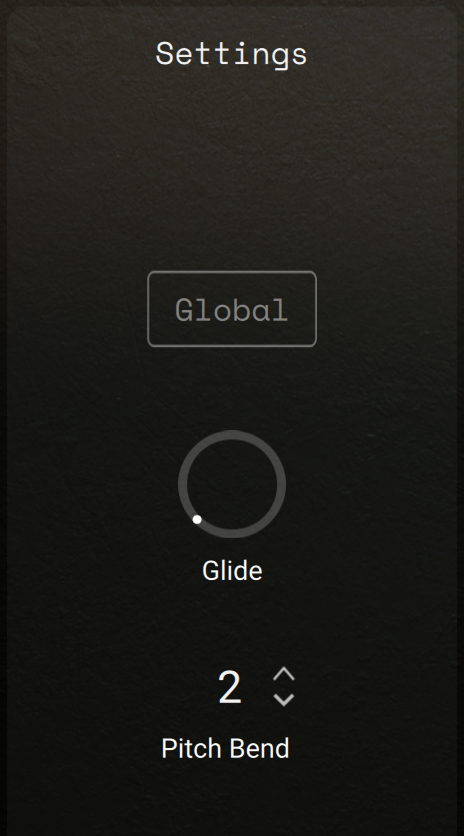 |
Global: When Global is active, the Glide setting, the Pitch Bend settings, and the four response curves keep their current values when you load another factory or user preset. This allows the instrument to respond in the same way to your MIDI keyboard as you switch between instrument presets. When Global is inactive, all your setting adjustments apply to the current preset only, and their values will change when you will load another preset.
Glide: Adjusts the duration of the pitch sweep between the current note and the next one. The available values range from 0 to 10 seconds.
Pitch Bend: Adjusts the range of the Pitch Bend wheel above and below the note pitch, in semitones. The available values are 0 (no pitch bend), 1–12 (one octave), and 24 (two octaves).
Response curves
The Velocity, Key Tracking, Mod Wheel, and Aftertouch response curves let you adjust how the instrument responds to the note velocity, note pitch, modulation wheel, and aftertouch data, respectively, that are received from the outside world. For example, you could adapt some of these response curves to your own playing or to your particular MIDI keyboard.
Note
Each response curve affects a signal that is available as modulation source in Erosia, thus the response curve will also indirectly affect the behavior of any parameter modulated by this source.
The four response curves provide similar editing tools:
 |
Response Display: Shows the current response curve. The horizontal axis represents the input values (for example, coming from your MIDI keyboard), and the vertical axis represents the resulting values in the instrument. The white vertical line indicates the current input. You can freely adjust the curve by clicking and dragging your mouse in the display. You can click or click-and-drag anywhere in the display to manually edit the curve. When you do this, the Mode selector below automatically switches to Custom.
Curvature slider: Adjusts the curvature of the shape. At the default center position, there is no curvature and the original shape is left untouched. Negative values (slider in the left half) will pull the shape downwards, positive values (slider in the right half) will pull it upwards.
Shape selector: Selects a predefined or a free shape. Selecting Curves resets the shape to a diagonal line, for which the input and the output are proportional. Selecting Custom recalls the last shape that you have manually edited. If you manually edit a predefined shape, the Shape selector automatically switches to Custom.
Velocity section only: Selecting Fixed resets the shape to a horizontal line, in which the output velocity keeps the same value for all input velocities. In this particular case, the Curvature slider adjusts the value of the fixed velocity.
Note
Whichever entry you select in the Shape selector, the resulting shape will be affected by the current Curvature value.
Lag slider (Aftertouch section only): Adjusts a lag before the incoming aftertouch data starts being read. For some presets this can be useful to let the attack of the sound develop before the aftertouch data kicks in and modifies the sound.