Source browsers
Learn how to browse and load source sounds into your layers from Erosia’s factory library.
The Source browsers let you browse and load the source sounds used in the four layers.
To open the Source browser for a particular layer, click the name of its current source sound in the Layer Inspector of the Play page or in the Layer tabs of the Layers page:
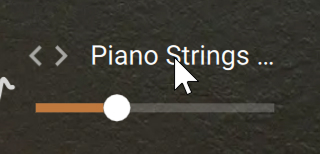
The Source browsers contain the following elements:

Browser name: Indicates the layer for which you are browsing source sounds.
Tag filter: You can click the tags describing the sound that you are looking for. The Sounds list on the right is updated accordingly. Only one tag can be selected in each column.
For all types of layers (grain, sample, and wavetable), the Tag filter provides a Category column. At the top of the column, the All tag shows all the available sources.
For the sample and wavetable layers (layers 2–4), the Tag Filter also provides a Type column with two entries: Sampler and Wavetable. Clicking either entry will determine the engine used in that layer. The tags in the Category column vary with the engine selected in the Type column.
Sounds list: Shows the source sounds available for that layer with the selected Type and Category tags. The loaded source is highlighted. You can click another source from the list to load it into the layer and directly hear its sound in context. Double-clicking a source loads it and closes the browser. The scroll bar on the right lets you display the remaining entries.