Effects page
The Effects page lets you configure the character and mix effects of Kithara.
The Effects page lets you configure and apply various effects to the sound of your instrument.
To display the Effects page, do the following:
Click FX at the top right of the instrument to display the Effects page.
The Effects page includes two panels, each providing a different type of effects. You can display either panel by clicking the CHARACTER or MIX tab at the top of the page:
 |
CHARACTER: Opens the Character panel, which lets you adjust the Character effects.
MIX: Opens the Mix panel, which lets you adjust the Mix effects.
Character effects
Each Character effect is a custom creation combining multiple effects and automating them to generate an effect that you can use out of the box. It is designed to join the power of an entire effect rack with a reduced set of specially selected controls for an instant effect on the sound, with uncluttered controls and functionality.
To display the parameters of the Character effects, do the following:
Click CHARACTER at the top of the Effects page to display the Character panel.
The Character panel appears in the Effects page and you can adjust the parameters of the included effects.
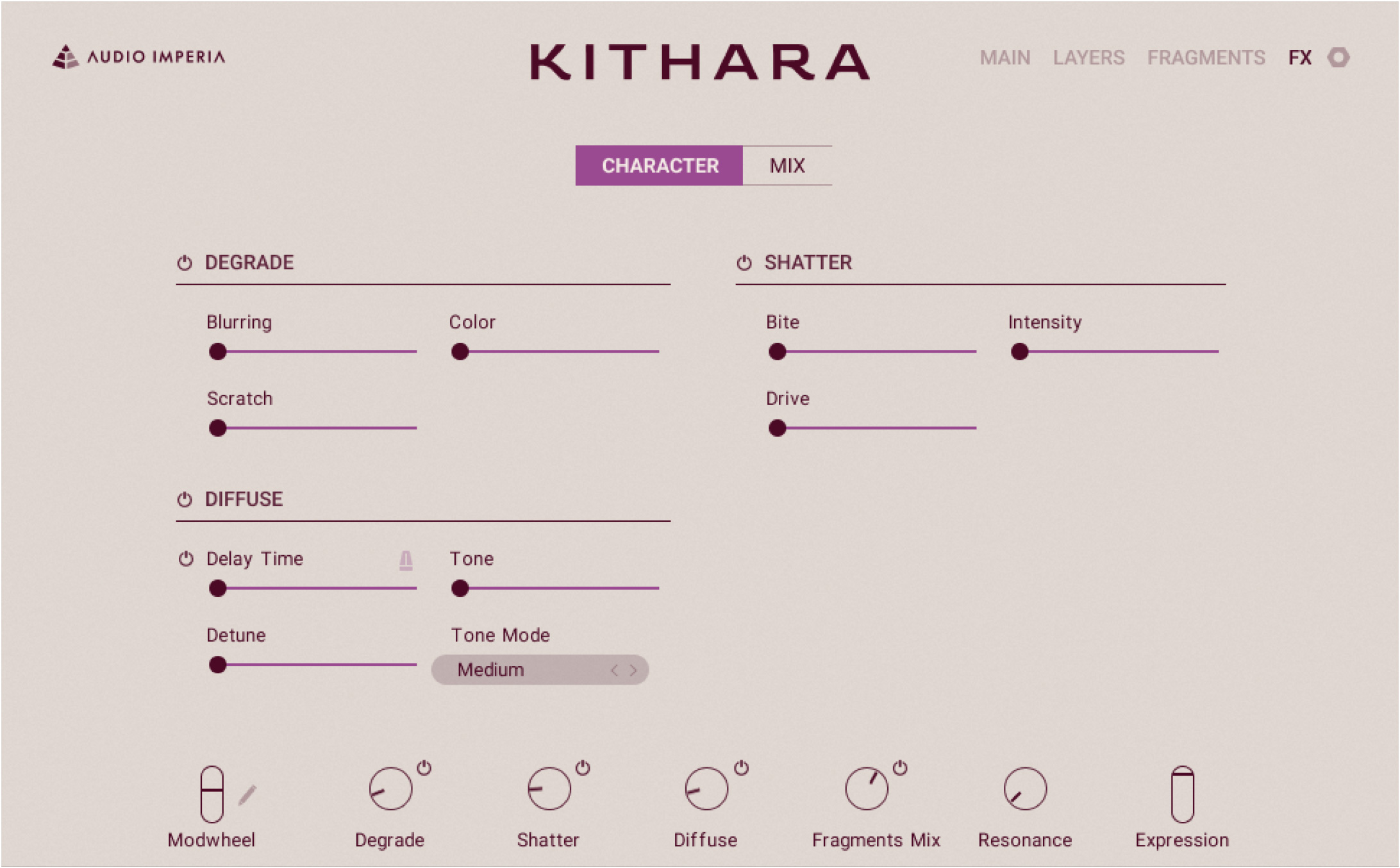
The Character panel contains controls for the three available Character effects: Degrade, Diffuse, and Shatter.
Tip
All the continuous parameters of the Character effects can be modulated using the Modwheel control. For more information on how to assign parameters to the Modwheel control, refer to Modulating your sound.
Degrade
The Degrade effect combines a ladder filter with an aging tape emulation to create a rustic, dated sound.
The Degrade effect contains the following controls:
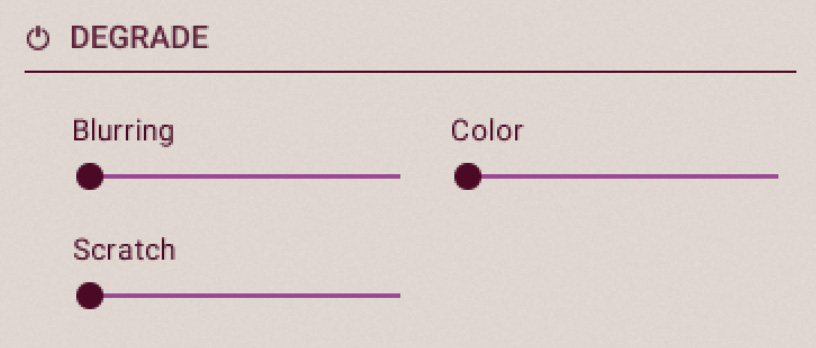 |
Degrade On/Off: Turns the Degrade effect on or off.
Blurring: Affects the stereo width, the tape age, and the amount of saturation.
Color: Changes the color of the sound by modifying the filter’s cutoff frequency while subtly adjusting the wow effect of the magnetic tape.
Scratch: Adjusts the scraping and the speed of the magnetic tape.
Tip
At the bottom of the page, the Performance controls provide an additional Degrade control adjusting the overall amount of Degrade effect applied to the sound. Next to it, the little on/off switch mirrors the Degrade On/Off switch described above. The Performance controls are always visible except when the Settings page is displayed.
Diffuse
The Diffuse effect combines an advanced reverberation with a vintage delay unit to create an almost blurred, smudging effect.
The Diffuse effect contains the following controls:
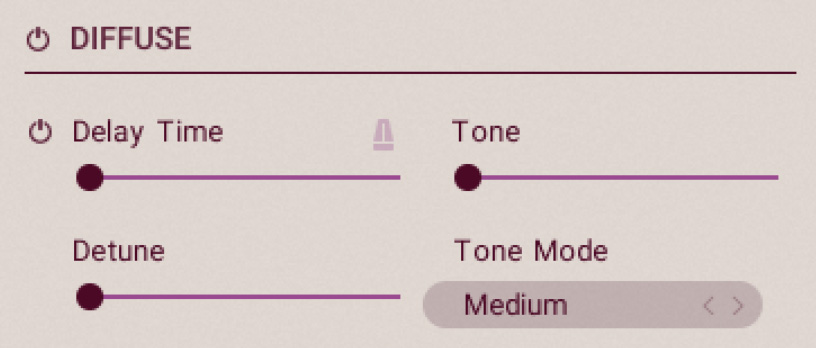 |
Diffuse On/Off: Turns the Diffuse effect on or off.
Delay Time On/Off: Turns the delay unit on or off. When the delay unit is off, only the reverberation can be heard.
Delay Time: Changes the delay time while introducing a movement in the reverb sound.
Sync (metronome icon): Synchronizes the Diffuse effect with the global tempo of Kontakt.
Tone: Opens the high-cut filter within the reverberation while decreasing the feedback of the delay.
Detune: Detunes the delayed audio while increasing the damping factor of the reverberation.
Tone Mode: Selects from three reverberation modes (Short, Medium, and Long) emulating rooms of different sizes.
Tip
At the bottom of the page, the Performance controls provide an additional Diffuse control adjusting the overall amount of Diffuse effect applied to the sound. Next to it, the little on/off switch mirrors the Diffuse On/Off switch described above. The Performance controls are always visible except when the Settings page is displayed.
Shatter
The Shatter effect is a combination of compression, saturation, distortion and vibrato/chorus, allowing the sound of your instrument to become more aggressive.
The Shatter effect contains the following controls:
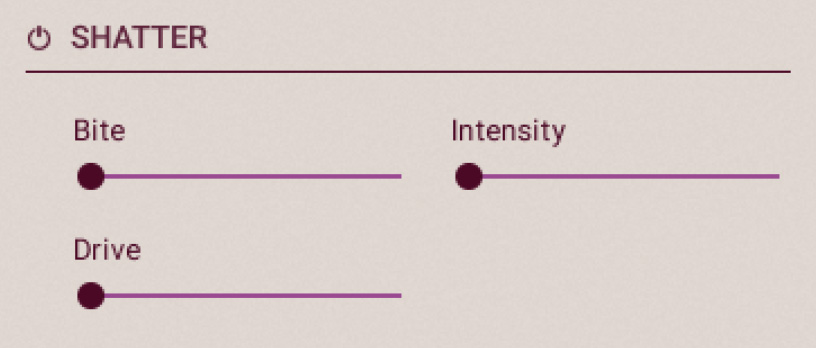 |
Shatter On/Off: Turns the Shatter effect on or off.
Bite: Decreases the damping of the high frequencies within the distortion. As a result, it accentuates the brightness caused by the artificial harmonics.
Intensity: Adjusts the intensity of the underlying vibrato/chorus effect.
Drive: Acts as an input gain by reducing the compressor’s threshold while increasing its output level.
Tip
At the bottom of the page, the Performance controls provide an additional Shatter control adjusting the overall amount of Shatter effect applied to the sound. Next to it, the little on/off switch mirrors the Shatter On/Off switch described above. The Performance controls are always visible except when the Settings page is displayed.
Mix effects
The Mix effects are a set of classic, proven effects that will help you bring out your instrument in the mix.
To display the parameters of the Mix effects, do the following:
Click MIX at the top of the Effects page to display the Mix panel.
The Mix panel appears in the Effects page, and you can adjust the parameters of the included effects.
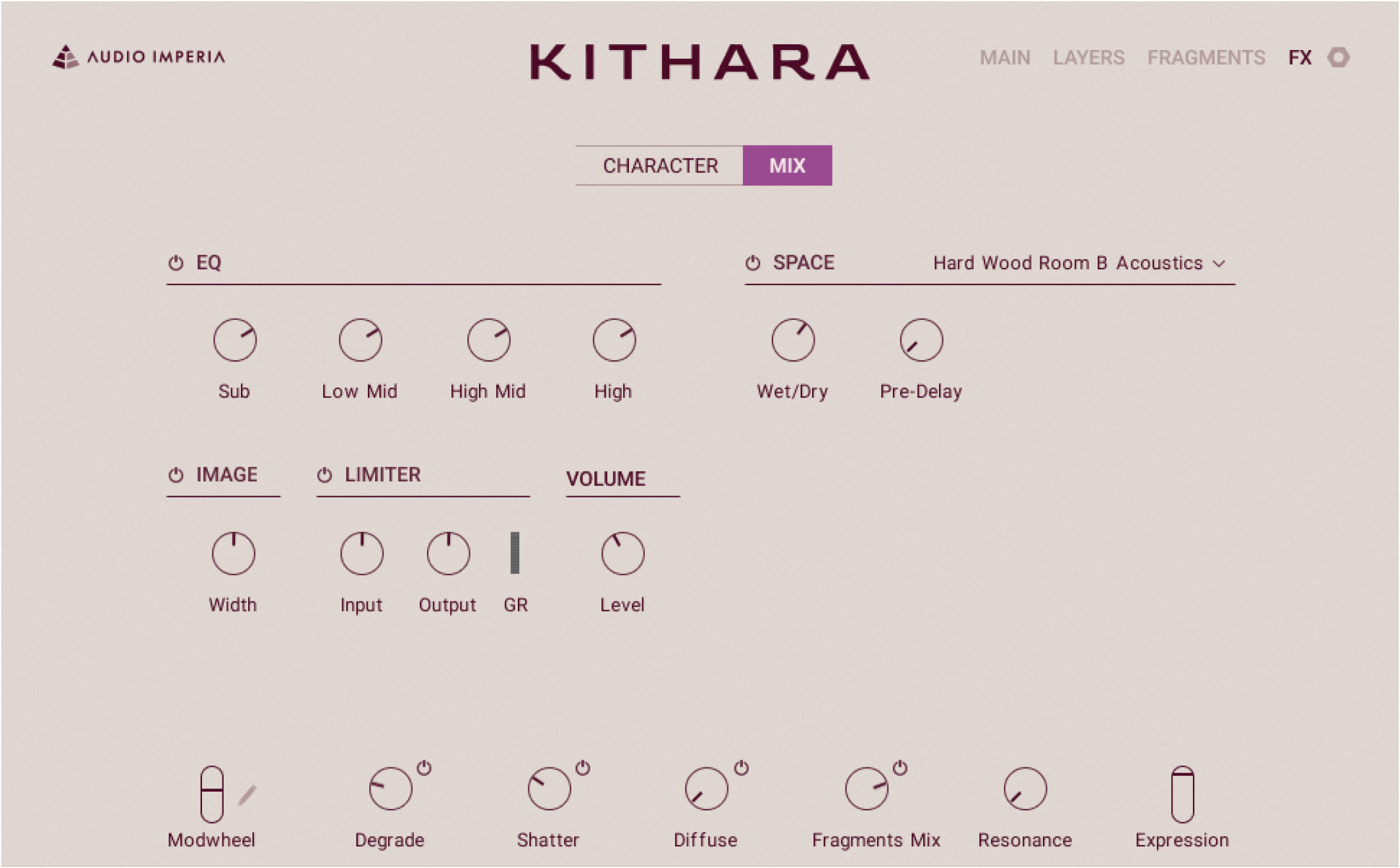
The Mix panel contains controls for the four available Mix effects: EQ, Image, Limiter, and Space, as well as a Volume level control at the end of the effect chain.
EQ
The Equalizer (or EQ) lets you amplify or attenuate specific frequency ranges of your instrument. It contains the following controls:
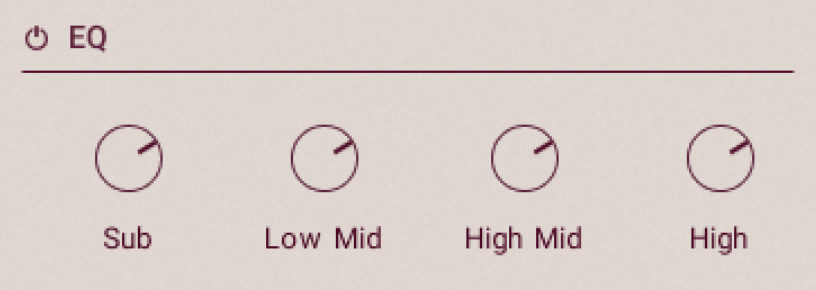 |
EQ On/Off: Turns the Equalizer on or off.
Sub: Adjusts the amount of boost or cut at the low frequencies.
Lower Mid: Adjusts the amount of boost or cut at the low-mid frequencies.
High Mid: Adjusts the amount of boost or cut at the high-mid frequencies.
High: Adjusts the amount of boost or cut at the high frequencies.
Image
The Image effect lets you adjust the stereo width of your instrument. It contains the following controls:
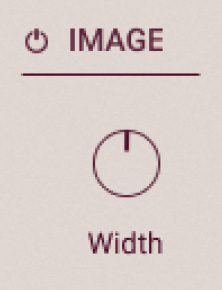 |
Image On/Off: Turns the Image effect on or off.
Width: Reduces or expands the instrument’s stereo width. With the knob at full left, the sound is mono. In the default middle position, the original stereo width is left untouched. Turning the knob further to the right will widen the original stereo image.
Limiter
The Limiter prevents your instrument from getting too loud. It acts as a “safety net” by attenuating short signal peaks to keep them from overloading the output of your instrument, which would result in audio clipping and unwanted distortion artifacts.
The Limiter contains the following controls:
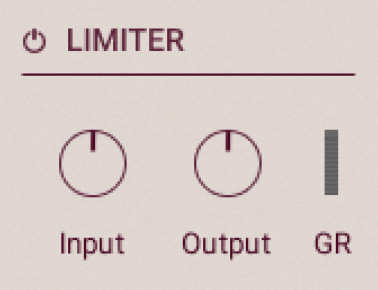 |
Limiter On/Off: Turns the Limiter on or off.
Input: Sets the gain of the input signal. You can use this control to adjust the input gain until you see the GR meter responding only to occasional level peaks.
Output: Adjusts the output level.
GR meter: Shows the amount of gain reduction that the Limiter imposes on the signal. Limiting works best if this meter responds only to occasional level peaks; if it indicates permanent action, it’s a sure sign that your Input level is set too high, which can degrade the quality of your signal.
Volume
The Volume section contains one control:
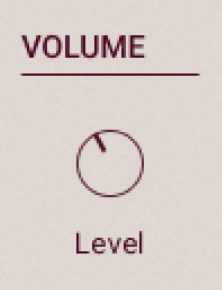 |
Level: Adjusts the output level of the signal after the effect chain.
Space
The Space effect simulates various types of reverberation. It contains the following controls:
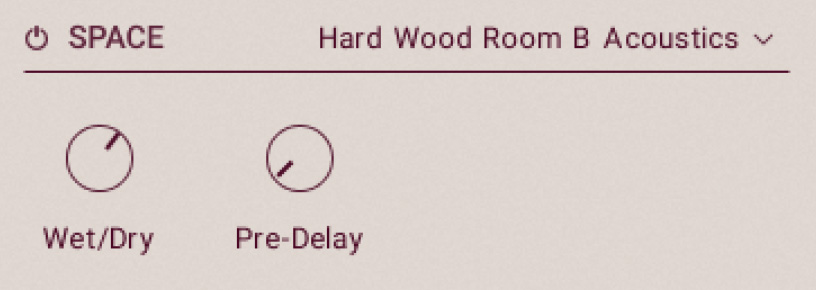 |
Space On/Off: Turns the Space effect on or off.
Response menu: Selects from a list of available room and reverb simulations.
Wet/Dry: Adjusts the ratio between the processed (“wet”) and unprocessed (“dry”) signals.
Pre-Delay: Adjusts a short amount of delay between the direct signal and the reverberated signal. Increasing the Pre-Delay value is useful when simulating the reverberation of big rooms, where a short delay occurs between the direct sound and the first reflections from distant walls.
Note
In addition to processing the overall sound of the instrument, the Space effect can also serve as send effect to process the sound of the individual Attack, Sustain 1, Sustain 2, and Release layers. This is done by using their Reverb Send sliders in the Sound panel of the Layers page. The individual layers are processed according to the simulation selected in the Space effects’s Response menu, but independently of the effect’s on/off state, Wet/Dry ratio and Pre-Delay value: These only affect the reverberation on the overall sound of the instrument.