Source browsers
Learn how to browse and load source samples from Kithara’s factory library for use in the Attack, Sustain 1, Sustain 2, Release, and Fragments layers.
Kithara lets you browse and load the samples used as sources in the five layers of the instrument:
For the main four layers (Attack, Sustain 1, Sustain 2, and Release), you can browse the source samples by clicking the respective source names displayed in the Layer Inspector.
For the Fragments layer, you can browse the source samples by clicking the source name displayed in the Source section of the Variation Slots panel in the Fragments page.
In any case, a Source browser opens and provides the following elements:
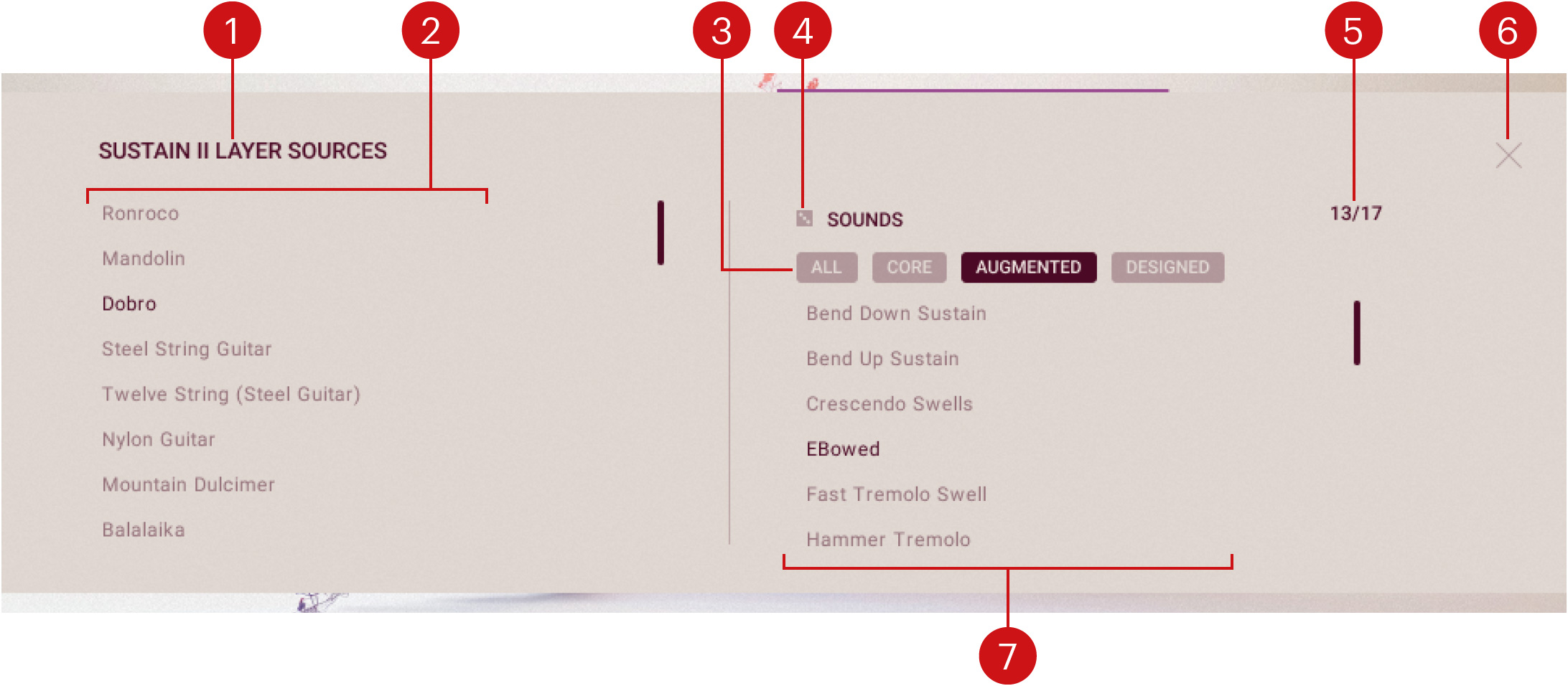
Browser name: Indicates the layer for which you are browsing source samples.
Instrument filter: Clicking an instrument from the list will narrow the Sounds list to the samples from that instrument. Only one instrument can be selected at a time. The scroll bar on the right lets you display the remaining entries.
Processing filter: Clicking a processing category will narrow the Sounds list to the samples in that category. The following categories are available: CORE (traditional guitar techniques / playing techniques), AUGMENTED (unconventional articulations), and DESIGNED (processed samples). You can click multiple categories to show samples from any of them, or ALL to show samples from all categories.
Select Random (dice): Randomly selects an entry from the current Sounds list.
Counter: Shows the number of results in the Sounds list compared to the number of samples available for the selected instrument.
Close (X): Closes the Source browser.
Sounds list: Shows the source samples available for that layer in the selected instrument and processing category. The loaded sample is highlighted. You can click another sample from the list to load it into the layer. The scroll bar on the right lets you display the remaining entries.