Layers page
The Layers page lets you adjust each of the four main layers of Kithara in detail.
The Layers page lets you configure the four main layers of your instrument: Attack, Sustain 1, Sustain 2, and Release.
To display the Layers page, do the following:
Click LAYERS at the top right of the instrument to display the Layers page.

Like the Main page, the Layers page shows the Layer Inspector in its upper part. Below, the Layers page includes three panels, each adjusting a different aspect of the four layers. You can display either panel by clicking the SOUND, SHAPE, or MAPPING button at the bottom of the page:
 |
SOUND: Opens the Sound panel, which provides tonal and spatial controls for the various layers.
SHAPE: Opens the Shape panel, which lets you modify the amplitude envelope of each layer and apply a low-pass and a high-pass filters to each of them.
MAPPING: Opens the Mapping panel, where you can customize the key range that will trigger the Sustain 1 and Sustain 2 layers.
Sound panel
The Sound panel provides a set of tonal and spatial controls for the four layers.
To display the Sound panel, do the following:
Click SOUND at the bottom of the Layers page to display the Sound panel.
The Sound panel appears in the Layers page and you can adjust its parameters.
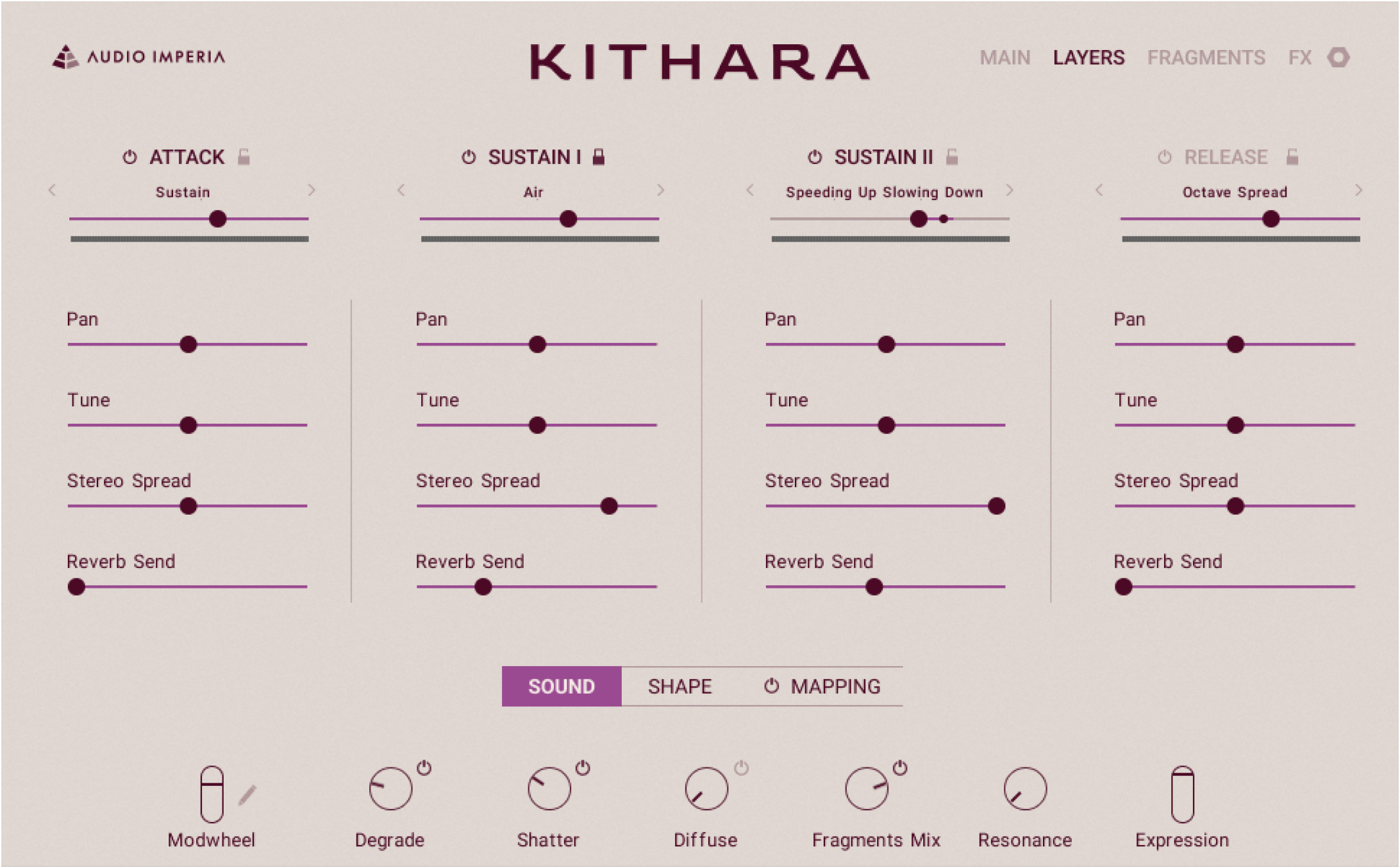
For each of the four layers, the Sound panel provides the following controls:
Pan: Adjusts the position of the layer in the stereo field.
Tune: Adjusts the pitch of the layer from -12 to +12 semitones.
Stereo Spread: Narrows or widens the layer across the stereo field.
Reverb Send: Adjusts how much of the layer is sent to the Space effect. The Space effect will process the layer according to its Response setting, but independently from its on/off state, Wet/Dry setting, and Pre-Delay value.
Tip
All the parameters in this panel can be modulated using the Modwheel slider. For more information on how to assign parameters to the Modwheel slider, refer to Modulating your sound.
Shape panel
The Shape panel lets you modify the amplitude envelopes of your four layers, and apply a low-pass and a high-pass filters to each of them.
To display the Shape panel, do the following:
Click SHAPE at the bottom of the Layers page to display the Shape panel.
The Shape panel appears in the Layers page and you can adjust its parameters.
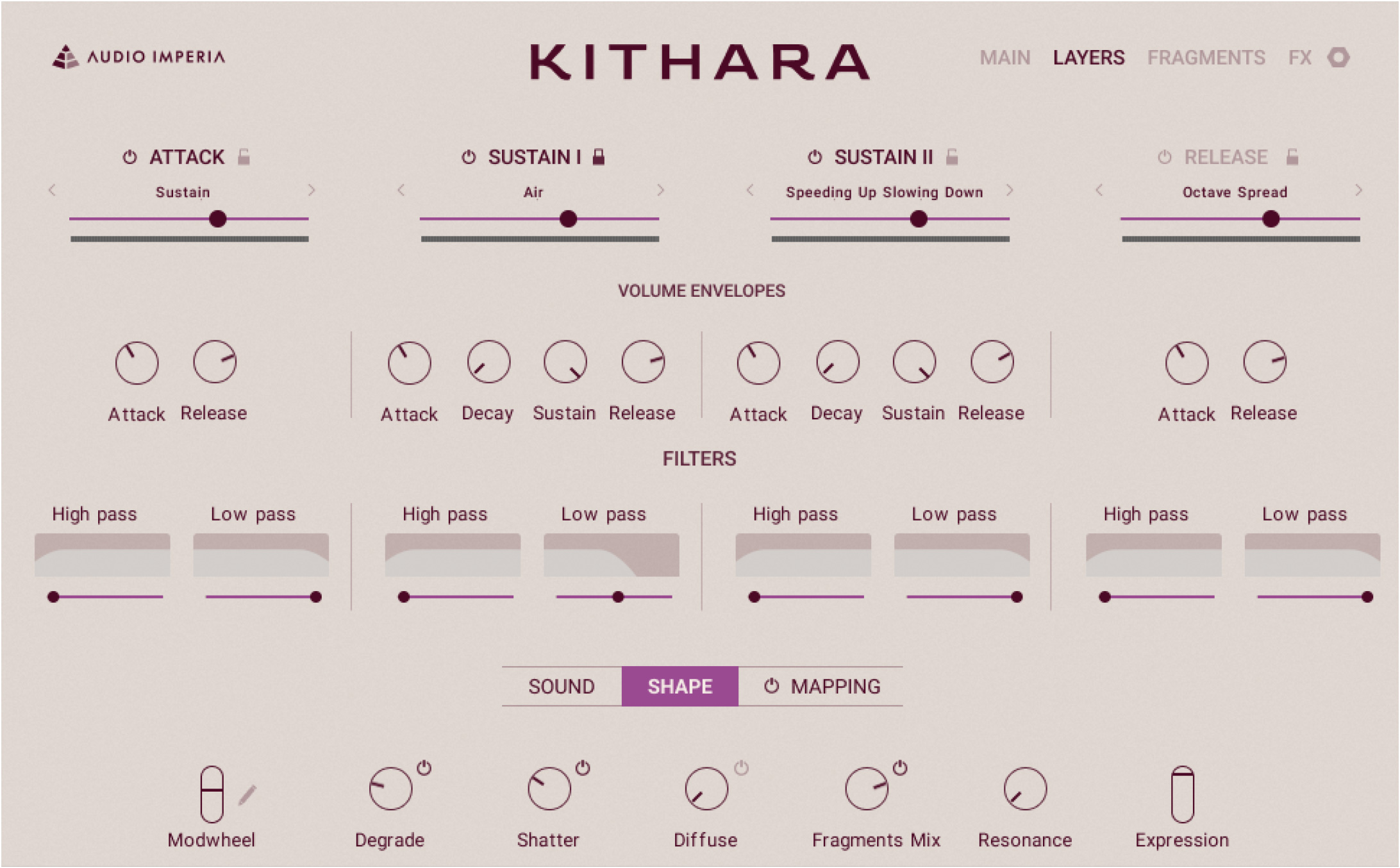
At the top, the Shape panel provides a VOLUME ENVELOPE section with the following controls for each layer:
Attack: Adjusts the time taken by the layer to reach its maximum level once you have pressed the key.
Decay (Sustain 1 and 2 layers only): Adjusts the time taken by the layer to move from its maximum level to the Sustain level.
Sustain (Sustain 1 and 2 layers only): Adjusts the level of the layer when you hold the key depressed. This level is measured as a drop compared to the maximum level: With the knob at full left (-inf dB) there is no sustain sound; at full right (0 dB) there is no level drop, the layer staying at its maximum level as long as you hold the key depressed.
Release: Adjusts the time taken by the layer to fade out once you have released the key.
Note
While the Attack, Sustain 1, Sustain 2, and Release layers of Kithara have names describing the type of sound they contain, each of them can have its own amplitude envelope including multiple steps (attack, release, etc.). Only the decay and sustain steps are not relevant for the Attack and Release layers, since their sources do not include any sustained, continuously sounding part.
Below, the Sound panel provides a FILTERS section with the following controls for each layer:
High pass: Adjusts the cutoff frequency of a high-pass filter applied to the layer. Dragging the slider to the right will progressively remove more low-frequency content.
Low pass: Adjusts the cutoff frequency of a low-pass filter applied to the layer. Dragging the slider to the left will progressively remove more high-frequency content.
Tip
Except for the Decay and Sustain knobs in the Sustain 1 and 2 layers, all the parameters in this panel can be modulated using the Modwheel slider. For more information on how to assign parameters to the Modwheel slider, refer to Modulating your sound.
Mapping panel
The Mapping panel allows you to activate custom key and velocity ranges for the Sustain 1 and Sustain 2 layers as well as highlight the keys for the Attack layer.
To display the Mapping panel, do the following:
Click MAPPING at the bottom of the Layers page to display the Mapping panel.
The Mapping panel appears in the Layers page and you can adjust its parameters.
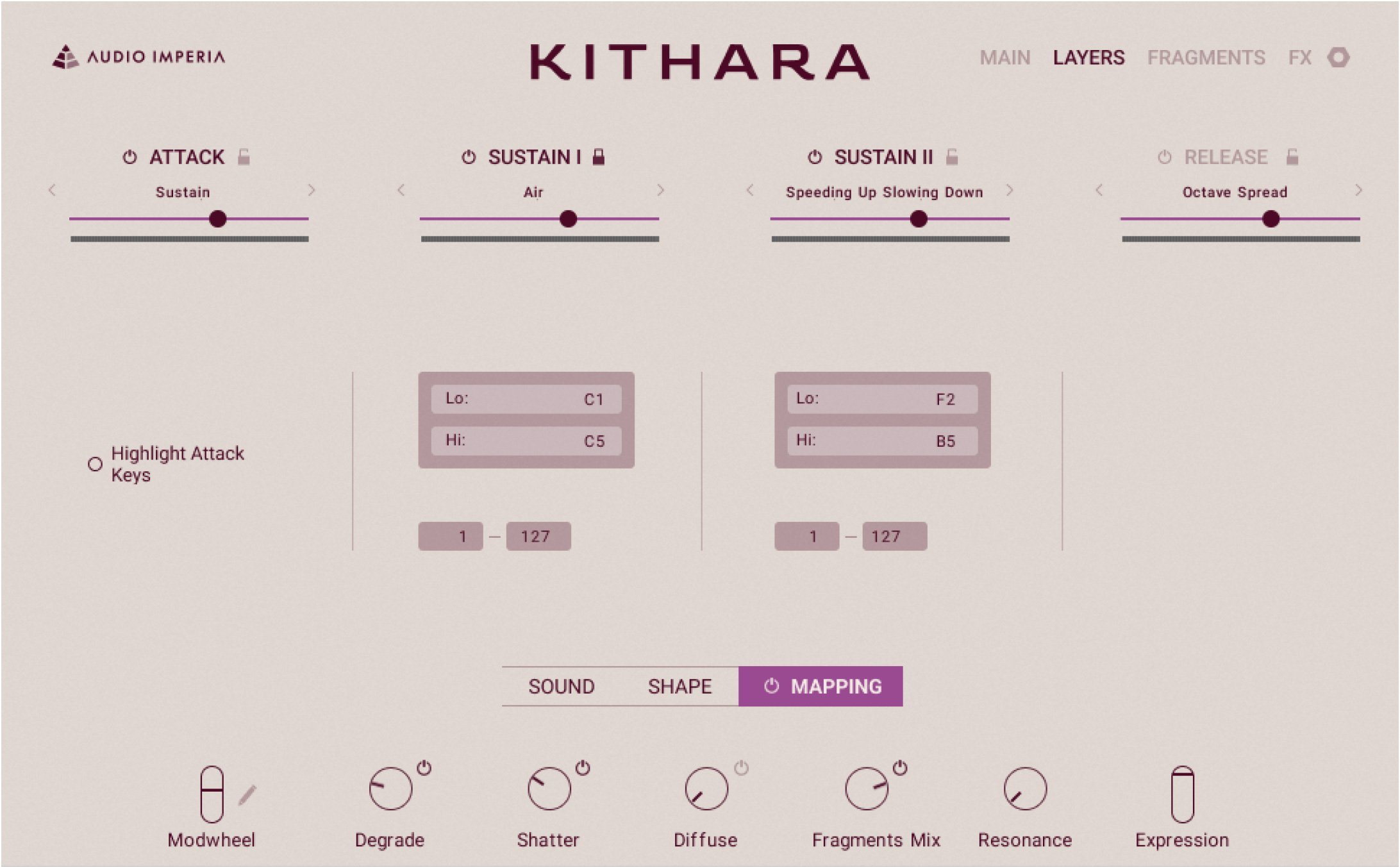
The Mapping panel provides the following controls:
Mapping On/Off (next to the MAPPING label at the bottom): Activates or deactivates custom key and velocity ranges for the Sustain 1 and Sustain 2 layers, and custom coloring for the Attack layer. When this is off, the other controls of the Mapping panel have no effect and all four layers have the same key range, velocity range, and color.
Key Range (Sustain 1 and Sustain 2 layers only): The Lo: and Hi: fields respectively define the lowest and highest keys that will trigger that layer. You can adjust either key by clicking the field and dragging your mouse vertically.
Velocity Range (Sustain 1 and Sustain 2 layers only): The left and right fields respectively define the lowest and highest velocities that will trigger that layer. You can adjust either velocity by clicking the field and dragging your mouse vertically.
Highlight Attack Keys (Attack layer only): When this is on, the key range for the Attack layer appears in a different color on Kontakt’s on-screen keyboard and on the Light Guide of the Kontrol S-Series keyboards. If the key ranges for different layers overlap, the highlighted Attack layer is shown on top of the other layers.