Settings page
The Settings page lets you adjust how Kithara reacts to your playing.
The Settings page lets you adjust how Kithara reacts to your playing.
To display the Settings page, do the following:
Click the nut icon at the top right of the instrument to display the Settings page.
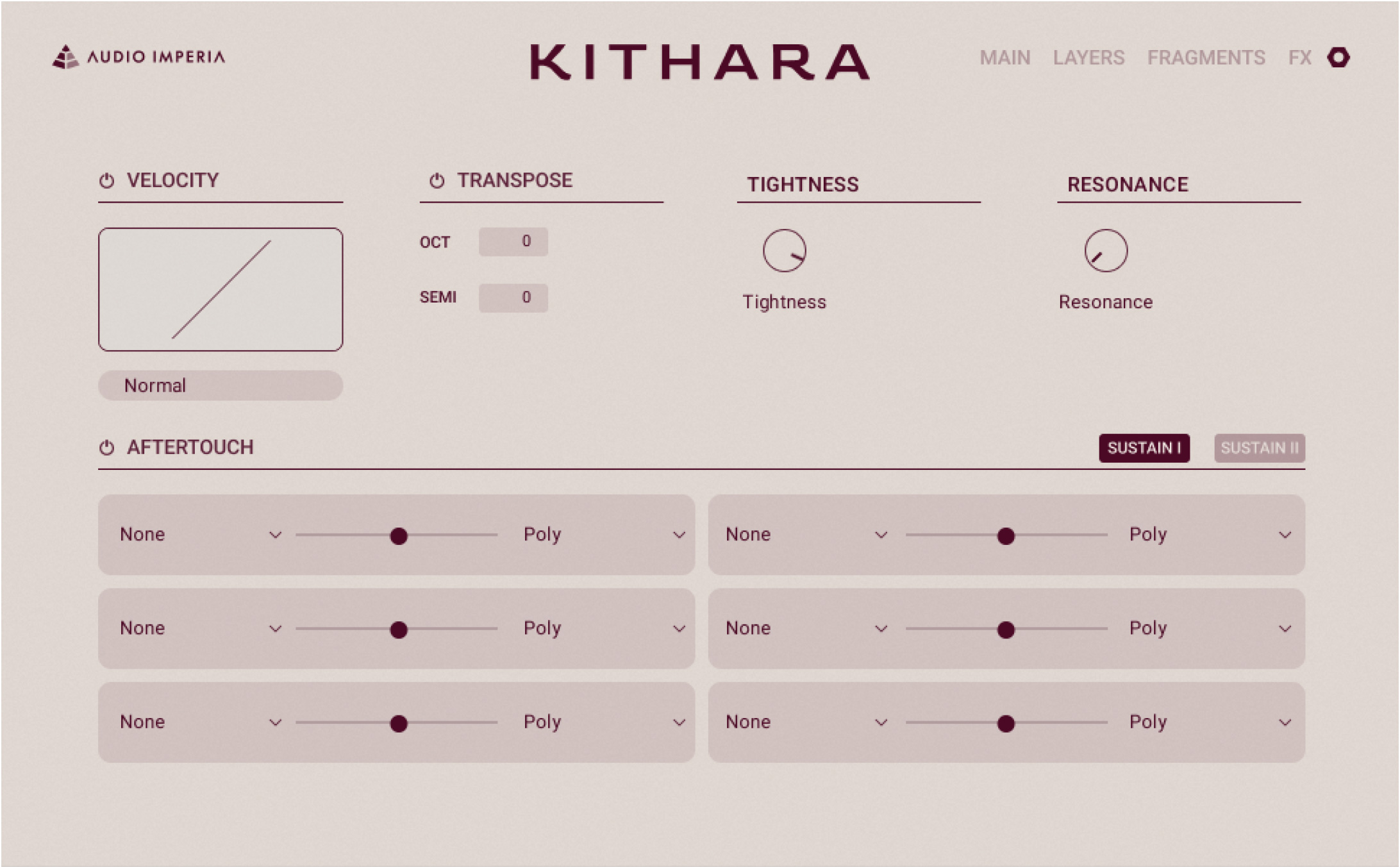
The Settings page contains the following sections: Velocity, Transpose, Tightness, Resonance, and Aftertouch.
Velocity settings
The Velocity section contains the following controls:
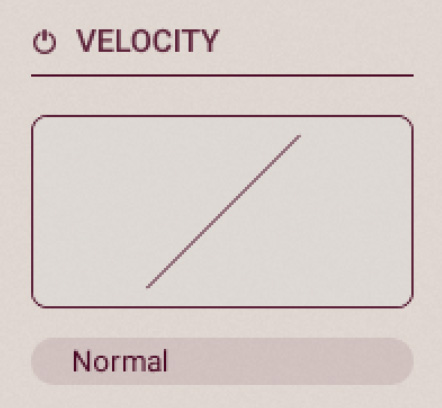 |
Velocity On/Off: Activates or deactivates the velocity setting globally. When the setting is inactive, the velocity response is linear.
Velocity menu: Selects from a list of velocity curves in order to customize the instrument’s response to your keyboard and way of playing.
Transpose settings
The Transpose section contains the following controls:
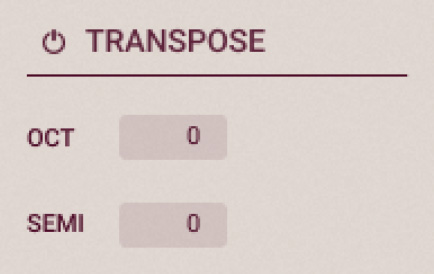 |
Transpose On/Off: Activates or deactivates the transpose settings globally. When the settings are inactive, no transposition is applied.
OCT: Transposes the incoming notes in octaves. To modify the value, you can click the little up/down arrows on its right, or click the displayed value and drag your mouse vertically, or double-click the displayed value and enter a new value with your computer keyboard.
SEMI: Transposes the incoming notes in semitones. To modify the value, you can click the little up/down arrows on its right, or click the value and drag your mouse vertically, or double-click the value and enter a new value with your computer keyboard.
Tightness setting
The Tightness section contains the following control:
 |
Tightness: Adjusts the sample start position to set the tightness (or responsiveness) of the sound.
Resonance setting
The Resonance section contains the following control:
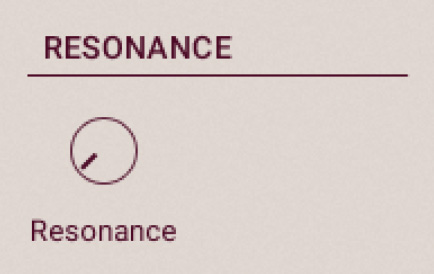 |
Resonance: Adjusts the amount of sympathetic resonances between the strings. Increasing these resonances creates a fuller and deeper sound.
Tip
This setting is also available in the Performance controls. Notably, you can assign it to the Modwheel slider from there.
Aftertouch settings
The Aftertouch section lets you modulate up to six parameters in each of the Sustain 1 and Sustain 2 layers using the aftertouch (or pressure sensitivity) of your MIDI keyboard, that is, the pressure at which you hold the keys depressed.
The Aftertouch section contains the following controls:
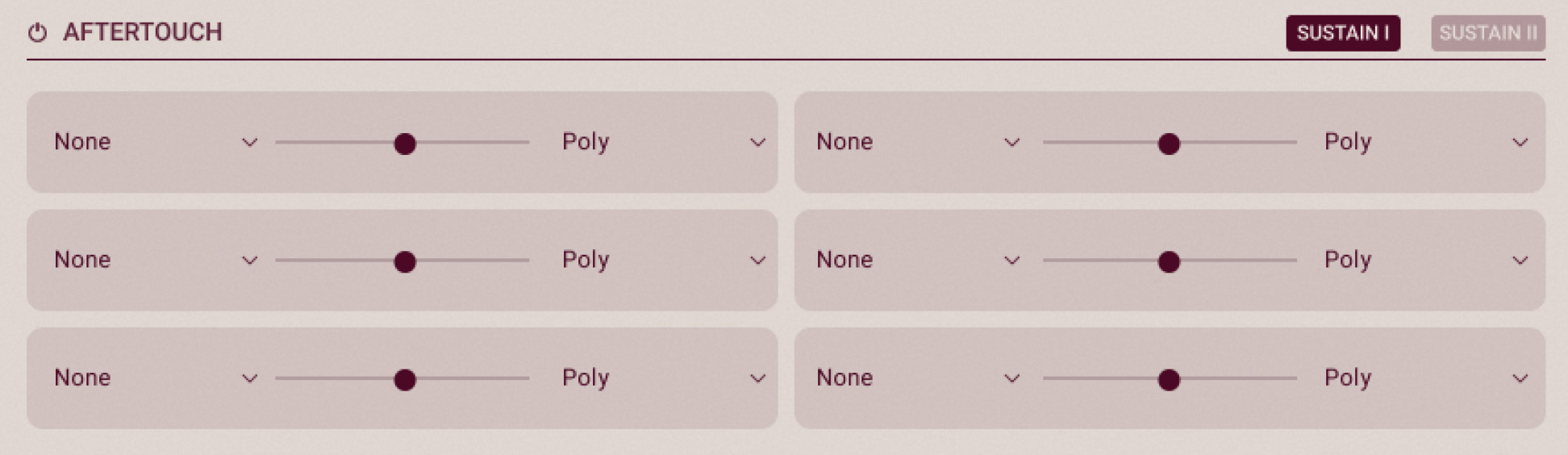
Aftertouch On/Off: Activates or deactivates the aftertouch modulation globally. When inactive, the MIDI aftertouch information is ignored.
SUSTAIN 1 / SUSTAIN 2 selector: Shows the modulation targets for the Sustain 1 or Sustain 2 layer.
Modulation slots: The six modulation slots let you configure up to six targets that will be affected by the aftertouch. The slot details are described below.
Each modulation slot defines an aftertouch modulation for one parameter in the selected layer. Each slot contains the following controls:
 |
Target menu: Selects the target parameter to be modulated. The available parameters are Pan, Tune, Stereo Spread, and Reverb Send from the Layers page’s Sound panel, as well as LP Filter Cutoff and HP Filter Cutoff from the Layers page’s Shape panel. You can deactivate this target by selecting None (selected by default).
Modulation Amount slider: Adjusts how much the aftertouch will affect the target parameter. The slider is bipolar: In the default middle position, no modulation takes place; if you drag it to the right or to the left, the aftertouch will modulate the target parameter positively or negatively.
Aftertouch Mode menu: Selects which kind of aftertouch should be considered. If Mono is selected, monophonic aftertouch is used and your pressure on the oldest held note will also affect the following notes. If Poly is selected, your pressure on each note will affect that individual note.
Note
The Mono and Poly aftertouch modes will only work if your MIDI keyboard is equipped with the corresponding monophonic or polyphonic aftertouch feature.