Modulating your sound
Learn how to modulate your sounds in Kithara using the Modwheel control.
At the bottom left of the Kithara interface, the Modwheel control is always visible, except when the Settings page is displayed. You can assign this slider to multiple parameters of Kithara and use it to adjust them all at once.
Click and drag the Modwheel slider vertically to adjust all its assigned parameters at once.
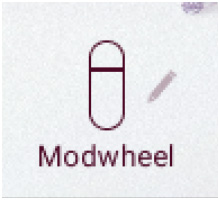
As with any knob or slider in Kithara, you can use [Ctrl]-click (Windows) or [command]-click (Mac) to reset the knob to its default value.
The Modwheel slider is assigned to MIDI CC1, which corresponds to the modulation wheel on your MIDI keyboard. This allows you to control all the assigned parameters from your MIDI keyboard.
Assigning parameters to the Modwheel slider
To assign a parameter to the Modwheel slider, do the following:
Open the page and the panel containing the control that you want to assign.
Click the pen icon next to the Modwheel slider to switch to Assign Edit mode.
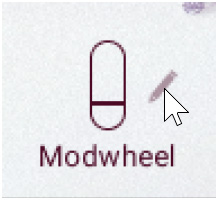
The pen icon lights up, and a modulation icon showing two little up and down arrows appears next to each assignable control.
Click the modulation icon near the desired control and drag your mouse vertically.
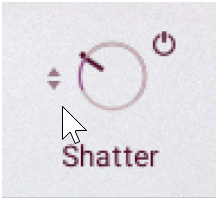
The parameter is modulated by the Modwheel slider. The further you drag your mouse, the stronger the Modwheel slider will affect the parameter value.
Note
Switching to another panel or to another page deactivates the Assign Edit mode. You can assign parameters located elsewhere in the instrument by opening the corresponding page or panel and re-activating the Assign Edit mode by clicking the pen icon next to the Modwheel slider.
The Modwheel slider affects the parameter values relatively to their original position, in other words, adjusting the Modwheel slider will modulate the parameter value in a range based on its original value. The modulation is bipolar: If you drag the modulation icon upwards, the modulation range will extend above the slider or knob position; if you drag the icon downwards, the modulation range will extend below the slider or knob position.
You can quickly see which parameters are assigned to the Modwheel slider:
Sliders: When modulated, the brighter part of the slider’s span shows the modulation range.
Knobs: If not modulated, knobs have a bright ring. When modulated, the ring becomes darker, with the brighter part showing the modulation range.
In addition, on each assigned control a small dot shows the current position set by the Modwheel slider.
Removing parameter assignments
To stop modulating a parameter via the Modwheel slider, you need to remove the parameter assignment:
Open the page and the panel containing the control that you want to unassign.
Click the pen icon next to the Modwheel slider to switch to Assign Edit mode.
The pen icon lights up, and a modulation icon showing two little up and down arrows appears next to each assignable control.
[Ctrl]-click (Windows) or [command]-click (Mac) the modulation icon near the desired control.
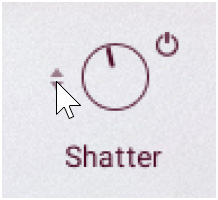
The modulation amount is reset to its median zero default value. The control is released from the modulation and the visual indication of the modulation disappears.
Which parameters can be modulated?
Most continuous controls (sliders or knobs) of Kithara can be assigned to the Modwheel slider, including:
The four Layer Volume sliders in the Layer Inspector.
All the Performance controls except the Expression slider.
All the continuous controls in the Layers page, with the exception of the Decay and Sustain controls located in the Shape panel for the Sustain 1 and Sustain 2 layers.
All the continuous controls in the Fragments page.
All the continuous controls of the Character effects in the Effects page.
Note
The continuous controls of the Mix effects and those in the Settings page cannot be assigned to the Modwheel slider. Non-continuous controls (switches, selectors, etc.) cannot be assigned either.