Working with Cue Points
In this section you learn how to work with Cue Points in Traktor Play.
In this section you learn how to work with Cue Points. At first you learn what exactly a Cue Point is and about the different available types. Then you will learn how to store and manage Cue Points in Traktor.
About Cue Points
Starting from a particular point in a track (for mixing in, triggering, etc.) is called “cueing.” Traktor lets you mark points in the track’s timeline for cueing from / jumping to particular positions: These are called Cue Points. Cue Points can be stored for each track in your Collection, which allows you to re-use them at a later stage or in a later session. With the eight Hotcue buttons on the CUE page of the Advanced panel, you can store your most important Cue Points and Loops and trigger them at any time with a click. Besides for jumping to particular positions in a track (for example, beginning vocals, instrumentals or breaks), Cue Points can also be used for creative techniques such as remixing parts of a track or beat-juggling performances.
Types of Cue Points
Traktor provides different types of Cue Points for different purposes. This section gives a detailed description of the various types of Cue Points available.
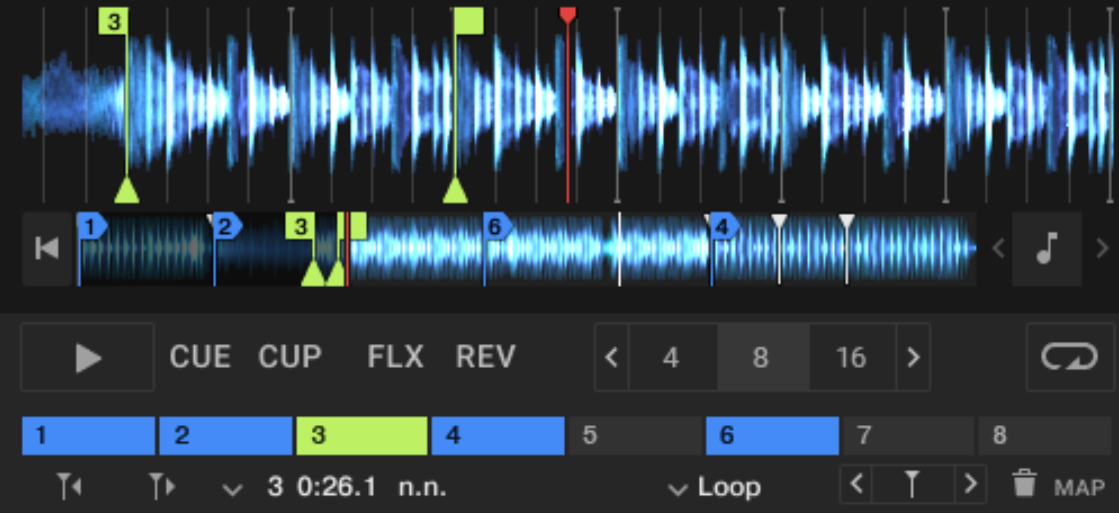 |
Cue Points of different types in the Waveform and Stripe.
Floating Cue Point: The Floating Cue Point is always your starting point when working with Cue Points and Loops. This temporary Cue Point is automatically set to the playhead position each time you click the CUE or CUP button with the Deck paused, or when you jump to any stored Cue Point. There is one and only one Floating Cue Point at any time. When no Loop is active, the Floating Cue Point appears as a white triangle at the bottom of the Waveform and the Stripe. When a Loop is active, the Floating Cue Point serves as Loop In Point and its triangle is green.
Cue Point: This is the regular Cue Point. It is used to jump to particular positions in the track. On the Waveform and the Stripe, Cue Points appear as blue vertical lines.
Loop In Point and Loop Out Point: The Loop In and Loop Out Points respectively define the start and the end of a stored Loop. In the Waveform and the Stripe, Loop In/Out Points appear as green vertical lines. For more information, refer to Working with Loops.
Note
Traktor Pro provides three additional types of Cue Points: Load, Fade In, and Fade Out Points. The Load Point allows you to load the track directly at a specific position. The Fade In/Out Points let you choose when track transitions should occur during automated playback (Cruise mode).
Accessing the CUE Page in the Advanced panel
To manage the Cue Points in a track, you need to open the CUE page in the Advanced panel:
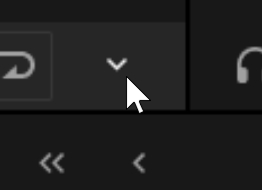
Click the Advanced Panel button (downward arrow) to display the Advanced panel of the Decks.
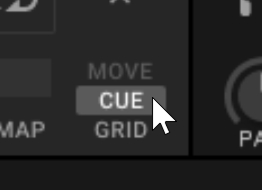
In the Advanced panel, select CUE on the right to show the CUE page.
Setting Cue Points
Setting Cue Points is straight forward. On a paused Deck:
Scroll to the position in the track where you want to set a Cue Point.
Click CUE in the transport controls.
The Floating Cue Point is set at the current position.
When you now playback the track and click the CUE button again, the playhead jumps directly to this Floating Cue Point. You then have the possibility to store this Floating Cue Point as a Cue Point in the track, which will allow you to reuse this Cue Point at a later time.
Storing Cue Points
You can store Cue Points for later use. Stored Cue Points appear in the Cue List. They are saved with the track metadata and will be recalled every time you load the track.
Scroll to the position in the track where you want to store a Cue Point.
Click the CUE button in the transport controls to set the Floating Cue Point at the current position.
Click the Store button on the CUE page of the Advanced panel to store this Cue Point.
The Cue Point is stored and appears in the Cue List. If a Hotcue button is available, it is assigned to this Cue Point.
Tip
You can also quickly store the Floating Cue Point by clicking an empty (unlit) Hotcue button. If all Hotcue buttons are already taken, you can always use the method above.
Nudging Cue Points
Cue Points can be nudged from the CUE page of the Advanced Panel:
Select the desired Cue Point by clicking its Hotcue button (if any), by using the Cue List, or by clicking the Previous/Next Cue Point buttons.
Nudge the Cue Point by pressing the Move Cue Backward or Move Cue Forward buttons located on the bottom left of the CUE page.
Jumping to Cue Points
You can select any of your stored Cue Points to jump to the respective position in the track.
Skipping to the next or previous Cue Point
Click the Next/Previous Cue Point buttons to skip to the previous or next Cue Point in the timeline.
The previous or next Cue Point is selected and the playhead jumps to its position, as indicated in the Waveform and in the Stripe.
Selecting any Cue Point from the Cue List
You can jump to any stored Cue Point in the track by opening the Cue List:
Click the arrow button to open the Cue Point selector.
Click the desired entry to select that Cue Point.
The playhead jumps to the position of the selected Cue Point, as indicated in the Waveform and in the Stripe. The Cue Point selector shows the name and position of the selected Cue Point.
Renaming Cue Points
You can rename any of the stored Cue Points:
Select the desired Cue Point, for example using the Cue List.
The properties of the selected Cue Point (order of appearance, timing, and name) are displayed at the bottom of the CUE page.
Click the displayed name to enable editing.
Enter a new name.
Changing the Cue Point’s type
You can change the type of a Cue Point using the Cue Type menu at the bottom of the CUE page in the Advanced Panel.
The following types of Cue Points are available in the Cue Type menu:
Cue (Cue Point).
Loop (Loop In Point)
To change the type of a Cue Point, do the following:
Select the Cue Point, for example using the Cue List.
The Cue Point’s type appears on the Cue Type menu.
Click the Cue Type menu to open it.
Select the desired type for this Cue Point.
The Cue Point’s type is changed and the color of the Cue Point in the Waveform and the Stripe is updated accordingly.
Deleting Cue Points
If you want to delete a stored Cue Point permanently, do the following:
Select the Cue Point that you want to delete, for example using the Cue List..
Click the bin icon to delete the Cue Point.
The Cue Point is permanently deleted.