Traktor Play overview
This section introduces you to the main areas and elements in Traktor Play.
Traktor Play consists of the following main areas and elements:
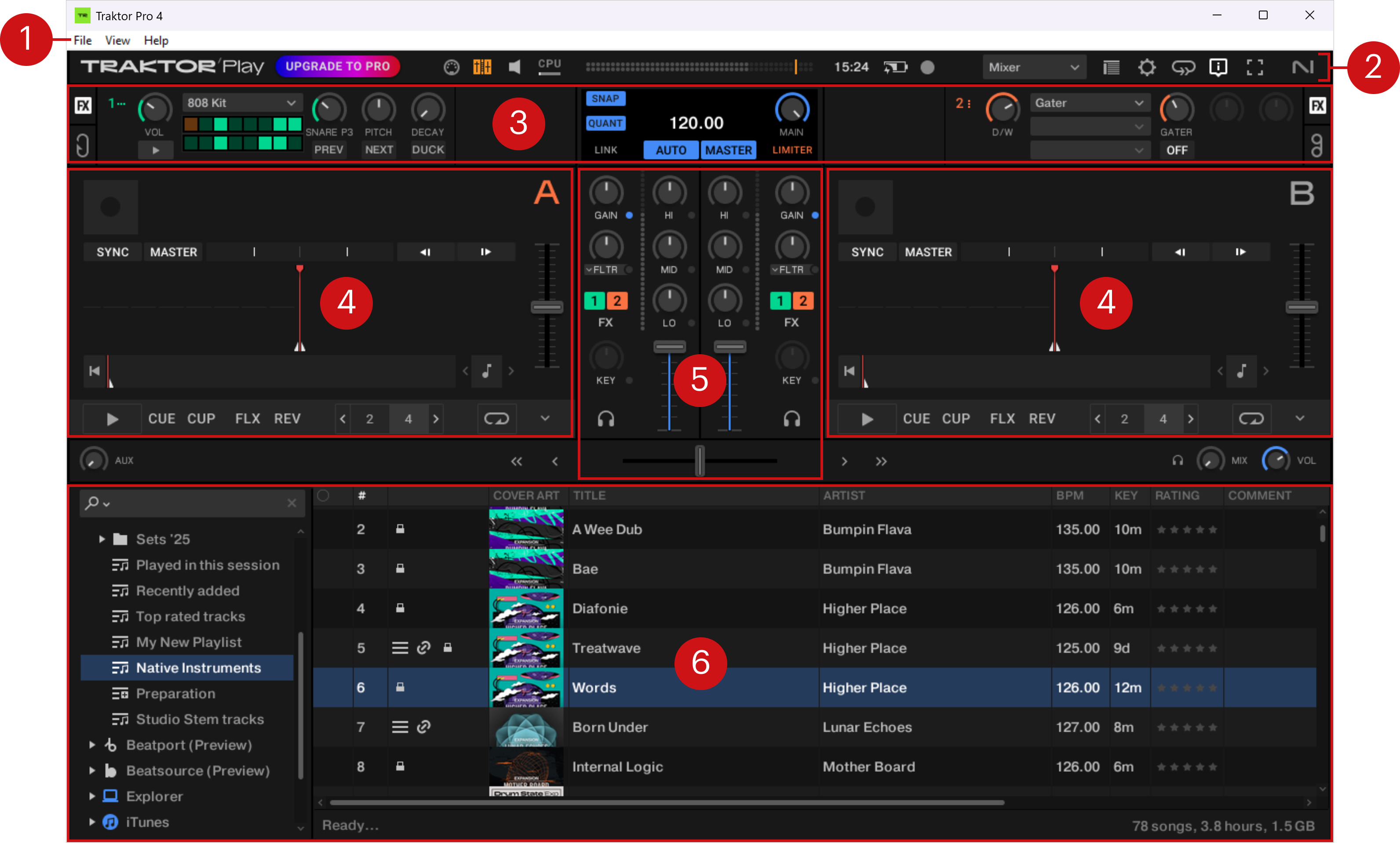
Application menu bar: The menu bar provides access to basic functions and information about the software. For more information, refer to Application menu bar.
Header: Here you can find various status indicators and useful functions and buttons, e.g., the Preferences button. For more information, refer to Header.
Global section: The Global section contains the FX Units on either side and the Master Control panel in the center. For more information, refer to Global section.
Decks: Traktor Play provides two virtual Decks A and B. The Decks are where tracks and Stem files are played back. For more information, refer to Decks and Deck Types.
Mixer: The Mixer receives audio signals on its two channels, coming from the two Decks. The Mixer’s basic purpose is to adjust the relative level of each channel, to control the channels’ frequency content, routing them into the FX Units, before sending the overall result to the main output. For more information, refer to Mixer.
Browser: The Browser lets you manage all your tracks in the Track Collection. You can group tracks in Playlists, sort them according to various attributes, and search within Playlists as well as in the entire Track Collection. For more information, refer to Browser.
Application menu bar
The Application menu bar provides access to the Traktor (macOS) / File (Windows), View, and Help menus, which contain the following entries:
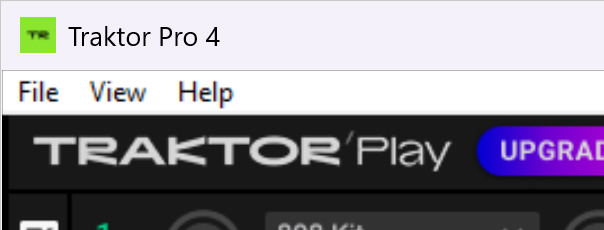 |
Traktor (macOS) / File (Windows): Contains options for setting up Traktor.
Preferences…: Opens the Preferences dialog.
Audio Setup…: Directly opens the Audio Setup page of the Preferences dialog.
Controller Manager…: Directly opens the Controller Manager page of the Preferences dialog.
Exit: Closes Traktor. By default, a confirmation dialog appears and lets you return to Traktor, or confirm and close the application.
View: Contains options adjusting the Traktor user interface.
Layouts: Lets you select a layout from the available Traktor layouts. Traktor layouts are a Traktor Pro feature and let you show or hide certain elements of the Traktor user interface to adapt to different use cases. In Traktor Play 4, the Mixer layout is the only available layout, and it is always selected.
Fullscreen: Switches the Traktor application to full-screen view. This entry is equivalent to the Fullscreen button in the Traktor Header.
Help: Contains options for getting more information on Traktor products, updating Traktor, and getting help.
Find out more about Traktor: Opens the web browser on your computer and directs you to the Traktor product page on the Native Instruments website.
Check for Updates on Native Access: Calls up the Native Access application that is checking for available software updates.
Downloads: Opens the web browser on your computer and directs you to the download page on the Native Instruments website.
Get Started with Traktor: Opens the web browser on your computer and directs you to the Traktor Learn page on the Native Instruments website.
Traktor Pro Manual: Opens the web browser on your computer and directs you to the Traktor downloads page including links to the manuals on the Native Instruments website.
Traktor Play Manual: Opens the web browser on your computer and directs you to the Traktor downloads page including links to the manuals on the Native Instruments website.
Traktor Controller Manuals: Opens the web browser on your computer and directs you to the Traktor Controller Setup Guide page on the Native Instruments website. This page provides a list of the Native Instruments and third-party DJ controllers that you can use with Traktor, as well as technical assistance, manuals, and tutorials.
Buy Upgrades and Accessories: Opens the web browser on your computer and directs you to the DJ products on the Native Instruments online store.
Show Log File: Opens the folder containing the Traktor log file. In case of an issue with Traktor, this file can help you and the NI support team understand what has gone wrong.
Reset Settings to Default: Sets all the Traktor settings (for example, the settings on the Preferences pages and the layout adjustments) back to their default values. This allows you to start with a fresh Traktor Play setup if needed. This entry is equivalent to the Reset Settings to Default button at the bottom of the Preferences dialog.
About…: Opens the About screen, which shows the version number, the license type, your serial number, and the credits. This entry is equivalent to clicking the Traktor logo in the Header.
Header
The Header is located at the very top of Traktor’s user interface and contains various status indicators and a set of useful functions and buttons.

Header.
Traktor logo: Opens the About screen, which shows the version number, the license type, your serial number, and the credits.
MIDI indicator: Indicates the incoming MIDI and Native (NHL) signals. The indicator lights up when a signal is received.
Connection indicator: Indicates if all the listed controllers are connected. The indicator lights up white if all the controllers are connected, orange if only some of the controllers are connected, and it stays off if no controller is connected.
Audio indicator: Indicates the connection to your audio interface. It lights up white if an audio interface is connected, red if no audio interface is connected, and orange if the internal soundcard is selected. For more information on configuring Traktor with your audio interface, refer to Preferences – Audio Setup page.
CPU indicator: Indicates the CPU load required by Traktor’s audio processing, and how much headroom is left before audio starts dropping out. The system should be kept in the range where the horizontal bar stays white. At higher values the bar turns red to indicate that audio dropouts might occur soon. You can reduce the CPU load and avoid these audio dropouts by increasing the buffer size of your audio interface in the Audio Setup page of the Preferences dialog.
Master Output level meter: Displays the level of the main outputs. The main output levels should always stay in the blue and orange range. The right end of the bars turns red to indicate that the audio signal is too loud, in which case audio clipping might occur and degrade the sound quality. When the output limiter is active, the orange mark on the right indicates the maximum output level of 0 dB above which audio signals will be compressed to prevent clipping. Each time the limiter kicks in, this 0-dB mark turns red and the resulting attenuation appears as a red bar in the background, growing leftward from the 0-dB mark. You can activate the output limiter from the Master Control panel in the Global section.
System Clock: Displays the time of day derived from the system time of your computer.
Battery indicator: Indicates how much power remains in your computer’s battery. It lights up white if a power supply is connected and red when running out of battery power.
Recording indicator: Indicates the status of the Audio Recorder. The Audio Recorder is not available in Traktor Play and this indicator is not used. The Audio Recorder allows you to record your mixes. You can find more information on the Audio Recorder in the Traktor Pro documentation.
Layout selector: Shows the selected Traktor layout. Traktor layouts are a Traktor Pro feature and let you show or hide certain elements of the Traktor user interface to adapt to different use cases. In Traktor Play only one Traktor layout is available, the Mixer layout.
Maximize Browser button: Maximizes the Browser view by minimizing the sizes of the Decks, the Mixer, and the Global section.
Preferences button: Opens the Preferences dialog. All Traktor settings are made here. For more information, refer to Preferences.
Cruise Mode button: Turns Cruise mode (auto mix) on or off. Cruise mode allows you to automatically play one track after the other from any Playlist or from your entire Track Collection. Cruise mode seamlessly takes over playback control. For more information, refer to Using Cruise mode.
Tooltip button: Turns the tooltips in Traktor on or off.
Fullscreen button: Activates or deactivates Fullscreen mode. When activated, none of the operating system’s controls are visible.
NI logo: Opens the About screen, which shows the version number, the license type, your serial number, and the credits.
Global section
The Global section contains three distinct panels: the FX Unit 1 and FX Unit 2 on either side, and the Master Control panel in the center.

Global section with the FX Unit 1, the Master Control panel, and the FX Unit 2.
FX Unit 1 and FX Unit 2: Traktor Play provides two FX Units for tweaking the audio signals from the decks. For more information, refer to FX Units.
Master Control panel: The Master Control panel is a central component of Traktor. It lets you control the main output volume, define the behavior for setting Cue Points and Loops, and turn the output limiter on or off. It also contains the Master Clock, which can work as a tempo reference for the Sync function and the effects when both decks are stopped. For more information, refer to Master Control panel.
FX Units
Traktor Play includes two FX Units which let you add effects to your mix. The FX Units are located on either side in the Global section: FX Unit 1 on the left, FX Unit 2 on the right. The two FX Units are used as insert effects on both Mixer channels simultaneously, with individual dry/wet controls for each FX Unit.
In Traktor Play each FX Unit operates in a different mode:
The FX Unit 1 operates in Pattern Player mode and lets you add sequences of rhythmic samples to your mix.
The FX Unit 2 operates in Group FX mode with only the upper effect slot active, providing a quick and intuitive single-knob control on the selected effect.
Note
In Traktor Pro, the FX Units include many extra features: Four FX Units are available, they provide a much larger selection of effects (more than 30), they can operate in two additional modes (Single FX and Live Input), you can freely set any FX Unit to any mode, and the Group FX mode lets you apply up to three chained effects at once from a single FX Unit.
FX Unit 1: Pattern Player mode
The Pattern Player lets you trigger rhythmical patterns within Traktor.
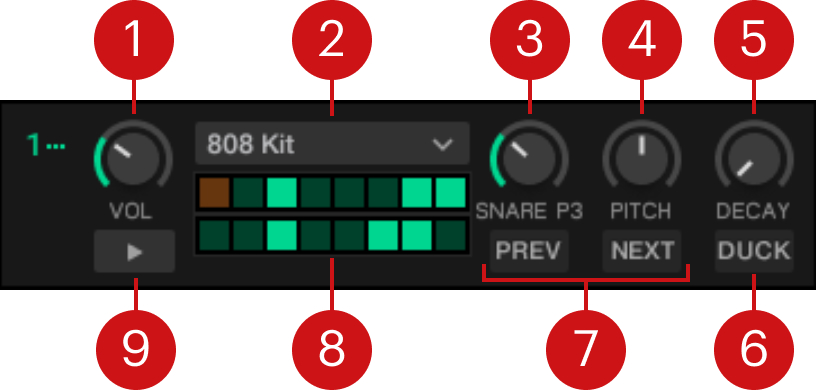 |
Volume knob (VOL): Adjusts the volume level of the sequence, and the side-chain depth if ducking is active (DUCK switched on).
Kit selector: Shows the name of the loaded kit. In Traktor Play the 808 Kit is the only kit available.
Note
Traktor Pro provides many more kits designed by various artists.
Pattern Selection knob: Chooses a pattern from the eight available in the kit. The patterns are sorted by increasing activity. The knob label indicates the selected sample followed by the pattern number (for example, “SNARE P3”).
Pitch knob: Adjusts the pitch of the samples between -12 semitones and +12 semitones. Note that there is no time-stretching algorithm involved to keep the sample’s best audio quality. This implies that up-pitching a sample will shorten it and down-pitching a sample will make it longer.
Decay knob: Sets the decay time of the samples. The decay time is relative to the sample length and goes from almost-instant decay to full sample length. The knob also adjusts the release time of the ducking envelope from 200 ms to 500 ms.
Ducking button (DUCK): When ducking is active, the Decks are side-chained to the Pattern Player sample. This makes the track level decrease as long as the sample is playing. This is very useful to push the Pattern Player sound forward in your mix. The amount of side-chain is modulated by the sequence volume and its decay by the samples’ decay.
Previous/Next Sample buttons (PREV/NEXT): Selects the next or previous sample from the kit. Each time you switch to the next or previous sample, the sequence displayed in the Pattern Grid is updated accordingly. The 808 kit includes samples of a kick, a clave, a snare, a clap, a closed hi-hat, an open hi-hat, a shaker, and a ride. Each sample has its own sequences that have been designed to be as musical as possible.
Pattern Grid: Shows the sequence of steps for the selected sample. Each cell in the grid represents a step. From left to right, the upper row shows the steps 1–8 and the lower row the steps 9–16. The orange cell indicates the playhead. Lit cells represent the steps at which the sample is triggered.
Note
In Traktor Pro you can customize the pattern by turning the desired steps on or off.
Play/Stop: Restarts the pattern on the first beat and syncs it with Traktor’s tempo master. The first beat of the Pattern Player will always fall on the nearest beat to allow intuitive syncing.
FX Unit 2: Group FX mode
In Group FX mode you can quickly select an effect and control it using a single knob.
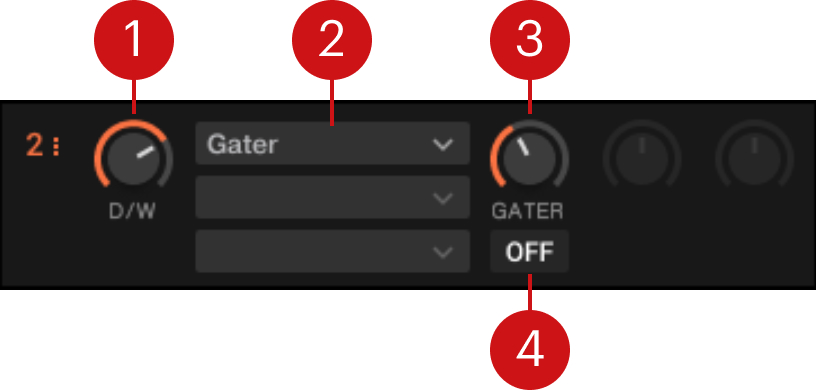 |
Dry/Wet knob (D/W): Controls the direct-to-processed signal mix for the effect.
Effect selector: Shows the name of the loaded effect. Clicking the effect name opens a menu where you can select another effect. The following effects are available: Gater, Delay T3, and Reverb T3.
Effect knob: Adjusts the effect. This knob acts differently for each effect.
Effect On/Off button: Switches the effect on or off.
Note
In Traktor Pro the Group FX mode provides three effect slots instead of one (hence the “Group FX” name). The Group FX mode lets you quickly build an effect chain controlled from a single FX Unit.
Gater
The Gater rhythmically mutes parts of the audio at an adjustable rate synchronized to the tempo master. In order for the Gater to match the beats in the music, it is absolutely necessary that your tracks have well aligned Beatgrids. The Gater provides the following controls:
Gater knob: Controls the rate of the Gater. The 5 available values are expressed as note values and are equally distributed over the range of the knob, from full left to full right: Off, quarter note, eighth note, sixteenth note, and 32nd note.
On/Off button: Switches the effect on or off.
Delay T3
The Delay T3 is a classical tempo-synced delay. The delay rate can be switched during operation without any crackles or glitches in audio. The T3 Delay provides the following controls:
T3 Delay knob (T3DELAY): Controls the delay time. The 7 available values are expressed in fractions of a bar and are equally distributed over the range of the knob, from the longest delay at full left to the shortest delay at full right: 4/4, 3/8, 1/4, 3/16, 1/8, 1/16, 1/32.
On/Off button: Switches the effect on or off.
Reverb T3
The Reverb T3 is a classic reverb with extreme room sizes that originates from Traktor 3 and previous Traktor Scratch versions. It provides the following controls:
T3 Reverb knob (T3REVRB): Controls the size of the added reverb, ranging from small to vast room sizes.
On/Off button: Switches the effect on or off.
Master Control panel
The Master Control panel is a central component of Traktor. It lets you control the main output volume, define the behavior for setting Cue Points and Loops, and turn the output limiter on or off. It also contains the Master Clock, which can work as a tempo reference for the Sync function and for the effects when both decks are stopped.
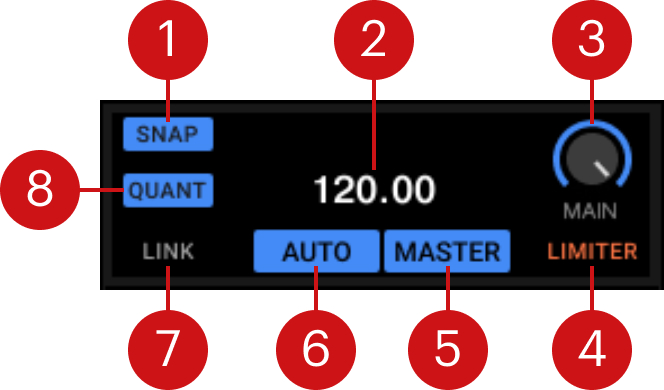 |
Master Control panel.
Snap: Activates or deactivates Snap mode. When Snap mode is active, Cue Points and Loops are always set to the closest beat. The SNAP button lights up blue when activated.
Master Clock Tempo display: Displays the current tempo and offset of the Master Clock. You can double-click the value to enter a new tempo, or click the value and drag your mouse vertically to adjust the tempo progressively.
Main knob: Controls the main output volume.
Limiter: Activates or deactivates the limiter for the main output signal. When activated, the main output level meter shows the limiter position right before the red LEDs. For more information, refer to Optimizing the gain and the output levels.
Master: Indicates that the Master Clock is set as tempo master. The MASTER button automatically turns on when no deck is playing. In Traktor Play you cannot manually turn the MASTER button on or off. In Traktor Pro you can manually activate the MASTER button to set the Master Clock as tempo master.
Auto: Indicates that Traktor automatically selects one of the playing Decks as tempo master. The Master Clock automatically syncs to this master Deck. If both Decks are paused, the Master Clock is the tempo master. In Traktor Play you cannot deactivate the AUTO button, the tempo master is always selected automatically (you can still switch the tempo master between both playing Decks). In Traktor Pro you can deactivate AUTO and manually choose the tempo master.
Link: This button is not used in Traktor Play. In Traktor Pro it lets you sync Traktor to an Ableton Link session and gives additional status information.
Quant: Activates Quantize mode. Quantize mode lets you jump between Cue Points and Stored Loops seamlessly, without losing sync. Skipping in the track in Quantize mode brings the playhead position to the next destination without losing sync. The button lights up blue when activated.
Decks and Deck Types
Traktor Play provides two virtual Decks. These Decks can be operated in different Deck Types.
The Decks provide a set of common Deck controls as well as controls specific to their Deck Type. The following Deck Types are available:
Track Deck: The Track Deck in Traktor represents the equivalent of a turntable or a CD player used to play back conventional tracks in a classic mixing setup. For more information, refer to Track Deck.
Stem Deck: The Stem Deck can play back and remix Stem files. When loading a Stem file into a deck, the deck type automatically switches to Stem Deck. The functionality is basically identical to the Track Deck, but features an additional mute control for the drum parts. For more information, refer to Stem Deck.
Note
Stem files created with third party tools outside Traktor or purchased from a music store must be analyzed before loading them into a Stem Deck. Stem files generated by Traktor are already analyzed and can directly be loaded into the decks.
Common Deck controls
The different Deck Types share the same synchronization, trigger, and track modification controls. The following image shows a full Deck:
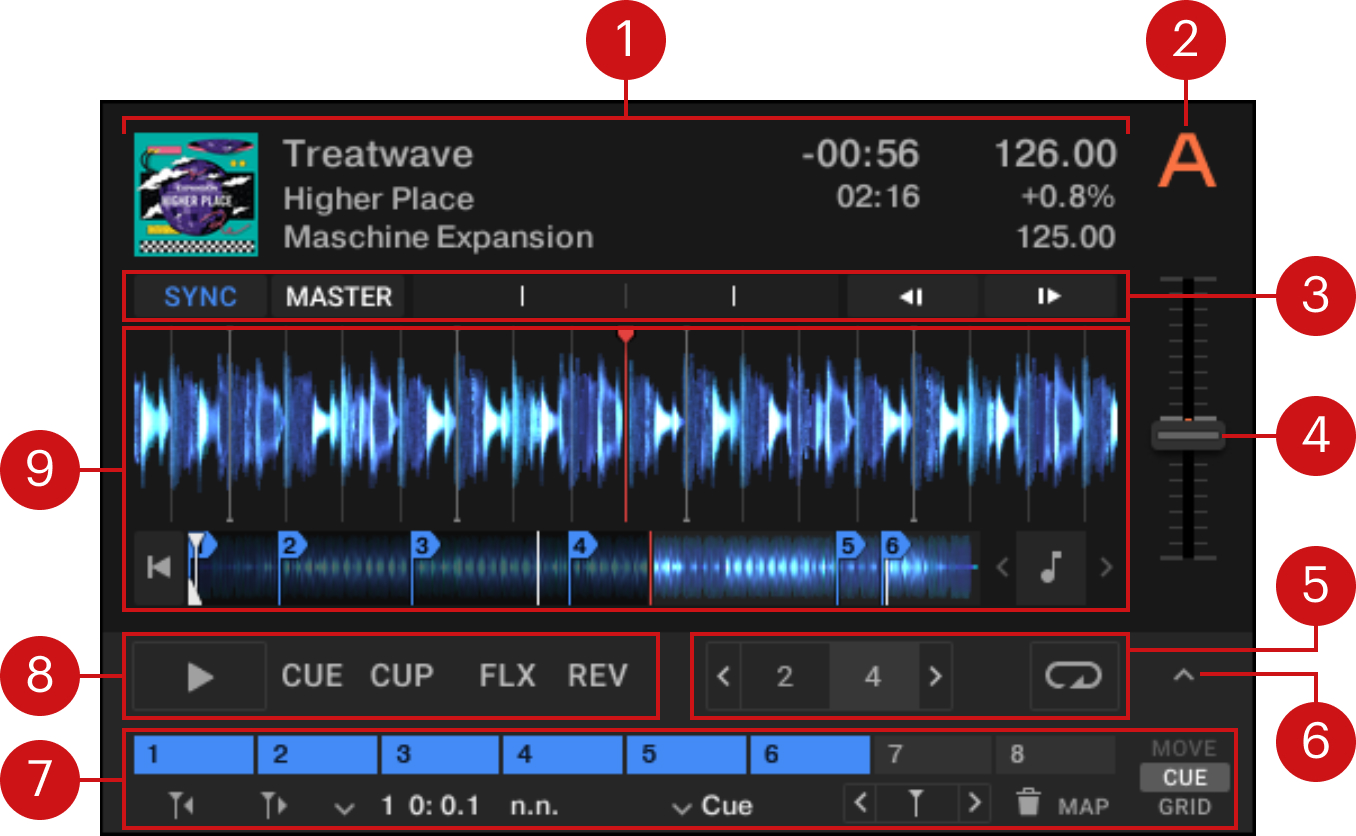 |
Common Deck controls.
Deck header: Displays information about the loaded track, like the artist name or track title, and about the playback, like the remaining time and the tempo. For more information, refer to Deck header.
Deck letter: Identifies the Deck and holds a menu for selecting the Deck Type and the playback mode for the Deck. The letter of the focused Deck is highlighted in orange.
Synchronization controls: With these controls you can set the Deck as tempo master or sync it to the tempo master, visualize if the track is out of sync, and momentarily bend the tempo. For more information, refer to Synchronization and tempo controls.
Tempo fader: Adjusts the tempo of the Deck. The Tempo fader is inactive if the Deck is synchronized to the master tempo (SYNC button on).
Loop controls: These controls activate looping and define the loop size. For more information, refer to Loop controls.
Advanced Panel button: Shows and hides the Advanced panel below the Loop controls for Deck A and B. It also shows and hides the Panorama controls in the Mixer channels.
Advanced panel: Contains advanced controls and options for Cue Point and Loop management. For more information, refer to Advanced panel.
Transport controls: These contain the usual transport controls Play/Pause, CUE, and CUP, as well as the Flux and Reverse buttons. For more information, refer to Transport controls.
Central area: Hosts the elements that vary with each Deck Type. For more information, refer to Track Deck and Stem Deck.
Deck header
The Deck header displays information about the loaded track or Stem File such as the artist name, track title, and tempo.

Deck Header.
Track Cover artwork: Displays the cover artwork of the track.
Remaining track time: Displays the time remaining until the track ends.
Tempo fader position: Reflects the current Tempo fader position as a percentage relative to the original track tempo.
Current tempo: Displays the current tempo value in BPM, determined by the Tempo fader position.
Synchronization and tempo controls
All Deck Types contain the same controls for syncing and for adjusting the tempo manually.
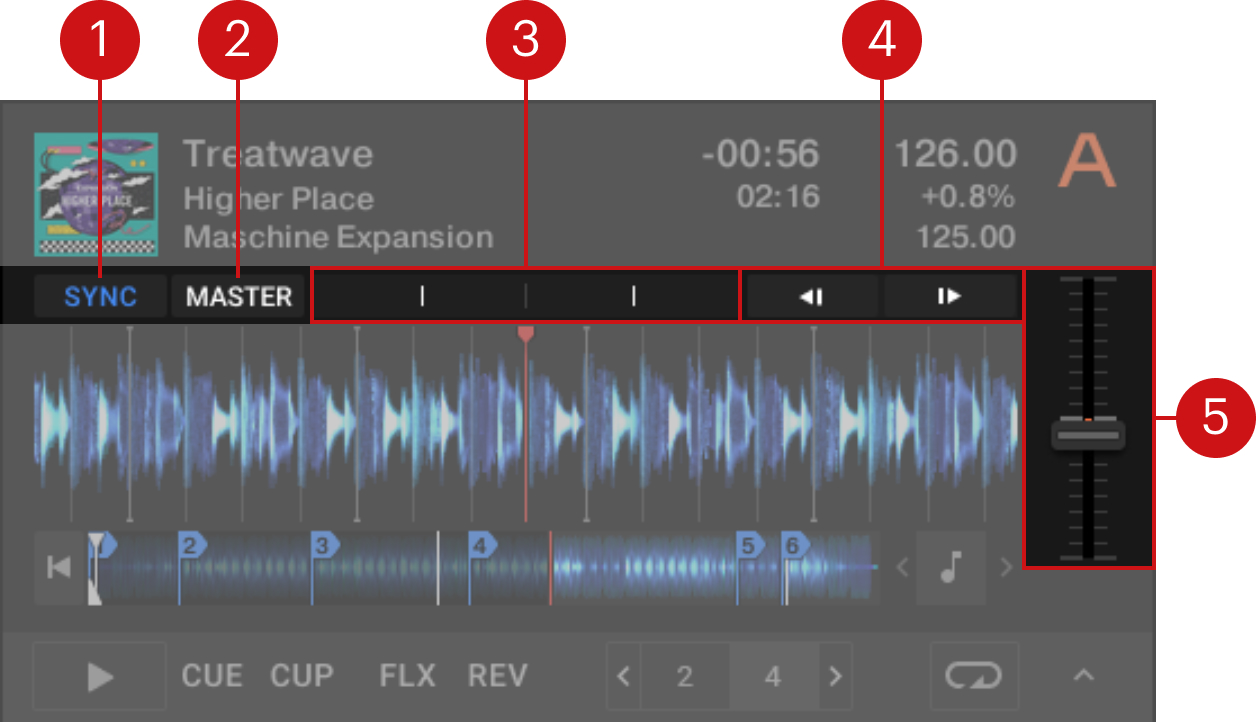 |
Synchronization and Tempo controls.
SYNC button: Synchronizes the Deck to the current tempo master.
MASTER button: Sets the Deck as the tempo master. This is possible only when the Deck is playing.
Phase meter: Visually indicates the offset of the beats relative to the tempo master. The offset is represented by as a horizontal bar starting from the center and growing to the left or to the right. When the tracks are in sync, the Phase meter is empty.
Tempo Bend buttons: These buttons help you correct the offset of the beats when manually syncing a track to the tempo master. Clicking and holding the left arrow slightly slows down the tempo, clicking and holding the right arrow slightly speeds it up. When you release the mouse button the tempo returns to its previous value.
Tempo fader: Decreases or increases the tempo of the playing track or Stem file.
Transport controls
All Deck Types contain the same transport controls, which are used for playing back tracks.
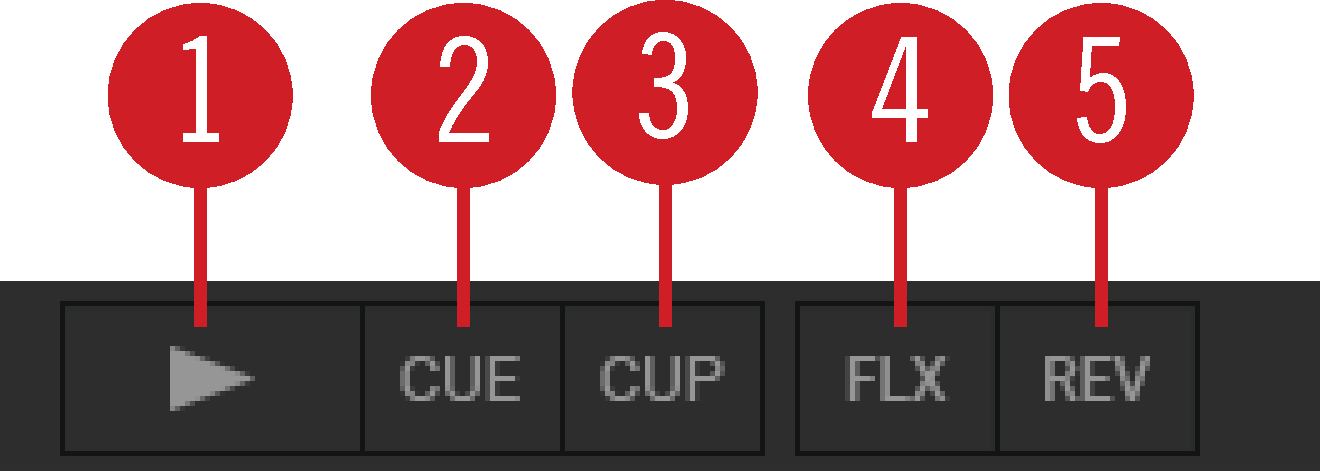 |
Transport controls.
Cue button: When the Deck is paused, the CUE button sets a new Floating Cue Point. When the Deck is playing, the CUE button jumps to the current Floating Cue Point.
Cue-Play button (CUP): Jumps to the Floating Cue Point and starts playback upon release.
Flux Mode button (FLX): Enables Flux mode for the Deck. For more information on Flux mode, refer to Working with Hotcue buttons and Flux mode.
Reverse Mode button (REV): Enables Reverse mode and Flux Mode for the Deck. For more information on Reverse mode, refer to Working with Hotcue buttons and Flux mode.
Loop controls
The Loop controls let you create loops in your mix.
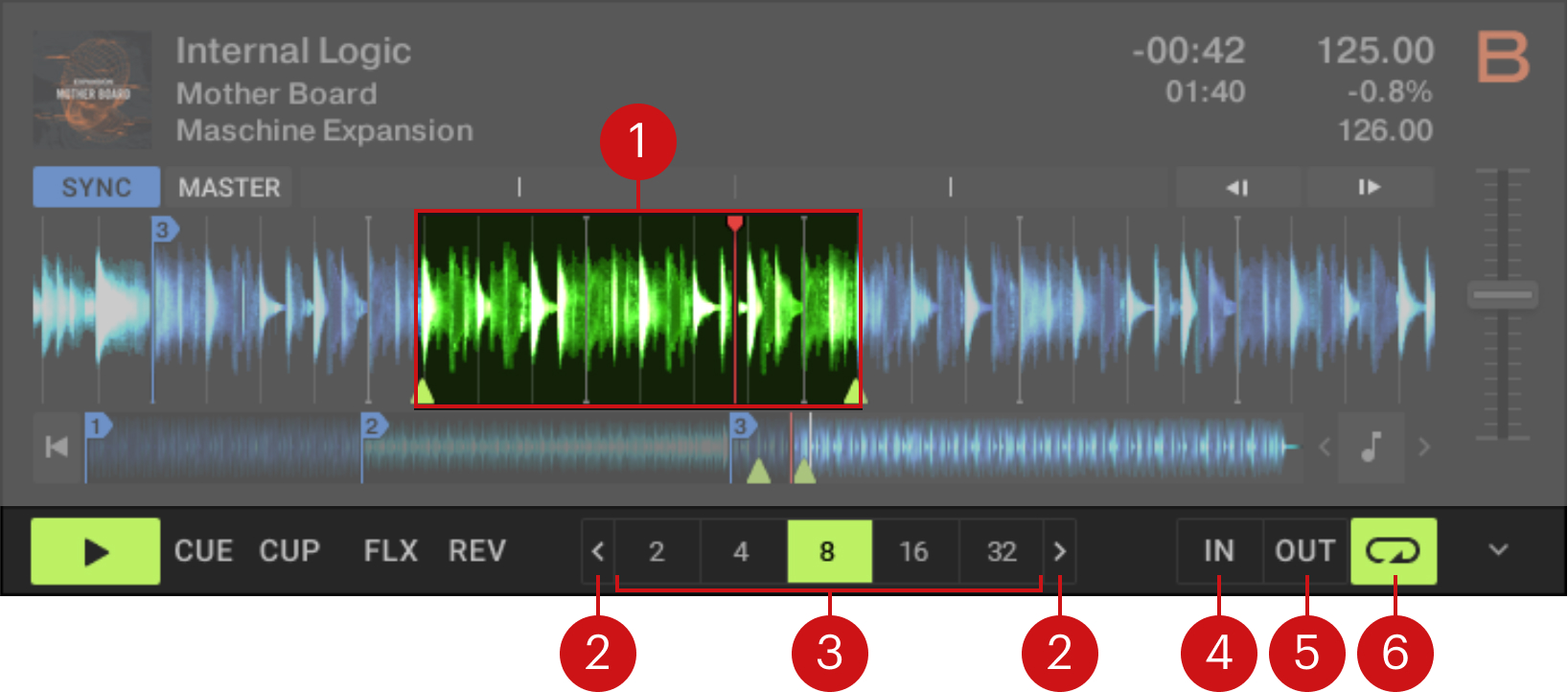 |
Loop controls.
Active Loop: When a Loop is active, it is highlighted in green in the Waveform display. The Loop’s start and end points are indicated by green triangles in the Waveform display and in the Stripe view below. If you deactivate the Loop, its start and end points remain available for looping until you set new start and end points.
Left/right arrow buttons: Clicking the left/right arrows on either side of the Loop Size selector lets you scroll through the list of loop sizes. If the selected loop size is not currently visible in the selector, either arrow button will flash: Clicking this flashing button (repeatedly if needed) will scroll until the selected size appears in the selector.
Loop Size selector: When a Loop is active, its size value is highlighted in the Loop Size selector and you can change the Loop size by clicking another size value from the selector. When no Loop is active, clicking a size value activates a new Loop with that size starting at the current play position.
Loop In button (IN): Deactivates the active Loop (if any) and sets a new start point for the Loop at the current playback position.
Loop Out button (OUT): If no Loop is active, clicking OUT sets the end point of the Loop and activates the Loop. If a Loop is active, clicking the OUT button deactivates the Loop while keeping the start point untouched. This lets you extend the previous Loop by simply clicking OUT a second time to define the new end point and activate the longer Loop.
Loop button: If no Loop is active, the Loop button is off, and clicking it activates the next Loop stored in the track. If a Loop is active, the Loop button is lit green, and clicking it deactivates the Loop.
Note
If you cannot see the IN and OUT buttons or if the Loop Size selector does not show enough size values, you can extend the width of the Traktor window to reveal the full controls of the Decks.
You can find more information on looping in Working with Loops.
Track Deck
The Track Deck in Traktor is the equivalent to a turntable or a CD player in a classic mixing setup, used to play back conventional tracks. Besides the Common Deck controls, the Track Deck’s central area contains the following elements:
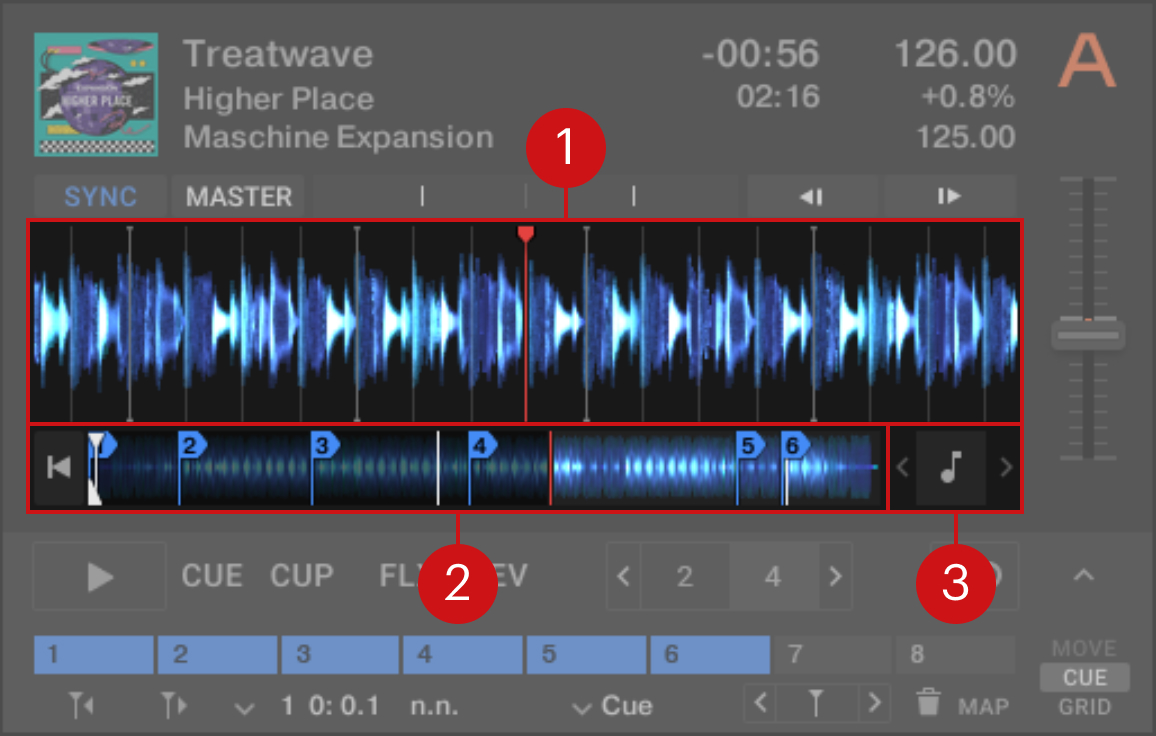 |
Track Deck.
Waveform: Visually represents a localized view of the loaded track around the playhead. The brighter blue represents higher frequencies, while the darker blue represents lower frequencies. The Waveform also includes the Cue Points, Loops, and Beatmarkers. The Cue Points and Loops that are stored as Hotcues show a little flag with the Hotcue number. Clicking inside the Waveform stops the playing track like putting your hand on a record on a turntable. Holding the mouse and dragging back and forth works like scratching or spinning a record.
Stripe: Shows an overview of the entire track. It includes the playhead position, Cue Points, and Loops. The Cue Points and Loops that are stored as Hotcues show a little flag with the Hotcue number. You can jump back to the start of the track using the button on the left, or click inside the Stripe to jump to the closest destination without losing sync. The Stripe flashes red when the playhead is within the last 30 seconds of the track.
Key Lock controls: Here you can lock the key of the track. For more information on Key Lock, refer to Working with Key Lock.
Stem Deck
The Stem Deck operates in a similar way to the Track Deck, however instead of the Waveform display it provides the Multi-Track Waveform:
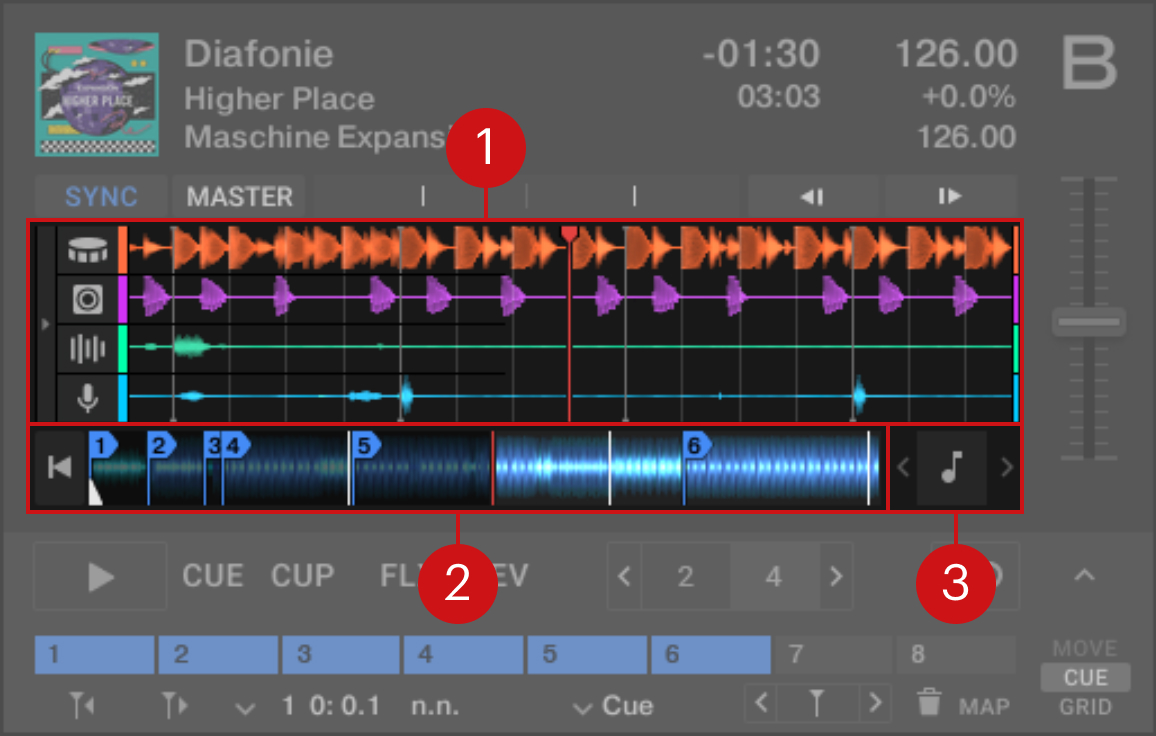 |
Stem Deck.
Multi-Track Waveform: The Multi-Track Waveform shows the waveforms of the individual Stems in different colors. On the left, the four icons indicate you the instrument of each Stem part, from top to bottom: drums, bass, other, and vocals. You can click the drums icon to mute or unmute the drums part. The Multi-Track Waveform also indicates the Cue Points, Loops, and Beatmarkers. The Cue Points and Loops that are stored as Hotcues show a little flag with the Hotcue number. Clicking inside the Waveform stops the playing track like putting your hand on a record on a turntable. Holding the mouse and dragging back and forth works like scratching or spinning a record.
Stripe: Shows an overview of the entire Stem file including the playhead position, Cue Points, and Loops. The Cue Points and Loops that are stored as Hotcues show a little flag with the Hotcue number. You can jump back to the start of the track using the button on the left, or click inside the Stripe to jump to the closest destination without losing sync. The Stripe flashes red when the playhead is within the last 30 seconds of the track.
Key Lock controls: Here you can lock the key of the track. For more information on Key Lock, refer to Working with Key Lock.
Advanced panel
On the Track Deck and on the Stem Deck, the Advanced panel contains advanced controls for jumping at another position within the track, for managing Cue Points and Loops, and for correcting the Beatgrids for your tracks.
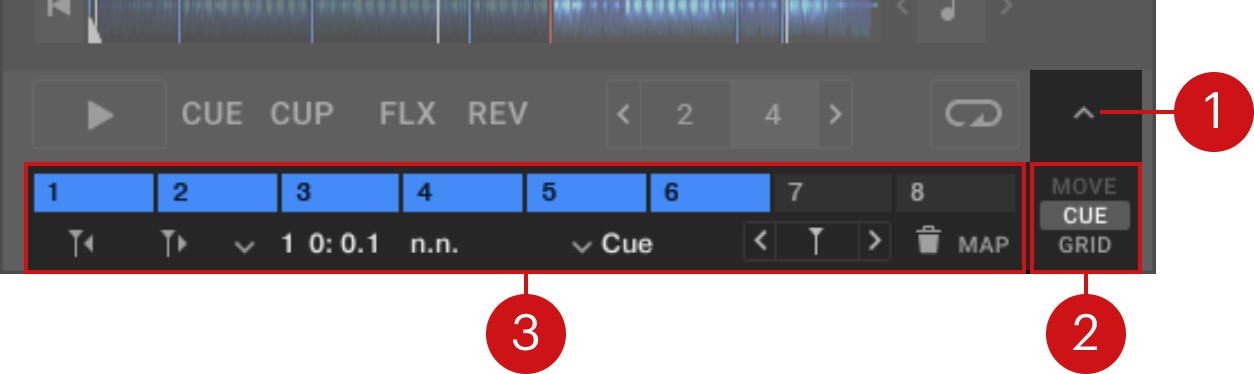 |
Advanced panel.
Advanced panel button: Shows and hides the Advanced panel below the Loop controls for Deck A and B, and for Deck C and D, respectively. It also shows and hides the Panorama controls in the Mixer for Deck A and B, and for Deck C and D, respectively.
Page selector: Selects the page to be displayed in the Advanced panel. The selected page is highlighted. The following pages are available: CUE and GRID.
Advanced controls: The controls displayed in the Advanced panel depend on the selected page:
CUE: Provides direct access to 8 user-definable Cue / Loop In Points per track, as well as further Cue Point management controls. For more information, refer to Advanced panel – CUE page.
GRID: Provides control over the Grid Markers, the Beatgrid, and the stored tempo of a track. For more information, refer to Advanced panel – GRID page.
Note
In Traktor Pro, an additional MOVE page lets you seamlessly move the active loop or trigger jumps of the playhead within the track by the chosen number of beats.
Advanced panel – CUE page
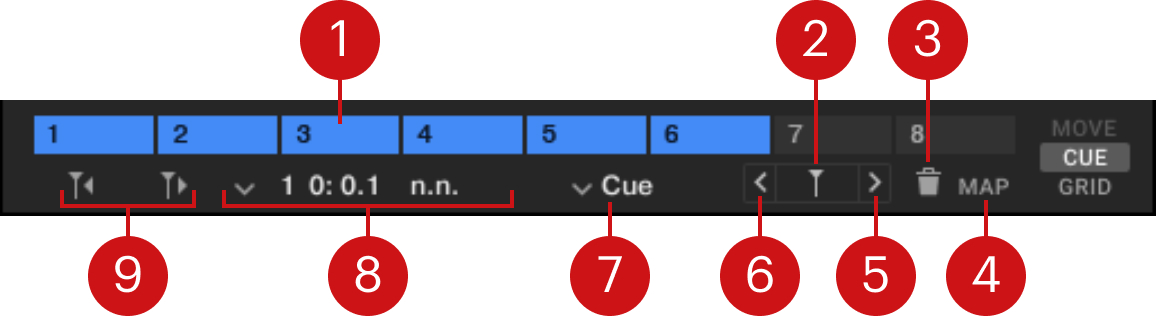
The CUE page provides direct access to eight user-definable Cue Points / Loops per track, as well as further Cue Point management controls.
 |
Advanced panel – CUE page.
Hotcue 1–8 buttons: These buttons let you quickly set and access eight Cue Points and Loops per track.
Store Cue Point: Stores the Floating Cue Point and maps it to the next free Hotcue button.
Delete Cue Point (bin icon): Deletes the selected Cue Point or Loop. If it was mapped to a Hotcue button, this Hotcue button becomes available for another Cue Point or Loop.
Map: Activates or deactivates Map mode for Hotcues. In Map mode, pressing a Hotcue button will map the selected Cue Point or Loop to it. If the Cue Point was already stored in another Hotcue button, this will become available again. If the new Hotcue button was already containing a Cue Point, it will be replaced.
Next Cue Point: Skips to the next stored Cue Point in the track. The Cue Point’s details appear in the Cue Point selector on the left.
Previous Cue Point: Skips to the previous stored Cue Point in the track. The Cue Point’s details appear in the Cue Point selector on the left.
Cue Type menu: Shows the type of the selected Cue Point. You can click the menu to change its type.
Cue Point selector: Shows details about the selected Cue Point and lets you select another Cue Point. The details shown are, from left to right: its order of appearance in the timeline, its time position (in “minutes: seconds.tenths of a second”), and its name, if any (otherwise it reads n.n. for “no name”). You can edit the Cue Point name by clicking it and typing a new name on your computer keyboard. You can select another Cue Point by clicking the downward arrow on the left and choosing the desired Cue Point from the list.
Move Cue Point buttons: These buttons let you slightly shift the selected Cue Point backward or forward in the timeline.
You can find hands-on details on using Cue Points and Loops in Working with Hotcue buttons and Flux mode, Working with Cue Points, and Working with Loops.
Advanced panel – GRID page
The GRID page provides basic control over the Beatgrid and the stored tempo of the track.
 |
Advanced panel – GRID page.
Analysis Lock button: Locks all values against future changes by the track analysis or by the user. The lock applies not only to the BPM and Beatgrid, but also to the Key and Auto Gain values. This button is equivalent to the Enable Analysis Lock and Disable Analysis Lock entries from the context menu in the Track List of the Browser. Refer to Locking tracks from the analysis.
Note
When this Analysis Lock button is on, the GAIN knob on the Mixer channel cannot be used to adjust the Auto Gain value. You can find more information in Mixer channel.
BPM display: Shows the original tempo of the track expressed in BPM (beats per minute). This tempo affects the position of the beats in the Beatgrid.
Reset Grid: Re-triggers the automatic tempo and Grid analysis of the track.
TAP: Sets the tempo based on tapped speed. The tempo will be updated after the fourth tap.
Mixer
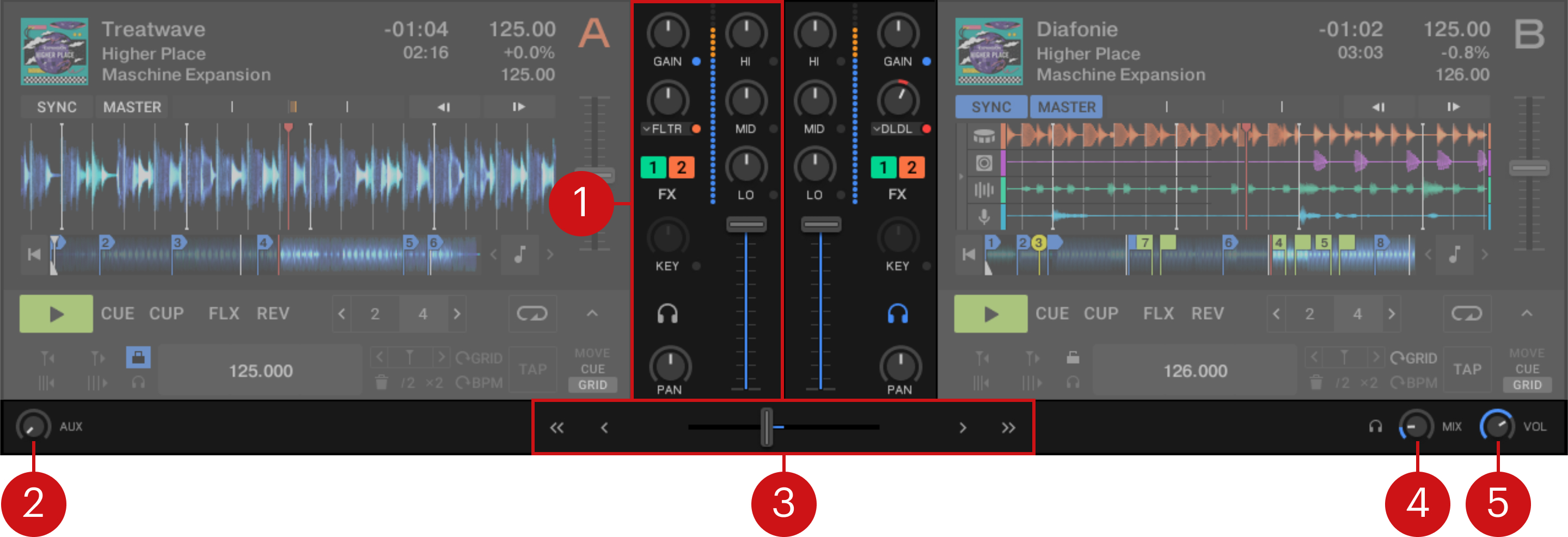
The Mixer is the center of Traktor, used to control and modulate the audio signals coming from the Decks before they are sent to the main output.
Mixer.
Mixer channel: Contains the controls to adjust the audio from one Deck. You can adjust the volume and panoramic position of the audio signal, modulate its frequency contents, apply Mixer effects. You can also route the audio to the Headphone Cue channel. For more information, refer to Mixer channel.
Aux knob: Controls the volume of the Aux input, which can be fed by an external signal like a microphone.
Crossfade controls: These controls allow you to make seamless transitions between various Mixer channels. For more information, refer to Crossfade controls
Headphone Cue Mix knob: Adjusts the mix between the cued signal and the main signal in your headphones.
Headphone Cue Vol knob: Adjust the volume level of the audio in your headphones.
Mixer channel
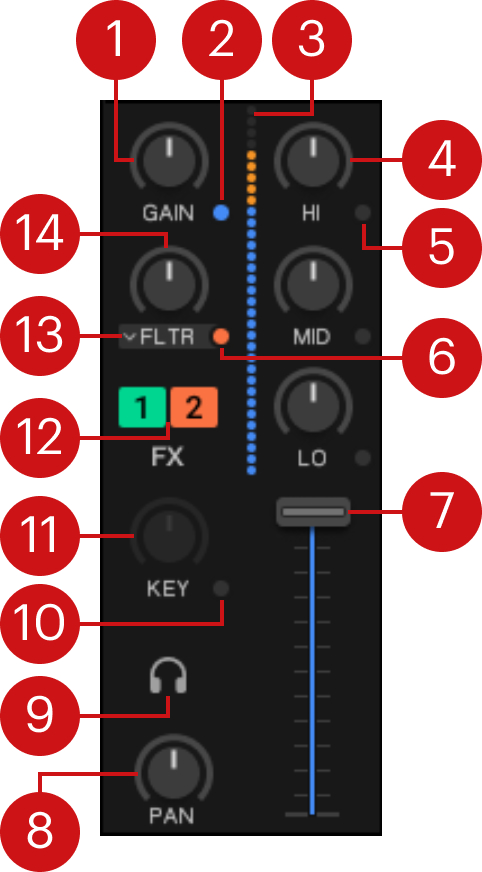
The Mixer channel contains the controls to adjust the Mixer channels’ volume and to modulate the audio signals’ frequency. Furthermore, you can assign the Mixer channel to the FX Units and route the audio signal to the Headphone Cue channel.
 |
Mixer channel.
Gain knob: Controls two different gain values depending on the state of the Gain Mode switch:
By default the Gain Mode switch is blue and the GAIN knob adjusts the input gain level of the channel.
When the Gain Mode switch is orange, the GAIN knob lets you adjust the Auto Gain value stored in the track’s metadata. You can later restore the original Auto Gain if needed. If no track is loaded in the Deck, or if the track is locked, the Auto Gain cannot be adjusted and the GAIN knob is hidden.
Gain Mode switch: Switches the GAIN knob between adjusting the input gain and the Auto Gain value.
Channel Level meter: Indicates the current volume of the audio signal in the Mixer channel. It also indicates if the signal is clipping.
Hi, Mid, Low EQ knobs: These controls respectively adjust the level of the high, middle, and lower frequencies in the audio signal.
Hi, Mid, Low Kill buttons: The kill buttons completely remove (kills) the high, middle, and lower frequencies from the audio signal, respectively.
Channel fader: Adjusts the channel level to be send to the main output.
Pan knob: Adjusts the panoramic position of the channel in the stereo field. The PAN knobs are only visible when the Decks’ Advanced panels are opened.
Cue channel button: Sends the audio signal of this channel to the Headphone Cue channel for preview. For using the Cue function a multi-channel audio device is required. The Cue channel button is only visible when the full-size Deck Layout is activated. For more information, refer to Using the Cue channel for mixing.
Key Lock (Preserve Pitch) button: Locks the current key of the track. When Key Lock is active, the track key is not affected by the tempo changes of the Deck.
Key knob: Inactive in Traktor Play. In Traktor Pro you can use the KEY knob to change the key of the playing track without affecting its tempo.
FX Assign buttons: In Traktor Play these buttons are always active, which means that the channel’s audio is always sent to both FX Units 1 and 2. In Traktor Pro, you can turn each button on or off individually to send the desired Decks to the desired FX Units.
Mixer FX menu: Shows the name of the loaded effect. You can click the effect name to open the menu and select another Mixer effect from the list.
Crossfade controls
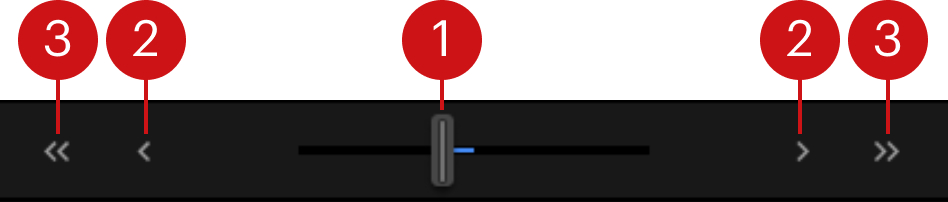
The Crossfade controls allow you to make seamless transitions between the Decks.
 |
Crossfade controls.
Crossfader: Lets you make transitions between the Decks by dragging it from one side to the other.
Fade Left/Right buttons: Clicking these buttons makes the crossfader move in the corresponding direction step by step.
Auto Fade Left/Right buttons: Clicking these buttons makes the crossfader automatically move from one side to the other.
Browser
Traktor’s Browser lets you load tracks into Decks and provides you with tools to organize your Track Collection .
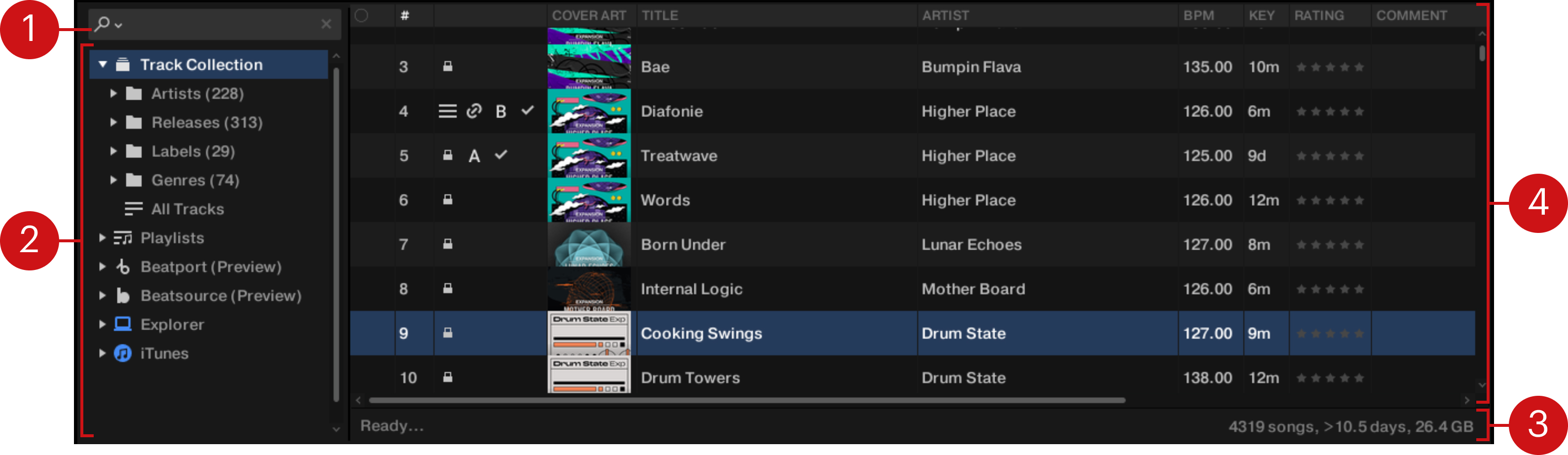
Browser.
Search field: Provides a live search based on the tags of the tracks in the Collection. For more information, refer to Browsing for music.
Browser Tree: Displays the content of the selected folder:
Track Collection: Contains all tracks imported to your Track Collection. They are automatically sorted by Artist, Release, Label or Genre.
Beatport: Provides direct access to the Beatport streaming service.
Beatsource: Provides direct access to the Beatsource streaming service.
Explorer: Lets you browse your hard drives for tracks. It also contains an Archive folder containing History Playlists.
iTunes: Provides direct access to your iTunes Library including all iTunes Playlists.
Status bar: Displays the progress of track analysis, error messages, and the overall status of Traktor.
Track List: Shows tracks depending on the source that is selected (folder, Playlist, search results or tag-based).