Browsers
Learn how to browse and load presets for different object types from the Circular factory library.
Browsers are available in many places in Circular. Each Browser is dedicated to a particular object type (layers, sounds, samples, etc.) and lets you search and load presets for that object type from the Circular factory library. Each preset contains values for all the object parameters: Loading the preset will recall all its values.
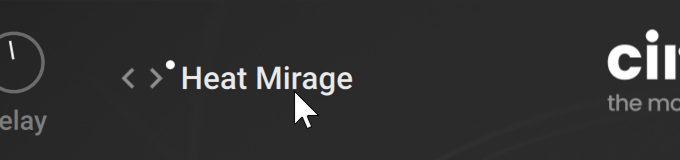
Most Browsers can be opened by clicking the preset name in a Preset selector. For example, in the following picture showing the Instrument Preset selector at the top of the instrument, clicking the preset name opens the Preset Browser, which lets you browse presets for the entire instrument.
 |
Circular provides Browsers for the following object types:
The Preset Browser lets you load presets for the entire instrument. You can open it from the Instrument Preset selector at the top of the instrument (refer to Circular overview).
The Layer Browser lets you load presets for either of the four layers a–d. You can open it from the Layer Preset selectors available for each layer on every page of the instrument (except for the Settings page).
The Sound Browser lets you load presets for the sounds triggered on individual steps. You can open it from the Sound Preset selector in the Sound pane of the Sequencer page (refer to Sequencer page).
The Sample Browser lets you load samples for use in the sounds. You can open it from the Sample selector in the Sound pane of the Sequencer page (refer to Sequencer page).
The FX Browser lets you load presets for the effect slots. You can open it from the Effect Preset selectors available on various channels and busses of the FX page. Refer to FX page.
The Step FX Browser lets you load presets for the Step effects. You can open it by clicking the Step FX slots in the Parameter Lane of the Sequencer page (refer to Sequencer page)..
No matter which object type they are browsing, all the Browsers follow this typical workflow:
On the left, you click the properties (called tags) describing the type of sound that you are looking for.
On the right, the Result list shows the presets matching the tags that you have selected. You can audition each preset in context, choose one, and close the Browser.
All the Browsers contain the following elements (Preset Browser depicted):
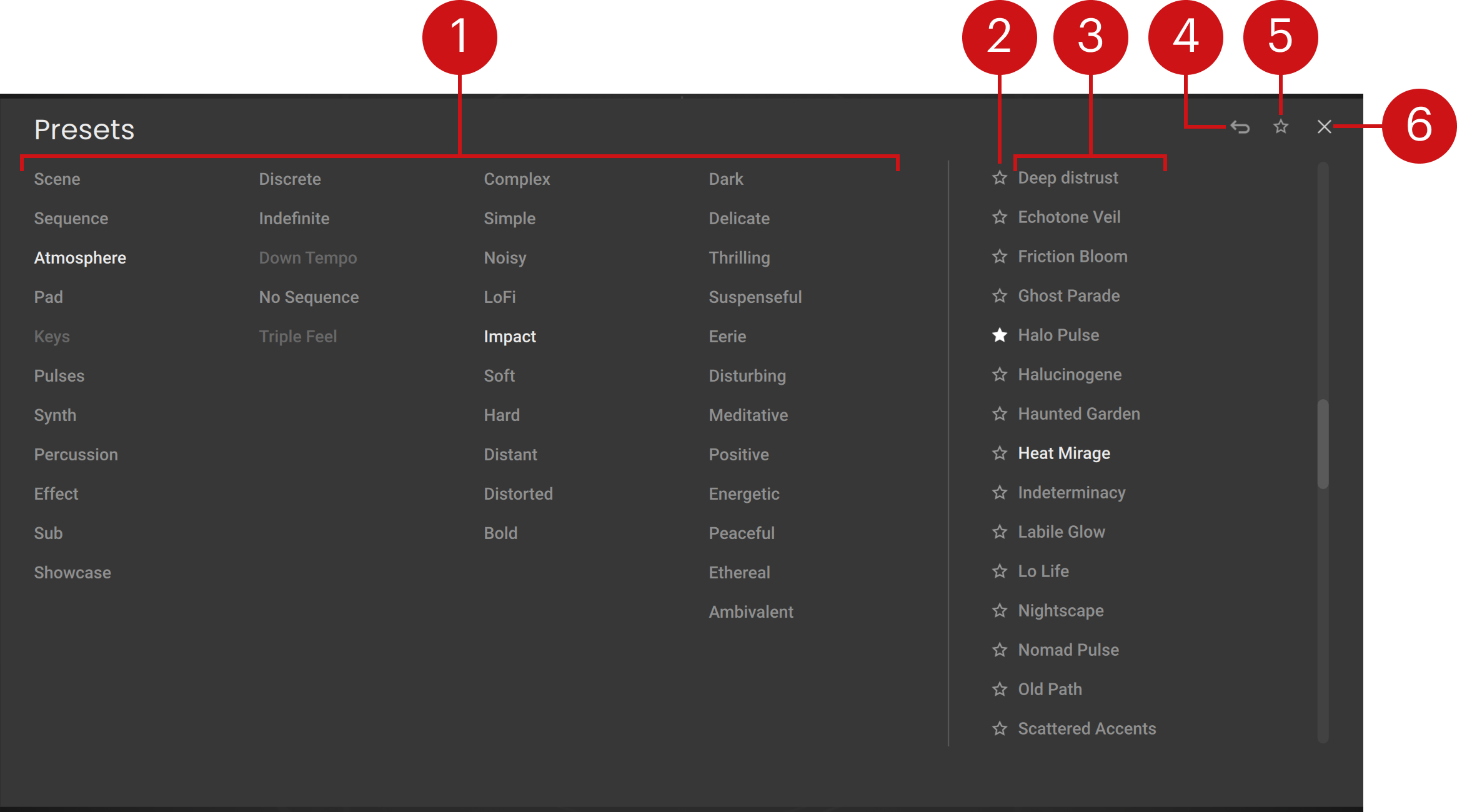
Tag Filter: You can click the tags describing the sound that you are looking for. The Result list on the right is updated accordingly. As you select the tags, the color of the remaining tags indicates whether or not some presets are available:
Highlighted tags are selected. You can click them to deselect them and widen the scope of your search.
Tags with the default color are not selected but do have matching presets in the current Result list. You can select them to further narrow your search.
Faded tags are not selected and do not have any matching presets in the current Result list. Selecting them would lead to an empty Result list.
You can also [command]/[Ctrl] + click tags to exclude them from the search results. Excluded tags are indicated with a “Not” in front.
Set as Favorite: You can click the star icons to add or remove presets to/from your Favorites. The star icons are lit for the presets set as Favorites. This way, you can quickly create a custom collection of your most beloved presets. You can then display only your Favorites by clicking the Favorites button in the top right corner of the Browser.
Result list: Shows the presets matching the tags selected in the Tag Filter on the left. You can click a preset to load it and try it directly on your keyboard or in your DAW. The current preset is highlighted in the list. When you have found a preset that you like, you can double-click it to load it and close the Browser.
Reset (returning arrow icon): Clears the current tag selection (and exclusions) from the Tag Filter to start with a new search, the Result list showing all the available presets.
Favorites (star icon): Displays only your Favorites in the Result list. Click this star icon again to display also non-Favorite presets.
Close (“x”): Closes the Browser.
Note
In the Preset Browser, Layer Browser, Sound Browser, and Sample Browser, you can select multiple tags from the Tag Filter. In the FX Browser and Step FX Browser, the tags describe effect categories and only one category can be selected at a time: Selecting another tag will automatically deselect the current tag.
The Sample Browser includes two extra features:
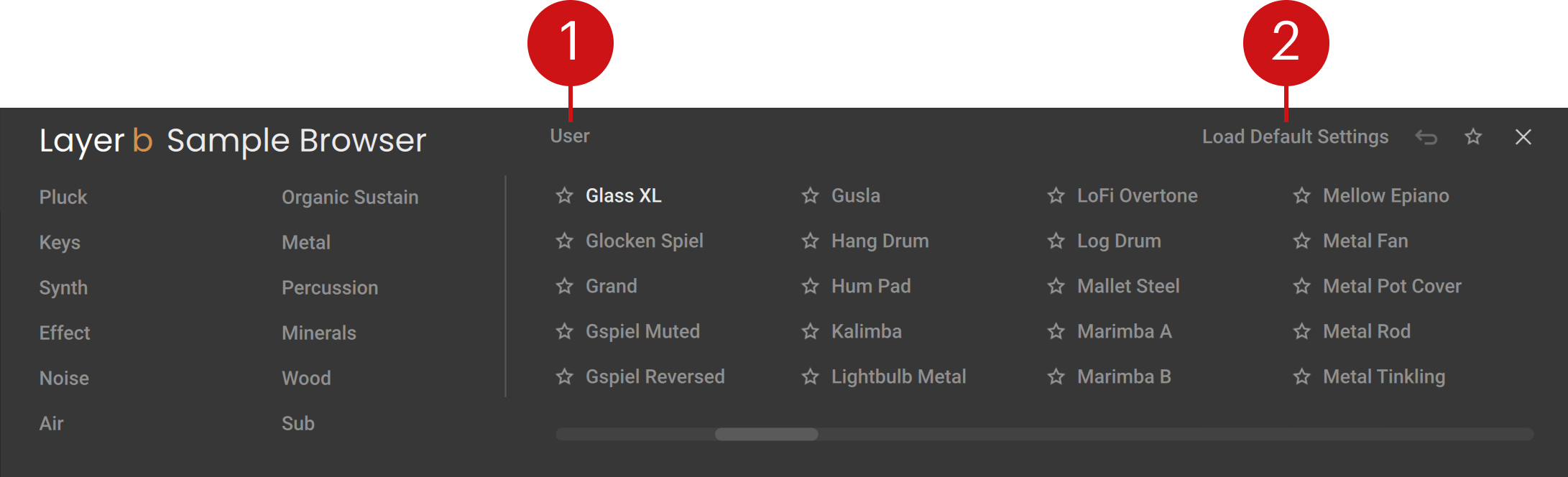
User: Narrows down the Result list to user samples only. When User is off, both factory and user samples are shown.
Load Default Settings: Loads the default settings of the sound preset corresponding to the sample being loaded. This can help you get a good starting point with velocity dynamics already set up for that sample.