FX page
The FX page in Circular lets you configure the effects available in various places in the instrument.
The FX page lets you configure the effects available in various places in the instrument:
Each of the four layers a–d can have up to four insert effects.
On each layer, the Step effects from the Grain category (if any) can use the dedicated Grain FX bus, an additional send effect bus with up to four effects.
Two send effects can process the audio coming from the four layers a–d and from the Grain FX bus.
Up to four effects can be applied globally to the output of the instrument.
To open the FX page, click the FX button in the top right corner of the instrument.
The FX page provides seven tabs, each tab containing the effects for a particular layer or effect channel. The FX page contains the following areas:
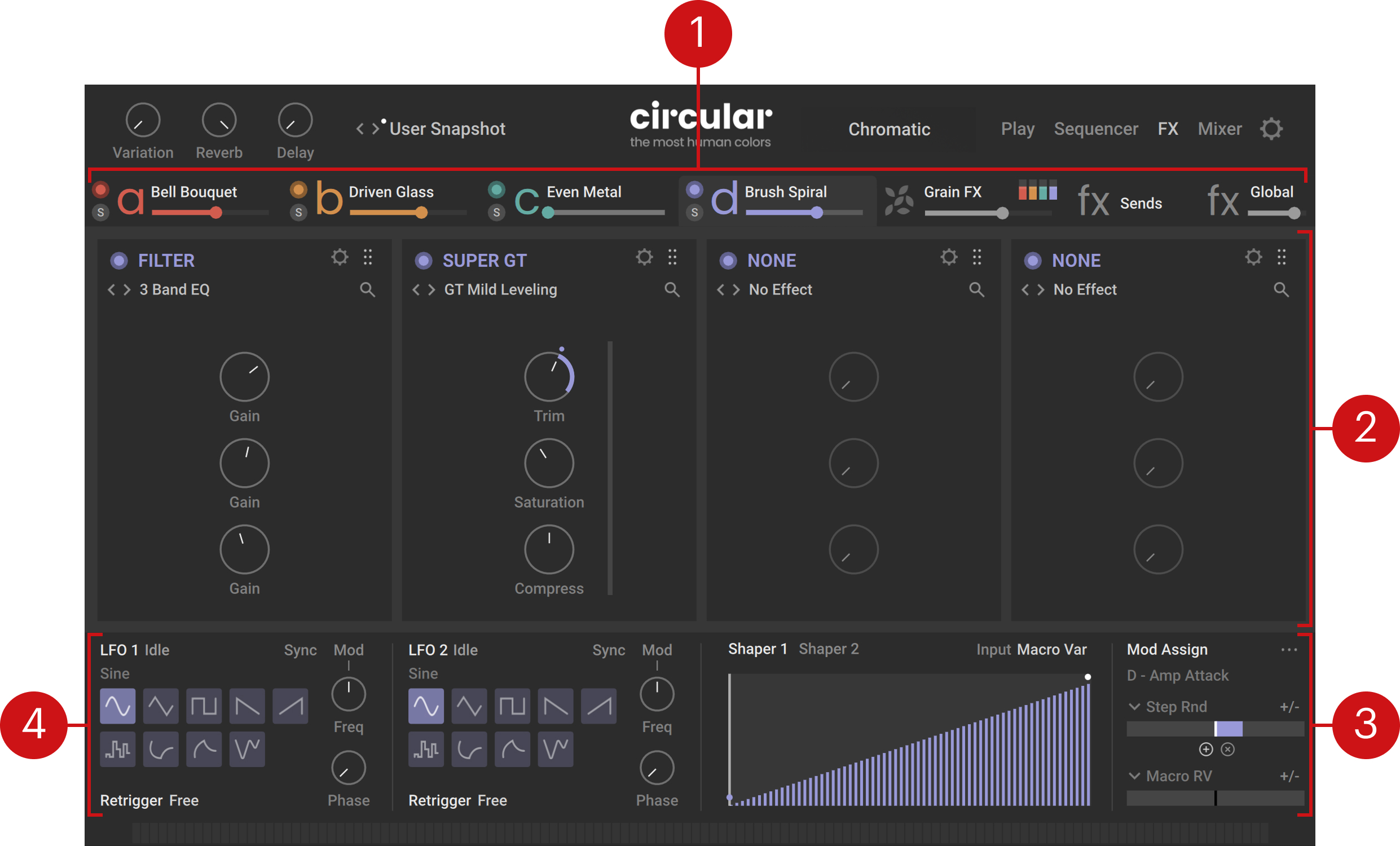
Tab headers: Each header switches to the effects of one particular layer or effect channel, and provides a few basic controls. All the areas below are specific to the layer or effect channel selected here. Refer to Tab headers.
Effect slots: Each slot can host one effect. Each tab contains four slots, except for the FX Sends tab, which contains two slots. Refer to Effect slots.
Mod Assign section: Lets you choose and configure up to two modulation sources for the main controls of each effect. The Mod Assign section is available in the Sequencer, FX, and Mixer pages. Refer to Assigning and editing modulations.
Modulate panel: Lets you configure the internal modulators available in Circular. For more information, refer to Adjusting the internal modulators.
Tab headers
At the top of the FX page, the tab headers let you switch between the tabs and provide a set of basic controls:

The four tab headers on the left are for the four layers a–d, and the three remaining tab headers are for the Grain FX, Sends, and Global effect channels.
For the layer tabs, the headers contain the following controls:
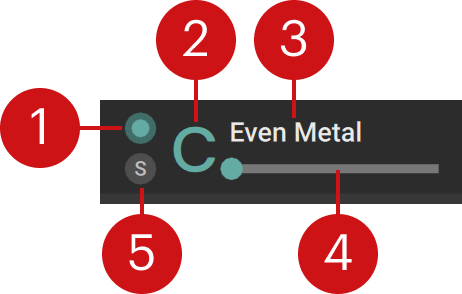 |
Layer on/off: Activates or deactivates the layer. If you deactivate the layer, it will not trigger any new notes, but the previous notes that are still sounding will stay audible. The on/off switch also lets you copy and paste the layer: You can [option]+click (Mac) or [Alt]+click (Windows) the on/off switch to copy the layer, then [option]+[shift]+click (Mac) or [Alt]+[Shift]+click (Windows) the on/off switch of the target layer to paste this layer there.
Layer letter a–d: Opens the tab containing the effects for that layer. All the controls in the tab below will affect only that layer.
Layer Preset selector: Shows the name of the loaded layer preset. Layer presets contain values for all the parameters of a layer. You can click the preset name to open the Layer Browser and choose another preset from the factory library. You can also use [option]+click (Mac) or [Alt]+click (Windows) to pre-select the tags of the current layer preset, which narrows down the Result list to similar-sounding presets, or [Shift]+click to clear any selected tags and extend the Result list to the entire preset library. For more information on the Layer Browser and the Result list, refer to Browsers.
Layer Level slider: Adjusts the volume level of the layer.
Solo (S): Deactivates all the other layers. Soloing a layer can be useful to focus on that layer when designing your sound, or as a performance tool when playing live.
For the Grain FX tab, the header contains the following controls:
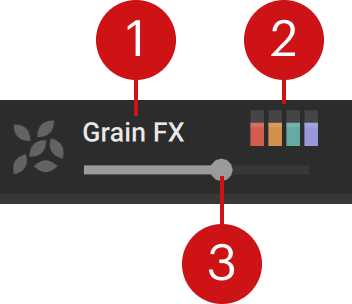 |
Label and logo: Clicking the label or the logo opens the Grain FX tab, which contains the effects applied specifically to the granular Step effects.
Grain Levels: Each colored bar shows the level at which the output of the granular Step effects is sent from the corresponding layer to this bus. The colored bars are equivalent to the Grain FX controls located in the Sequencer settings of the Sequencer page for the respective layer. You can click and drag each bar vertically to adjust the corresponding level.
Level slider: Adjusts the volume level of this effect channel.
For the Sends tab, the header only contains the label and the logo. You can click either of them to open the tab below:
 |
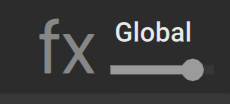
For the Global tab, the header only contains the label and logo, which you can click to open the tab below, and the Level slider, which adjusts the volume level of that channel:
 |
Effect slots
Each effect slot can host one effect. On all the tabs except for the Sends tab, the audio goes from left to right through the four effect slots. On the Sends tab, the two slots process their audio independently from each other.
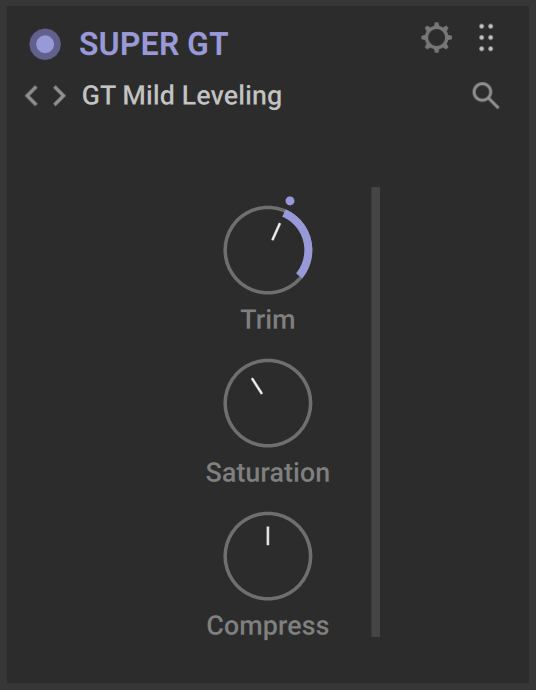
Each effect slot includes a header at the top, while its lower part contains the parameters of the loaded effect:
 |
The slot header contains the following controls:
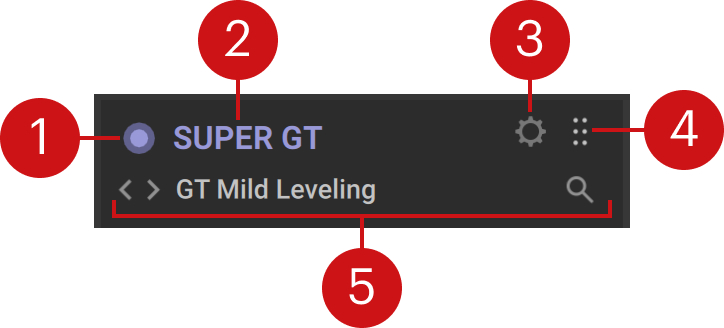 |
Effect on/off: Activates or deactivates the effect. If you deactivate the effect, it will not process any audio, and the audio will continue unaffected to the next slot on the right. The on/off switch also lets you copy and paste the effect: You can [option]+click (Mac) or [Alt]+click (Windows) the on/off switch to copy the effect, then [option]+[shift]+click (Mac) or [Alt]+[Shift]+click (Windows) the on/off switch of another slot to paste this effect there. This also works between different tabs of the FX page.
Effect name: Shows the name of the original effect. Clicking the name will switch to this slot if the advanced view is active.
Advanced View (cog wheel icon): Switches the effect slot between the advanced and compact views.
Slot handle: Clicking and dragging this handle horizontally lets you move the slot to another position in the effect chain.
Effect preset selector: Shows the name of the loaded effect preset. effect presets contain values for all the parameters of an effect. You can click the preset name to open the FX Browser and choose another preset from the factory library, or click the left and right arrows to cycle through the presets in the current Result list of the FX Browser. You can also [command]+click (Mac) or [Ctrl]+click (Windows) the preset name to remove the effect. By default the FX Browser navigates in the category of the current effect preset. With both the preset name and the left/right arrows, you can use [Shift]+click to clear the selected category and extend the Result list to the entire preset library. For more information on the FX Browser and the Result list, refer to Browsers.
Advanced view
By default, the effect slot is in compact view and shows up to the main effect controls in its lower part, directly under the slot header:
|
You can switch to the advanced view by clicking the cog wheel icon in the slot header. In advanced view the slot extends to the whole tab width and shows additional controls for the loaded effect:
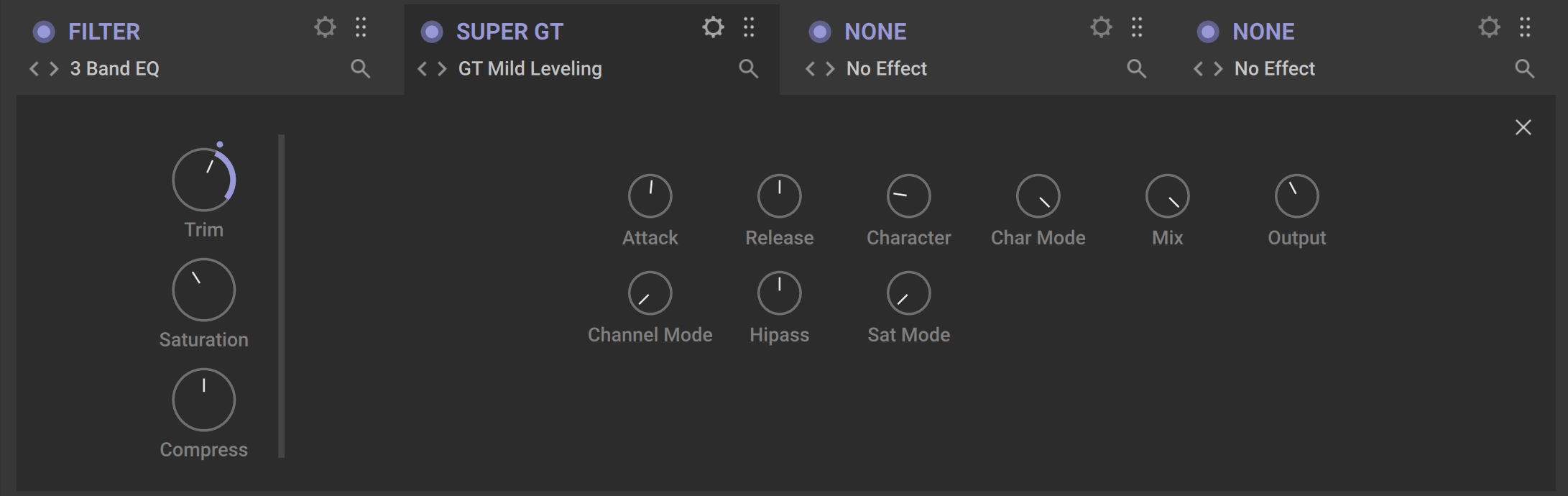
By clicking the effect name in the other slots you can switch to their advanced view. The type and number of the additional controls available in the advanced view vary with each effect.
Note
The additional controls available in the advanced view cannot be modulated, contrary to the effect’s main controls also available in the compact view. For more information on modulation, refer to Modulating your sound.