Settings page
The Settings page in Circular lets you adjust MIDI control and user sample settings for your instrument.
The Settings page provides a few global settings for your instrument.
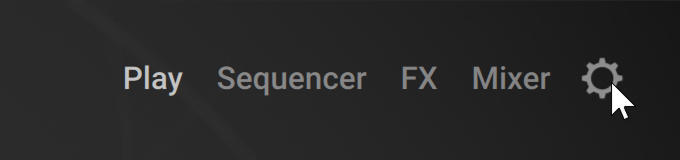
To open the Settings page, click the cog wheel icon in the top right corner of the instrument:
The Settings page contains the following controls:
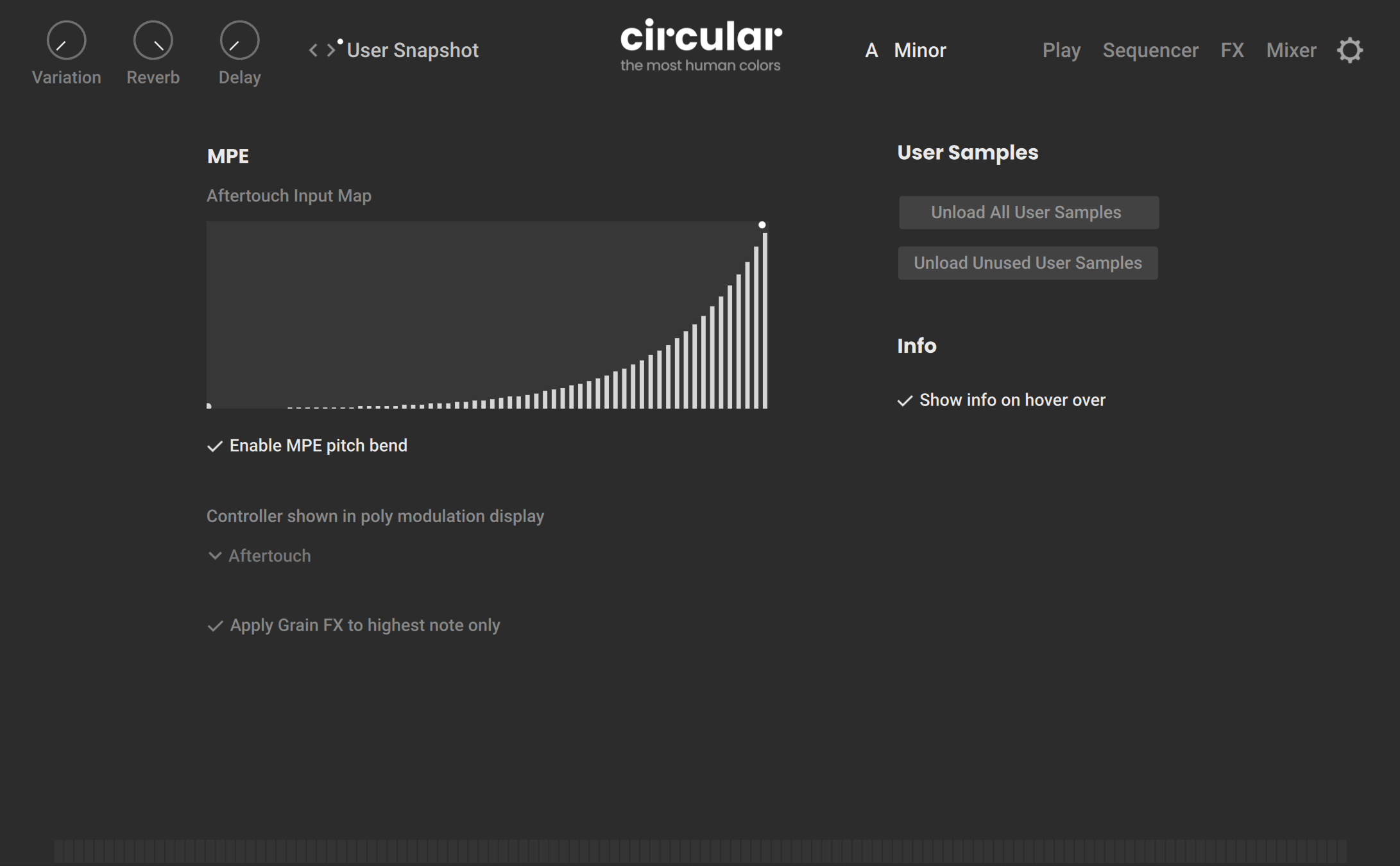
MPE section:
Aftertouch Input Map: Adjusts the response curve for the aftertouch. The horizontal axis represents the incoming aftertouch and the vertical axis the aftertouch used in the instrument. You can adjust the response curve directly on the display:
You can create a point by clicking in the display.
You can delete a point by clicking it.
You can move a point by dragging it.
You can modify the curve of a segment by [option]+dragging (Mac) or [Alt]+dragging (Windows) the segment.
You can move two adjacent points vertically by [command]+[option]+dragging (Mac) or [Ctrl]+[Alt]+dragging (Windows) the segment in between.
Enable MPE pitch bend: When active (default setting), the instrument reacts to pitch bend data on all the MIDI channels 1–16. If you deactivate it, the instrument will only process pitch bend data on channel 1 (standard MIDI input) and ignore pitch bend data on channels 2–16 (MPE channels).
Controller shown in poly modulation display: Lets you show the Aftertouch values or the Slide values as vertical bars in the Input Note Indicator at the bottom of the instrument.
Apply Grain FX to highest note only: When active, the Step effects of the Grain category are applied only to the highest note. This can be very useful if your keyboard provides only monophonic aftertouch: On such a keyboard all the held keys would trigger the same Step effect, which could generate too many grains. If this happens, you can activate this option to reduce the number of grains.
User Samples section:
Unload All User Samples: Unloads all the user samples currently loaded in the instrument.
Unload Unused User Samples: Unloads all the unused user samples currently loaded in the instrument.
Info section:
Show info on hover over: Displays useful information at the bottom of the instrument when you hover over specific control elements with the mouse.